Desk & tech / A closer look
How to Choose a Monitor for Work: Size, Text and Laptop Connections
The best work screen is the one that fits your desk, your eyes and your computer. Start with those three checks before paying for a longer feature list.
Start here
The useful answer
As an Amazon Associate, we earn from qualifying purchases. How our links work ↗
The useful answer
Choose a work monitor in this order: daily tasks, usable desk space, comfortable text size, connection compatibility and total setup cost. A 27-inch 4K display is worth considering for sharp text with scaling, but it is not automatically the best fit for a shallow desk. Verify video support, charging power and external-display limits on your exact laptop.
Compare the buying routes ↓| Main job | Useful starting point | Do not overlook |
|---|---|---|
| Documents and spreadsheets | Comfortable text size and room for two windows | Scaling, stand depth and actual viewing position |
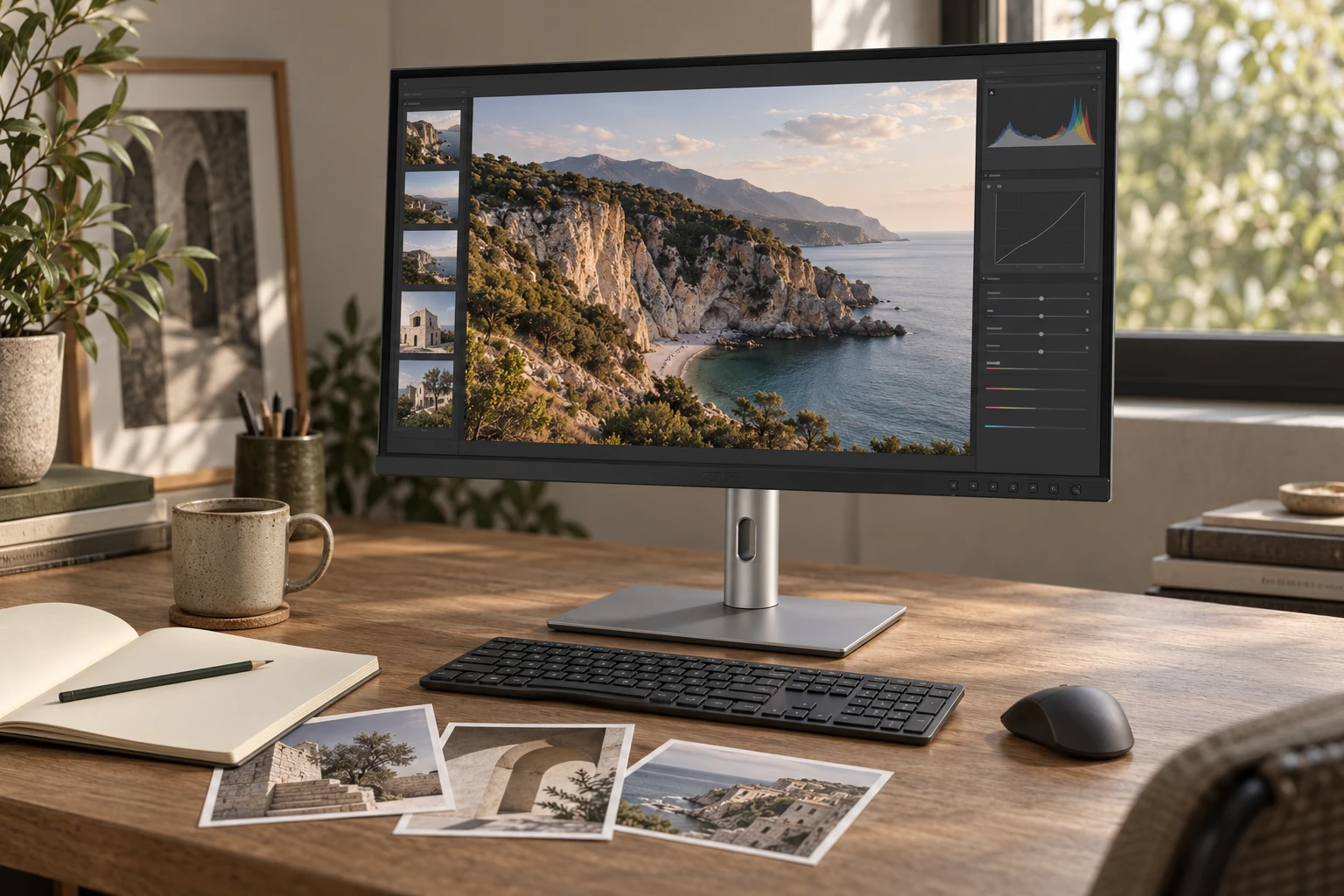
| Photo and design work | A suitable color-managed display workflow | Color modes, calibration needs and application support |
| Laptop hot-desking | A compatible USB-C or Thunderbolt connection | Host video output, power delivery and cable capability |
| A very shallow desk | A smaller screen or a shallower mounting arrangement | Safe support and enough space for keyboard and mouse |
A monitor purchase often starts with the wrong question: “Which screen has the best specifications for the money?” A better first question is “What is difficult about working on my current screen?” You might need clearer text, more room for a spreadsheet, fewer cables or a stand that leaves space for your keyboard. Each problem points toward a different purchase.
This guide is a buying framework for everyday office work, with creative tasks considered where they change the decision. It is not a laboratory monitor test. We use manufacturer specifications for model examples and link to deeper guides where useful. No screen is guaranteed to make you productive, and a high resolution does not compensate for an uncomfortable desk arrangement or an incompatible laptop connection.
1. Describe your windows before choosing screen size
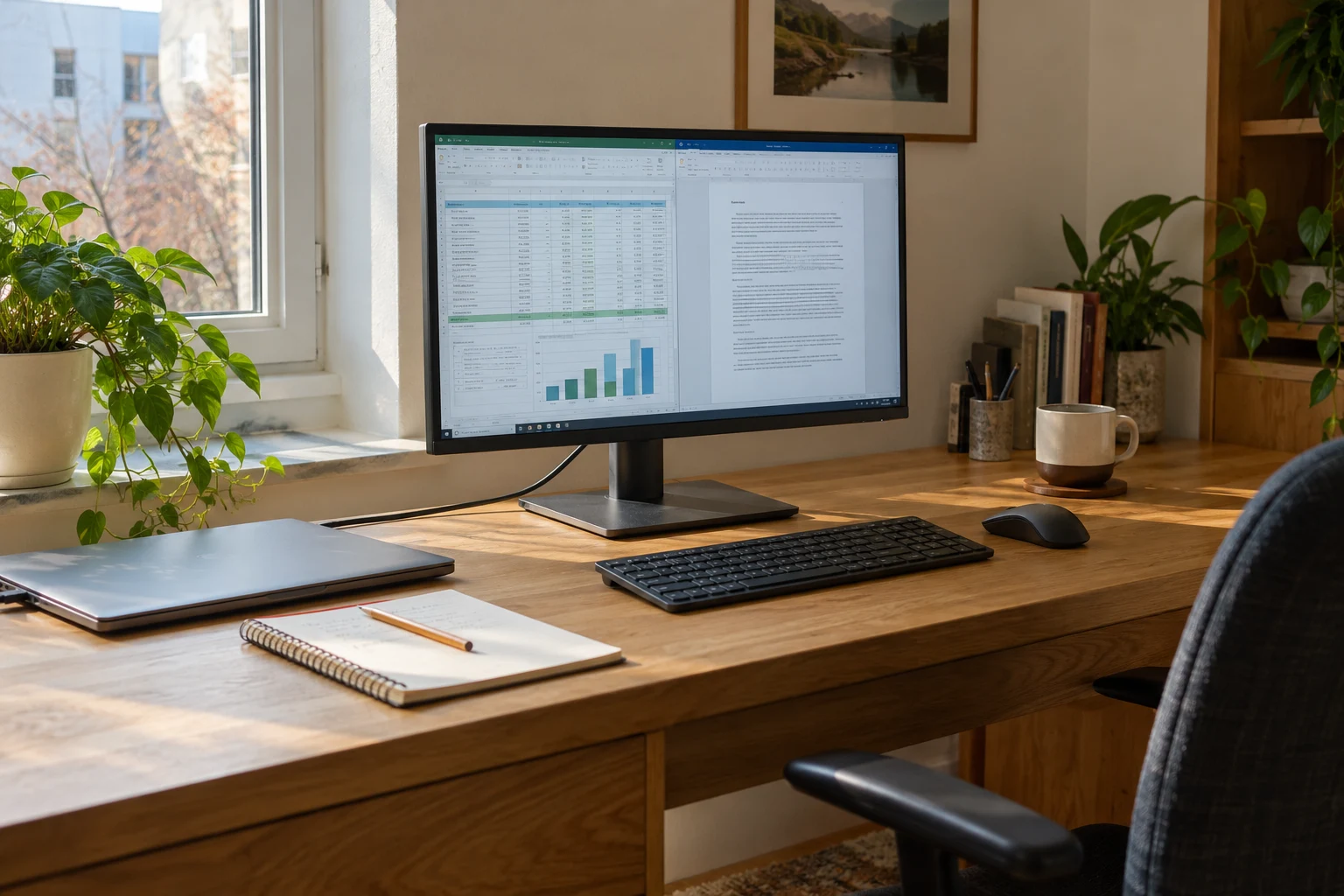
Open the applications you use on an ordinary workday. Put them in the arrangement you actually want: perhaps a document beside a browser, a spreadsheet with many columns, or a code editor with a reference window. Notice whether the problem is tiny text, constant window switching or an inability to see enough rows. “I need a bigger monitor” may be covering several different issues.
Write down your two most demanding tasks. A writer who wants comfortable text may prioritize pixel density and a pleasant viewing position. Someone reconciling spreadsheets may value working area and window management. A designer may need a defined color workflow. A screen that is excellent for one of those tasks can still be an unnecessary expense for another.
Try a few free changes first. Increase application text size, adjust system scaling and use a window arrangement that keeps your main task centered. Check whether the existing monitor is running at its native resolution. A connection or setting problem can make a good panel look poor. If the text is already sharp enough after those changes, the next purchase might be a stand or input device instead.
Also decide what you do not need. Occasional video calls do not automatically require a monitor with an integrated camera. Email and documents do not automatically require a wide-gamut creative display. Defining the real work prevents an attractive feature bundle from turning into the budget itself. You can still choose extras, but you will know which ones are optional.
2. Measure the usable desk, not just the desktop
A desk's listed depth is not the same as the distance available between your eyes and the screen. Account for the stand, wall clearance, cable bends, keyboard and the position of your chair. A large stand can push a monitor forward even when the panel itself is thin. Measure the arrangement rather than assuming a diagonal size will fit because the desktop is wide.
Make a simple mock-up using cardboard or a sheet of paper to represent the screen width. Sit normally and imagine the panel at the proposed location. Can you see its edges without constantly turning your head? Is the main work area in front of you? The mock-up cannot reproduce text quality, but it can expose a screen that dominates a small desk before you order it.
OSHA's monitor guidance is a useful starting point for positioning and viewing comfort, not a promise that one fixed distance suits every person. Your eyesight, glasses, task and screen size matter. Adjust the setup so that you can read without leaning forward or holding an awkward posture. Persistent discomfort deserves appropriate professional advice rather than a shopping claim.
If an arm is part of the plan, verify the monitor's mounting pattern and weight, the arm's supported range, the desk construction and clamp clearance. A hollow or unsuitable desktop may need a different solution. Buying a larger monitor on the assumption that “an arm will fix it” creates two compatibility problems instead of one. Measure and check the support first.
3. Understand size, resolution and scaling as separate choices
Screen size tells you the physical diagonal. Resolution tells you the pixel grid. Scaling controls how large interface elements appear. A 27-inch 4K screen and a 27-inch QHD screen occupy a similar physical area, but they do not offer the same pixel density. The higher-resolution screen can display finer detail, while your chosen scaling determines usable text and interface size.
Do not buy 4K expecting to use every pixel as extra tiny workspace. Many people use scaling to keep text comfortable while benefiting from a denser pixel grid. The useful result may be clearer text at a familiar size rather than twice as many readable windows. Applications and operating systems can behave differently, so try your own software if you have access to a comparable display.
A 24-inch route can make sense on a compact desk or for a focused single-window workflow. A 27-inch route can offer more physical room for side-by-side tasks. A 32-inch route asks for more attention to viewing distance and desk space. None of those sizes is universally correct. A smaller sharp screen at the right distance can be more useful than a larger screen you cannot position comfortably.
If you are deciding between common 27-inch resolutions, our 4K versus QHD work guide goes further into the tradeoff. The buying rule here is simple: judge readable working space at the scaling you intend to use. A specification sheet that says more pixels cannot tell you whether your accounting software or browser will feel comfortable all afternoon.
4. Match the panel and surface to the room
The room changes how a monitor looks. A window directly behind you can create reflections; a bright window behind the screen can make the surrounding contrast uncomfortable. Move the desk or adjust blinds before assuming a more expensive panel will solve everything. A monitor's advertised brightness is not a substitute for a workable lighting arrangement.
Matte and glossy surfaces handle reflections differently. Neither is automatically better for all offices. Look at the direction of your light sources and whether you can control them. A glossy display may show clear reflections in one room, while a matte surface changes their appearance rather than making all light disappear. Try to view candidate surfaces under conditions resembling your own desk.
For office work, compare the whole display rather than choosing by panel acronym alone. Text rendering, viewing position, brightness range, screen coating and the work you display all matter. If you are considering OLED, understand the manufacturer's guidance for static desktop content and coverage terms. Do not assume an expensive panel technology is automatically the least troublesome choice for long sessions of fixed spreadsheets.
For color-critical work, distinguish color gamut from color accuracy. A wider gamut does not mean every application will display every image correctly without color management. Define the output you need, the relevant color space and whether your workflow requires calibration. If you mainly write documents, those creative features may be less important than a usable stand and clear text at your preferred size.
5. Verify the laptop-to-monitor chain
USB-C describes a connector shape, not a guarantee of video output or a complete docking experience. Check the exact laptop port specification. Confirm that the chosen connection supports the resolution and refresh rate you intend, with the cable and any adapter included. If one part of the chain cannot carry the required signal, the label on the monitor will not rescue it.
Charging is a separate check. A monitor's stated power delivery is a maximum under its supported conditions, not proof that every laptop will charge at its highest rate. Compare the laptop's requirements, monitor output and cable capability. Under a demanding workload, a connection may not replace the laptop's original charger fully. Keep the original charger available until you have confirmed the arrangement works.
For multiple displays, consult the computer manufacturer's limits. Apple's MacBook Pro display guidance, for example, distinguishes configurations by model and chip. Do not assume every Mac or every USB-C laptop supports two extended external desktops through the same kind of dock. Mirroring, native extension and driver-based solutions are different arrangements with different requirements.
Make a connection checklist before checkout: exact computer model, operating system, host port, monitor input, target resolution and refresh rate, cable specification, charging need and peripheral ports. Then verify the chain from end to end. This looks less exciting than a thin bezel, but it prevents the most frustrating kind of new-monitor experience: a beautiful screen that does not connect as expected.
6. Buy stand adjustments before decorative minimalism
A monitor that looks clean in a photograph can still require an awkward stack of books in daily use. Check the stand's height adjustment, tilt and footprint. If your chair or desk cannot be adjusted much, those features may be especially valuable. The panel is only one part of a comfortable screen arrangement, and the supplied stand is part of the price you are paying.
Consider how often you move the setup. A shared desk may need easy height changes. A portrait workflow needs appropriate rotation clearance and software support. A fixed single-user desk may need only a straightforward stable position. Do not pay for an elaborate arm simply because every desk photograph includes one; the original stand may already do the job well.
Cable routing affects the useful space behind the monitor. Check whether ports face downward, sideways or backward, and leave enough room to connect cables without sharp bends. If you change laptops frequently, accessibility matters. If you use a hub, decide where it will sit and whether its upstream cable reaches comfortably. A tidy setup should still be easy to maintain.
Minimalism is more useful when it removes friction than when it hides everything. A few visible, properly routed cables are better than a strained connector behind a decorative panel. Before buying extra accessories, draw the actual connections and place the devices you already own. You may discover that a simpler monitor and one appropriate hub produce a better arrangement than a premium all-in-one purchase.
7. Compare real models by the job they solve
The ASUS ProArt PA279CRV is a research route for readers who need a 27-inch 4K display with creative-work features and USB-C connectivity. ASUS lists an IPS panel, wide color-gamut coverage and up to 96 W USB-C power delivery. Those specifications justify a closer look for the right workflow; they do not prove it is the best value for someone who only needs email and documents.
The BenQ MA270U is another 27-inch 4K route, with BenQ's model information emphasizing MacBook use and USB-C charging. Read our MA270U guide for the checks around computer compatibility, software and the actual setup. Pass if you do not need its particular integration or if a less expensive compatible display already meets your work requirements.
The Dell U2725QE sits in a more feature-heavy connection and office-work discussion. Our U2725QE guide separates the documented features from the experience we cannot claim without hands-on measurements. Consider that kind of model when its connection functions and supported refresh rate solve real requirements. Do not choose it simply because a larger specification list feels safer.
These are three comparison routes, not an instruction to buy the most expensive monitor. If your main issue is desk depth, begin with our small-workspace guide. If the current monitor is satisfactory but the connection is inconvenient, read the monitor versus dock guide first. A useful recommendation can be a smaller purchase or no monitor purchase at all.
8. Compare the complete setup cost
Include the items required to make the display work: a suitable cable, adapter if necessary, any genuinely required dock, and safe mounting hardware if you will not use the stand. Do not count accessories as free merely because they are small. A lower-priced monitor plus several missing components can cost more than a display whose included connections already fit your computer.
Check the exact regional model and bundle. A familiar family name can hide differences in power cords, included cables, ports or warranty arrangements. Read the seller's listing and manufacturer documentation together. Current prices, stock, delivery and return policies belong to the retailer's actual offer, not to a static number in an article. Our linked searches may show other models, so match the full reference.
Use owner reviews to identify questions worth checking. Repeated comments about wake-from-sleep behavior, a particular laptop connection or menu controls can be useful. Confirm the review concerns the same model and firmware context where possible. Do not turn an average star score into proof of text quality, color accuracy or universal compatibility. Those claims need more specific evidence.
If buying for employer-managed equipment, confirm that any required software or driver is allowed. A dock or monitor feature that depends on software you cannot install may not solve the problem. Ask the relevant support team before purchasing. This is an easy detail to overlook when shopping at home for equipment that must work with a locked-down work laptop.
9. Test the actual work during the return period
Keep the packaging while you check the reference, physical condition and included parts. Connect the monitor using a supported direct route first, then add the dock or peripherals. Confirm native resolution, selected refresh rate and a comfortable scaling setting. Use your real document, spreadsheet and browser windows. A vivid wallpaper is not a useful substitute for the work you bought the display to do.
Try sleep, wake and reconnection in the way you normally use the computer. Check charging under your usual workload, keyboard and mouse connections, and any camera or storage device sharing the connection. If something fails, simplify the chain and follow the manufacturer's troubleshooting guidance before concluding that a whole product category is unsuitable. Record the exact cables and settings when asking for support.
Evaluate the room at more than one time of day. A reflection that is invisible in the evening may be intrusive during an afternoon meeting. Adjust screen position, lighting and brightness sensibly. Do not keep an uncomfortable arrangement merely because you spent a long time choosing it. Follow the seller's conditions if the monitor does not meet the needs you identified.
The right monitor should make the task easier to see and the setup easier to use. It need not have the highest resolution, largest diagonal or most ports. If it fits your desk, renders your work comfortably and connects reliably to your actual computer, it has passed the tests that matter more than a spectacular product photograph.
Before you decide
Common questions
Is 27-inch 4K always best for office work?
No. It is a useful route for sharp text with suitable scaling, but desk depth, eyesight, software and budget can favor another size or resolution. Judge your real working layout rather than resolution alone.
Will any USB-C cable connect my laptop to a monitor?
No. The computer port, monitor port and cable must support the required video mode. Charging capability and data speed are separate checks. Use the specifications for the exact connection chain.
Should I replace my current monitor or buy a dock?
Identify the actual problem first. If the panel and text already suit you but connecting peripherals is inconvenient, an appropriate dock may be enough. If the screen itself is unsuitable, a dock cannot fix that.
Featured in this guide
The next good question
Keep exploring.
 Read the story ↗
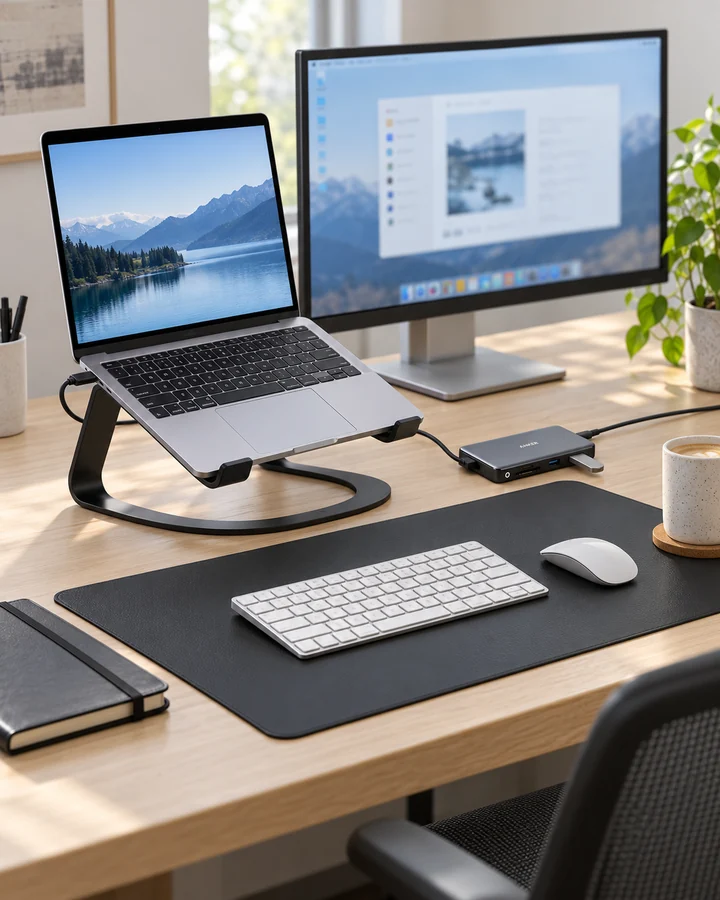
USB-C Laptop Desk Setup: A Practical Six-Piece Kit
One screen, fewer loose connections and six clearly defined jobs. Start with the laptop's limits, then buy only the pieces your desk is missing.
 Read the story ↗
144Hz Monitor for Office Work: A Useful Upgrade or a Gaming Distraction?
The refresh-rate number has escaped the gaming aisle. That does not mean it should be the first thing you buy for a desk.
 Read the story ↗
BenQ MA270U Review: A Simpler MacBook Desk, With a Few Checks
The right cable helps. Comfortable text and a routine that works matter more.