Desk & tech / A closer look
144Hz Monitor for Office Work: A Useful Upgrade or a Gaming Distraction?
The refresh-rate number has escaped the gaming aisle. That does not mean it should be the first thing you buy for a desk.
Start here
The useful answer
As an Amazon Associate, we earn from qualifying purchases. How our links work ↗
The useful answer
A 144Hz monitor can make pointer movement and scrolling look smoother, but it does not add workspace or sharpen stationary text. Prioritize suitable resolution, size, placement and connectivity, then treat a higher refresh rate as a worthwhile extra if the full setup supports it.
| Your complaint | What to investigate first | Where 144Hz fits |
|---|---|---|
| Text is too small or blurry | Resolution, scaling and signal quality | It does not solve static text clarity |
| Scrolling looks choppy | Actual refresh setting and application behavior | A higher supported rate may help |
| Two windows feel cramped | Screen size and resolution | Refresh adds no pixels |
| Laptop will not charge | Ports and Power Delivery requirements | Refresh is a separate specification |
A few years of monitor shopping can give you a strange habit: seeing a higher refresh rate and immediately assuming the product belongs to gaming. Then an ordinary-looking office screen turns up with 144Hz, an adjustable stand and no dramatic racing-stripe aesthetic. It is worth pausing. What does that number actually do during a day of documents, browser tabs and calls?
The answer is useful but limited. Smoother movement can be pleasant, and office workers are allowed to enjoy it. It is not a substitute for readable text, a suitable desk layout or the connections your laptop needs. This guide separates the benefit from the sales shorthand so that a 144Hz monitor becomes one part of a sensible work setup rather than an excuse to ignore the rest.
What 144Hz means in plain language
Refresh rate describes how often a display updates each second. At 144Hz, the interval between updates is about 6.9 milliseconds; at 60Hz it is about 16.7 milliseconds. Those figures are simple divisions of one second, not measurements from a review sample. They explain why a display has more opportunities to show a changing image, not how quickly every pixel actually completes a transition.
That distinction matters. Refresh rate, response time and input latency describe different things. A large number on a box does not establish the complete motion performance of the screen. For office buying, you do not need to become a display engineer. You do need to avoid treating one specification as a shortcut to every desirable quality a monitor might have.
The office benefit appears when something moves
Think about dragging a window, moving a pointer across a large screen or scrolling a long document. These are ordinary desk actions with visible motion. A higher refresh rate can make that motion appear more continuous when the rest of the system keeps up. The benefit does not require a game, just as a comfortable chair does not require a racing simulator.
Now think about a paragraph sitting still while you read it. Refreshing that unchanged paragraph more frequently does not add detail to the letters. If the text looks wrong because of resolution, scaling or an unsuitable signal, another refresh number is not the direct cure. Name the actual problem before choosing the specification that seems most exciting in an advertisement.
Two current Dell examples make the distinction concrete
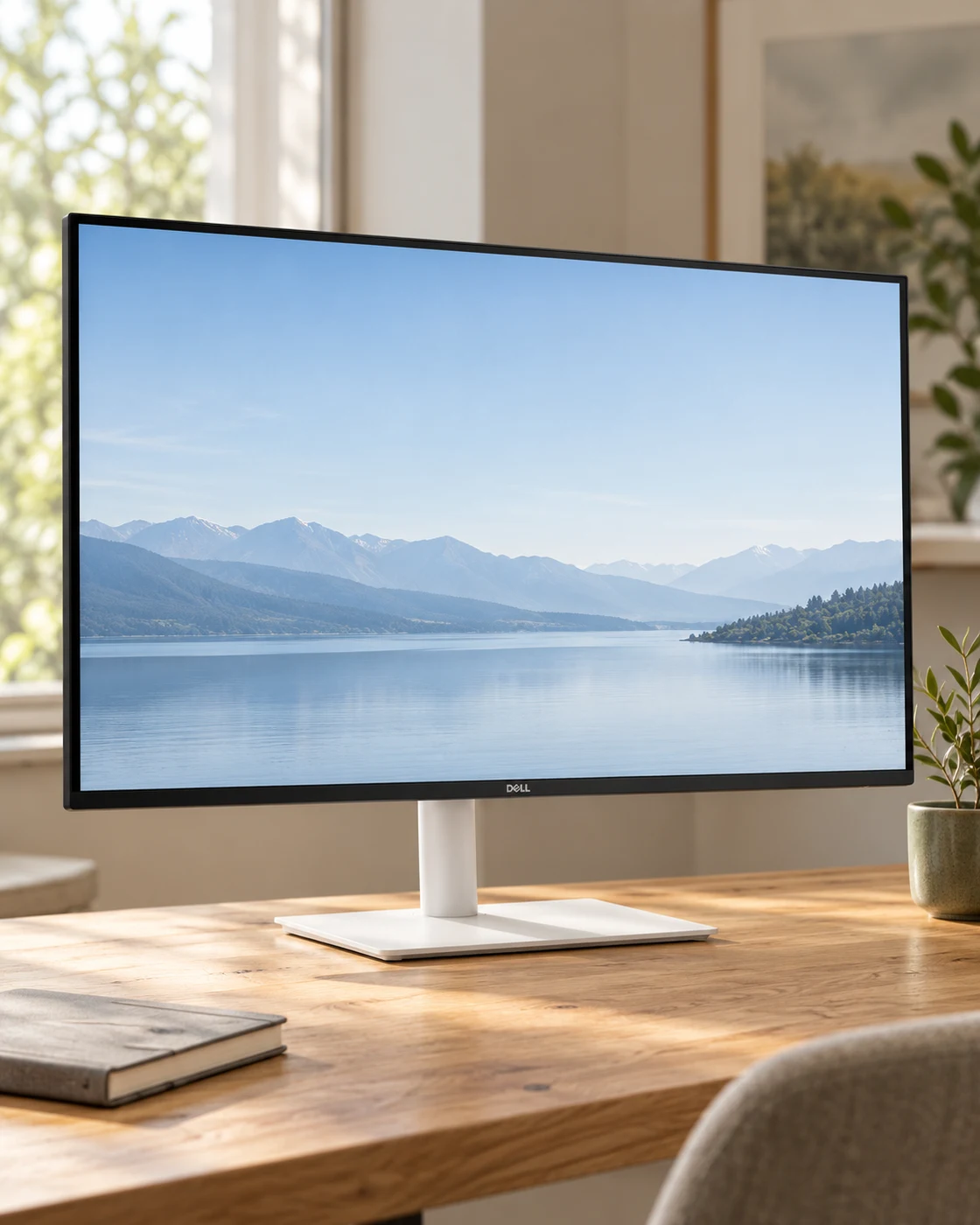
Dell lists the S2725DSM as a 27-inch QHD IPS monitor supporting 2560 by 1440 at 144Hz, with height, pivot, swivel and tilt adjustments. The smaller S2425HSM is a 23.8-inch FHD 144Hz model. These are current product specifications, not our measurements or a claim that the models represent the whole office-monitor market.
Their shared refresh headline should not hide the difference in workspace. One is a compact FHD route; the other gives you a larger QHD canvas. If you regularly place two documents beside each other, that distinction can matter more than the refresh rate they share. The right comparison begins with the work you want to see, then considers how you want movement to feel.
More pixels and more updates are different upgrades
Resolution determines the number of pixels available to draw the image. Refresh rate determines how often a new image can be presented. Buying one does not automatically provide the other. A detailed still image can look excellent on a screen with a modest refresh rate, while a very fluid screen can still have insufficient workspace for the tasks you do.
Write your three most common screen activities in order. If they are reading dense text, comparing detailed documents and editing photographs, clarity and workspace deserve early attention. If you frequently move around large canvases or scroll through long pages, motion quality may carry more weight. Most people do a mixture, which is why a balanced monitor can be more useful than a single spectacular number.
A simple comparison is better than an online argument
If you can try a high-refresh screen, compare it at two supported refresh settings while keeping the same native resolution. Move the pointer, drag a window and scroll a familiar page. Then stop moving and read. This makes the difference easier to separate from size, scaling and a completely different panel. It is a personal observation, not a laboratory benchmark.
Give yourself enough time to notice whether the change matters. Some people value it immediately; others prefer to spend the budget elsewhere. Do not assume that a stranger’s strong reaction must become yours. A monitor is a tool you will face for many hours, so the useful preference is the one connected to your own work and comfort rather than to a specification debate.
Check the actual setting before judging the purchase
Microsoft’s current guidance places refresh-rate selection in Windows display settings under Advanced display. The available choices depend on the connected hardware and supported modes. Check both the selected screen and resolution, particularly when several displays are attached. A headline on the product page does not confirm what your computer is outputting now.
If the higher rate is missing, inspect the signal path before blaming the monitor. A laptop port, adapter, cable, dock or duplicated-display mode can impose a limit. Consult the exact manuals and test a simpler direct connection when appropriate. Buying another cable blindly is less useful than finding which link in the chain cannot support the mode you are trying to use.

A dock can change the answer
Many office setups route video through a hub or dock. That makes the desk convenient, but it also adds another device with its own display limits. The fact that a dock supports a resolution does not mean it supports that resolution at every refresh rate, on every laptop or alongside every second display. Read the complete compatibility conditions.
Sketch your setup from computer to screen. Write the port and cable type at each step, then compare the supported mode of each component. If one specification remains vague, ask the manufacturer or choose a documented route. Our hub and dock guide can help with the broader connection decision. Refresh rate is a system outcome, not a feature that the monitor can force through any connection.
Do not sacrifice the stand to win the refresh-rate row
A screen that sits too low or too close can be annoying regardless of how smoothly a window moves. Height adjustment, available desk depth and the ability to position the monitor sensibly affect the whole working day. If your budget is limited, compare the complete setup rather than buying a fixed stand and assuming you will solve placement later.
Measure before ordering. Include the stand footprint, keyboard position and the space you need for normal desk tasks. If you plan to use an arm, confirm the mounting pattern, weight and desk construction. A monitor arm is not automatically compatible because the screen falls inside a broad diagonal-size range. Physical setup is a practical purchase requirement, not a decorative detail to add after the specifications are chosen.
Smooth motion is not a medical promise
Monitor advertising often connects display features with comfort. Treat those statements carefully. A high refresh rate does not establish that a particular screen will solve your eye discomfort, and a certificate does not remove the need for suitable brightness, placement and breaks. This article compares work-display choices rather than offering a treatment for symptoms.
For a purchase decision, observe the conditions that bother you. Is the screen much brighter than the room, are reflections forcing a posture change, or are you leaning forward to read small text? Those practical details can point toward a more relevant adjustment than replacing a monitor on the strength of one headline. Persistent symptoms deserve appropriate professional advice rather than an expensive guess about a product feature.
The response-time number needs its own context
A monitor may advertise a very short response-time figure measured under a particular mode or method. It should not be read as the total delay of your entire computer setup. Different overdrive settings can also change the visual result. We have not measured these Dell panels, so we are not claiming a specific response curve or declaring one setting objectively best.
Use the normal preset first and compare manufacturer-supported options if you see a problem. Read independent measurements when available, paying attention to the test method and refresh setting. A useful review explains the conditions behind a number. A table that places every advertised millisecond figure in one ranking without those conditions can look precise while being a poor guide to the actual experience.
A modest monitor can still be the right office purchase
The Philips 241V8LB is another compact route in our collection. It belongs on a shortlist when the job is a straightforward small workspace rather than maximum specifications. Compare its actual stand, inputs and current seller offer. Do not assume that every reader should move up to a more expensive monitor simply because a higher refresh option exists.
The sensible budget question is what the next dollar improves. If you are moving from a cramped laptop screen, a modest external display may be a major practical change. If you already have a suitable screen, an incremental motion upgrade may be less urgent. The value of a monitor depends partly on the setup it replaces, which is why a universal best-buy answer is often misleading.
Three workdays, three priorities
Imagine a small-desk user who spends most of the day answering messages and reading documents. A compact monitor with appropriate placement may solve the main problem. A second user compares spreadsheets and browser research side by side; QHD workspace may be the more meaningful step. A third does careful visual work and needs to investigate color behavior and resolution before worrying about high refresh.
All three can enjoy smoother motion, but it occupies a different place in each decision. That is the point of defining the day first. A monitor review becomes more useful when it tells you who should pass as clearly as who might buy. The goal is not to make every specification sound essential. It is to spend the budget where the improvement will actually be noticed.
A sensible first-day setup
Connect the monitor using a documented signal path, select the native resolution and verify the intended refresh rate. Set a readable scaling level and adjust brightness for the room rather than leaving every factory default untouched. Position the screen before deciding that text is too small. A different viewing distance or scaling choice can change the experience substantially.
Then work normally before making further adjustments. Keep a short note of any real problem: an unavailable mode, intermittent signal or an application that behaves differently. Change one variable at a time so you can identify what helped. This is more informative than changing every menu option in the first half hour and losing track of the original issue. Keep packaging while you complete the checks allowed by the return terms.
Mixing screens can reveal what you actually value
Many desks keep an older display as a second screen. That can be useful, but it also makes differences in scaling, brightness and motion more noticeable when you move a window between them. Do not assume that every difference is a fault in the new monitor. Compare the resolution, selected refresh rate and settings before deciding what needs to change.
Think about the role of each screen. A secondary display that mainly holds notes or a call window may not need to match the main screen’s motion capability. If you constantly move a working document across both, a more consistent arrangement may matter more. There is no requirement to replace a functioning secondary monitor just because the new one has a higher number.
Try assigning tasks deliberately for a few days. Put the work that benefits most from the new screen on it and leave static supporting material on the old one. If that arrangement works, you have improved the desk without turning one purchase into two. If the mismatch remains distracting, you can make a second decision from actual experience. The useful sequence is observe, configure and then buy only if a clear problem remains.
Where 144Hz belongs on the shortlist
For office work, 144Hz is a potentially pleasant feature after the essentials agree: the right size, suitable resolution, a workable position and a compatible connection. It should not be dismissed merely because gamers also like it. It also should not outrank the features that solve your actual desk problem. Smoothness and usefulness overlap, but they are not interchangeable.
Use the product cards below to compare the selected compact and QHD routes. Follow the broader work-monitor guide if the requirements are still unclear. The best outcome is a screen that helps your particular workday, with a refresh setting you can actually use. A bigger number is satisfying; a better complete setup is more likely to stay satisfying.
The questions worth asking
Before you decide.
Is 144Hz necessary for spreadsheets?
No. It may improve the visual smoothness of movement, but it does not improve the content of a stationary spreadsheet or add cells to the workspace.
Will a 144Hz monitor automatically run at 144Hz?
Not necessarily. Check the selected resolution and refresh rate, the laptop output, the cable, any dock and the monitor’s input-specific limits.
Should I choose 144Hz FHD over 60Hz 4K?
That depends on the job. Compare text detail, scaling and workspace needs before motion smoothness. These are different dimensions of performance.
Featured in this guide
The next good question
Keep exploring.
 Read the story ↗
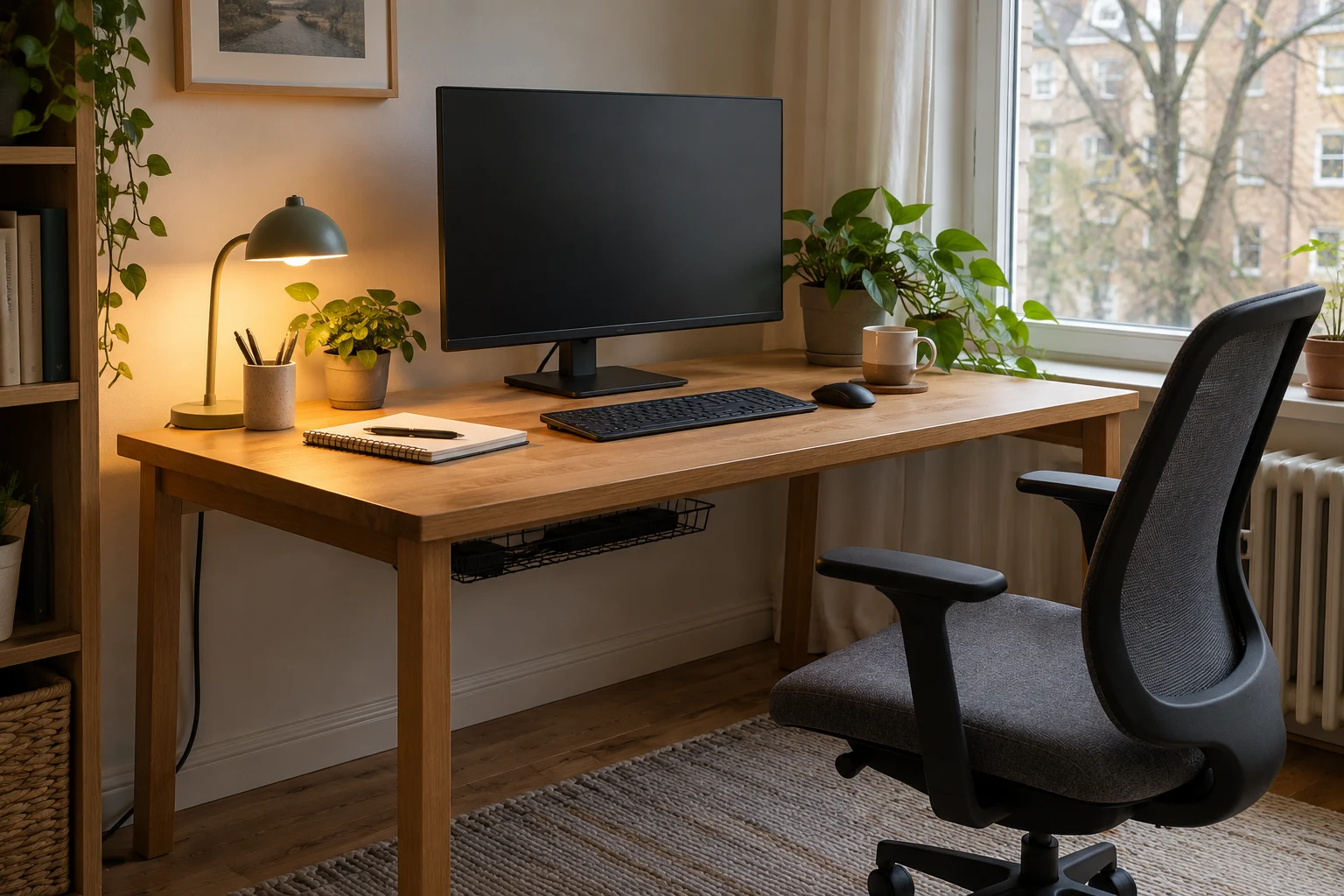
Which Desk Upgrade Should You Buy First? A Home Office Buying Order
A better desk starts with the thing that interrupts your day. Fix that first, then stop buying when the problem is solved.
 Read the story ↗
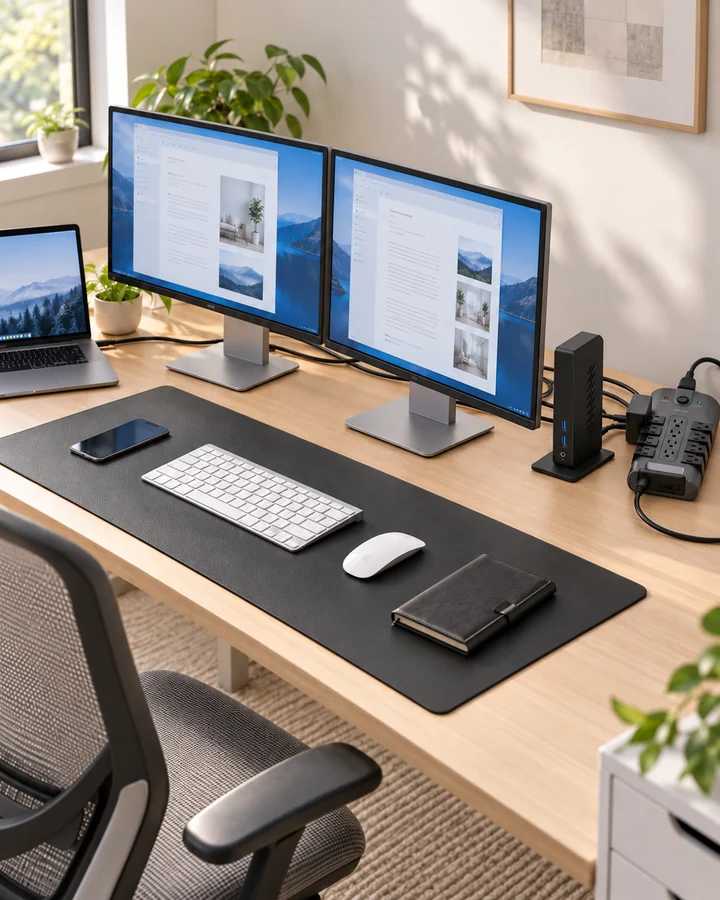
Dual Monitor Office Setup: A DisplayLink Desk Kit Explained
Two work screens need a compatible connection plan. Here is where the UD-3900Z fits, where it does not, and how five supporting accessories earn their place.
 Read the story ↗
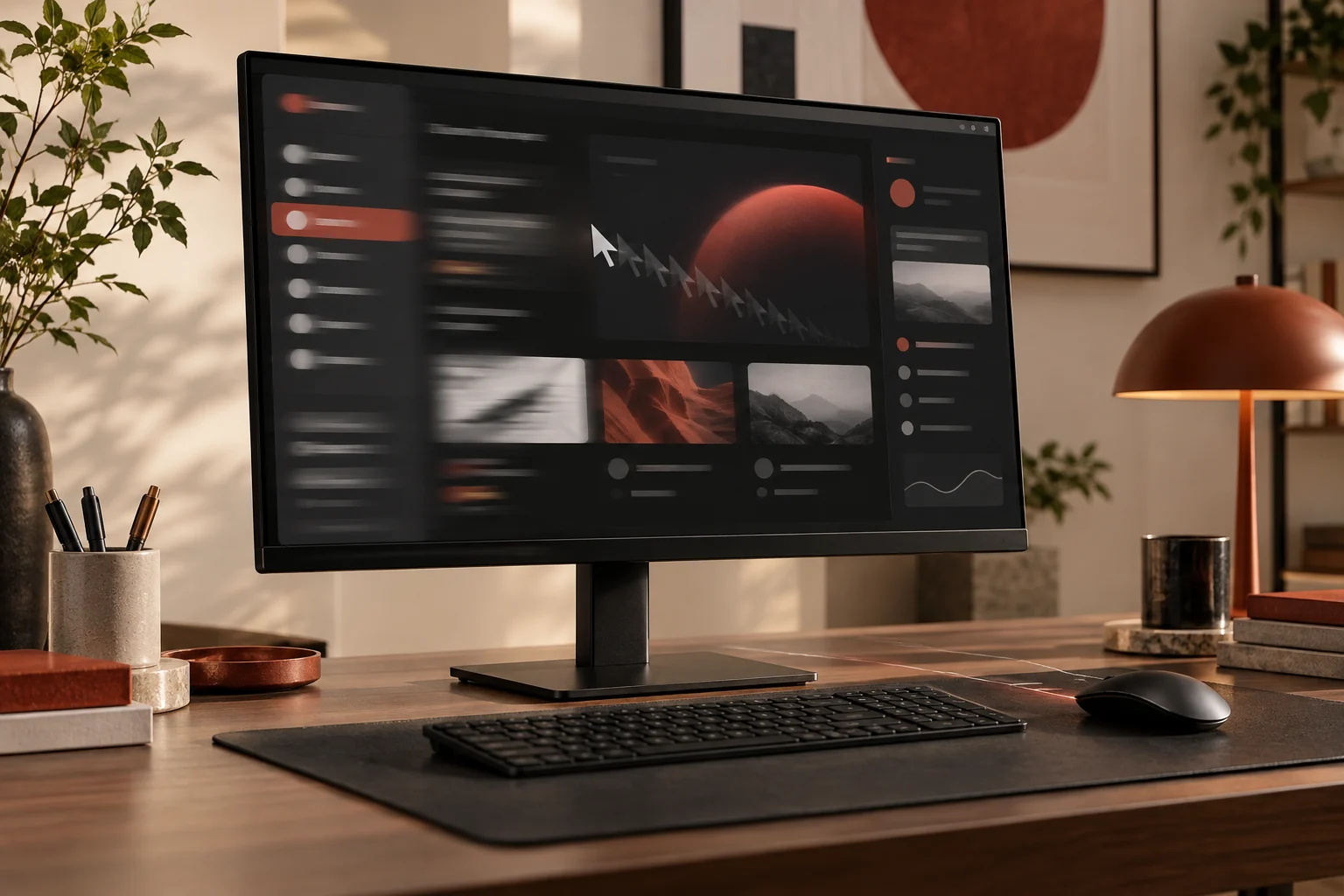
60Hz vs 100Hz Monitor for Office Work: Is the Upgrade Noticeable?
What a 100Hz office monitor changes, what it does not, and when resolution, panel quality, or an adjustable stand should come first.