Desk & tech / A closer look
USB-C Laptop Desk Setup: A Practical Six-Piece Kit
One screen, fewer loose connections and six clearly defined jobs. Start with the laptop's limits, then buy only the pieces your desk is missing.
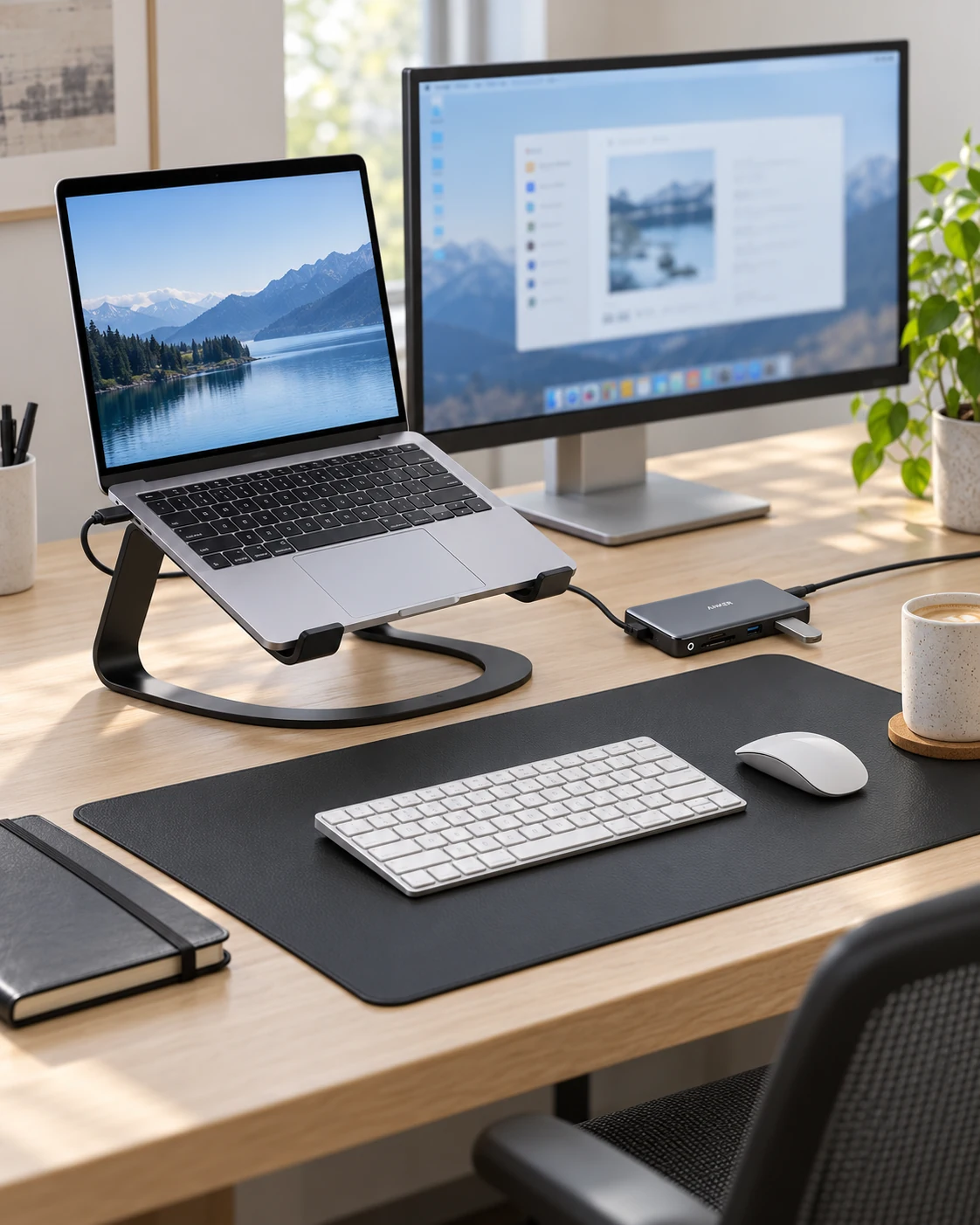
Start here
This kit suits a supported USB-C laptop, one HDMI monitor and external input devices. Check video support and the laptop's power requirement first: the Anker 555 has one HDMI output and up to 85 W pass-through laptop power with a suitable supply. The stand, pad, power strip, phone stand and ties solve separate layout jobs.
As an Amazon Associate, we earn from qualifying purchases. How our links work ↗
A useful laptop desk has a fairly ordinary ambition: sit down, connect the computer, and get on with the work. The trouble starts when one small purchase creates three more decisions. A stand lifts the screen but makes the built-in keyboard awkward. A hub adds HDMI but needs a separate charger. A wide mat looks tidy until it takes over the only clear space for a notebook.
This six-piece USB-C desk setup gives those decisions an order. The Anker 555 handles one external display and everyday connections; the Twelve South Curve raises the laptop; the Aothia pad, Anker 351 power strip, Anker 313 phone stand and ONE-WRAP ties organize the surrounding jobs. Treat it as a layout to adapt. Keep a keyboard, mouse, monitor and charger you already like, and buy only the missing pieces.
The quick answer: start with the computer
This kit makes sense for a supported USB-C laptop, one HDMI work screen, an external keyboard and mouse, and a desk with enough depth for an elevated laptop. Its main constraint is the Anker 555: HDMI depends on the host port supporting video, and pass-through laptop power is up to 85 W with a suitable supply. It will not turn every USB-C socket into a display output or replace every laptop charger.
If you need two independent external monitors, stop here and read our hub and dock comparison. If the current desk already works through a direct monitor cable, a hub may add little. The strongest reason to choose this setup is a repeated connection or layout problem you can actually name.
Who this laptop desk setup suits
Think of a person who writes, studies, manages spreadsheets or works through a browser, then takes the laptop elsewhere at the end of the day. Ethernet, a card reader and accessible USB ports can be handy. The laptop screen can hold reference material while the larger monitor carries the main task. Leaving the desk accessories in place makes the next working session easier to begin.
A permanent desktop computer has different priorities. So does a workstation driving several high-resolution screens or a laptop that regularly needs more power than this hub can deliver. Those buyers should decide the display and charging architecture first. Matching accessories by color will not solve a host-port limitation. For this kit, the existing computer is the starting specification, not an item to replace just to justify the accessories.
Three checks before you order anything
First, identify the exact USB-C port you will use. The connector shape alone does not confirm video output, data capability or charging behavior. Read the laptop's port description and display support information. Then check the intended monitor mode, including its resolution, refresh rate and input. A screen lighting up at a lower setting is different from getting the mode you planned.
Second, read the laptop's original power-adapter rating. The Anker 555 accepts up to 100 W at its power input, with up to 85 W available to the laptop after its operating allowance. The selected hub does not include a wall charger. A suitable supply and cable matter; adding the hub cannot increase the output of a smaller charger already in the drawer.
Third, measure the real work area with the keyboard and mouse in place. The Aothia pad in this guide is about 800 by 400 mm. The fixed Curve stand also needs a stable footprint behind it. Leave room for the monitor stand, cable bends and comfortable mouse movement. An empty desk measurement can be misleading once all those objects return.
Six products, six specific jobs
| Product | Its job | The important limit |
|---|---|---|
| Anker 555 A8383 | One-screen connections | Host video support; up to 85 W laptop power |
| Twelve South Curve | Raise the laptop | Fixed height and angle |
| Aothia PU desk pad | Shared keyboard and mouse surface | Allow an 800 × 400 mm area |
| Anker 351 A9192 | US AC outlets and small-device charging | 20 W USB-C is not a laptop power station |
| Anker 313 A2524 | Visible phone top-ups | Qi compatibility and a suitable adapter |
| ONE-WRAP ties | Manage cable slack | Bundle loosely; no mounting function |
 Product view
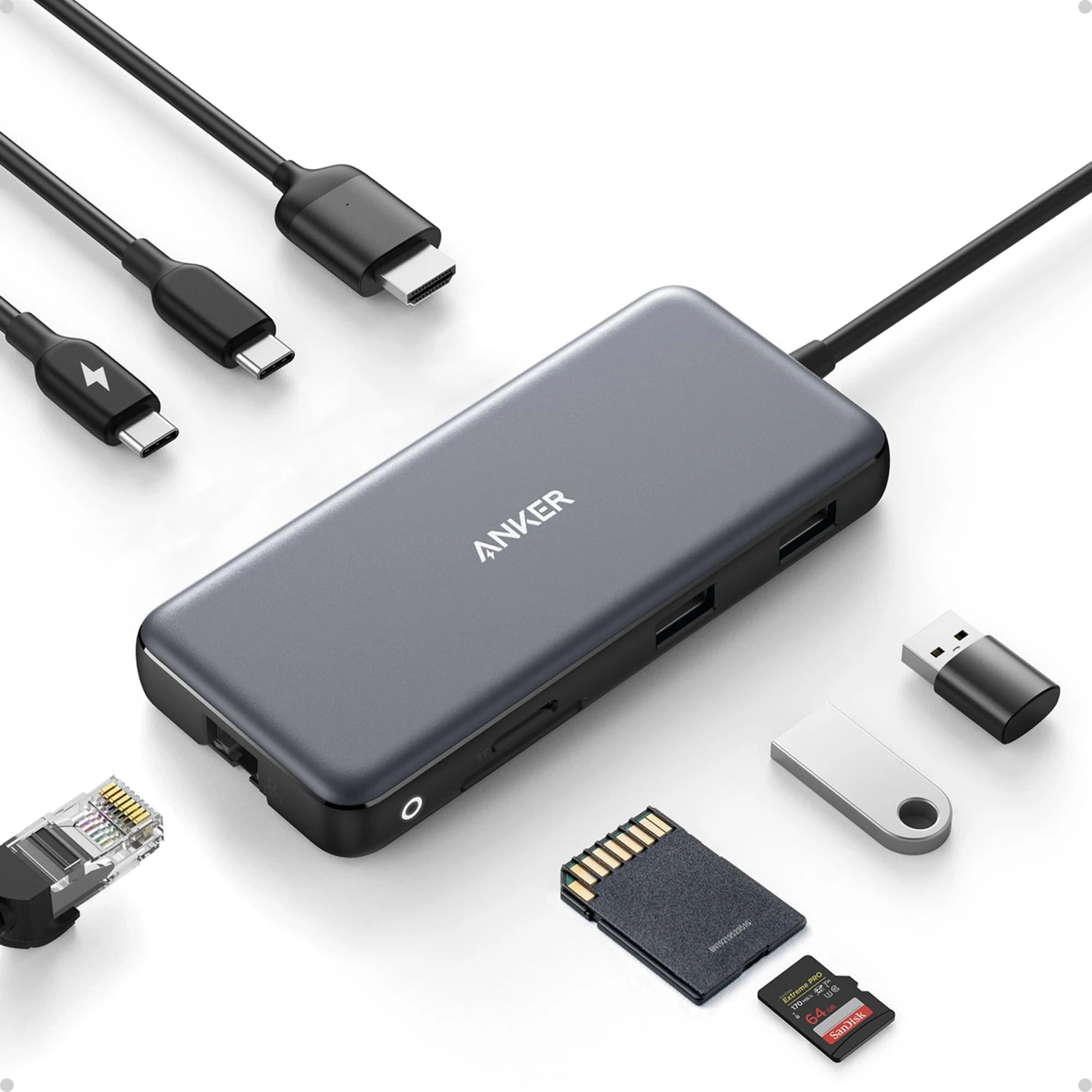
A8383 · 8-in-1 · Gray
1. Anker 555: the connection center
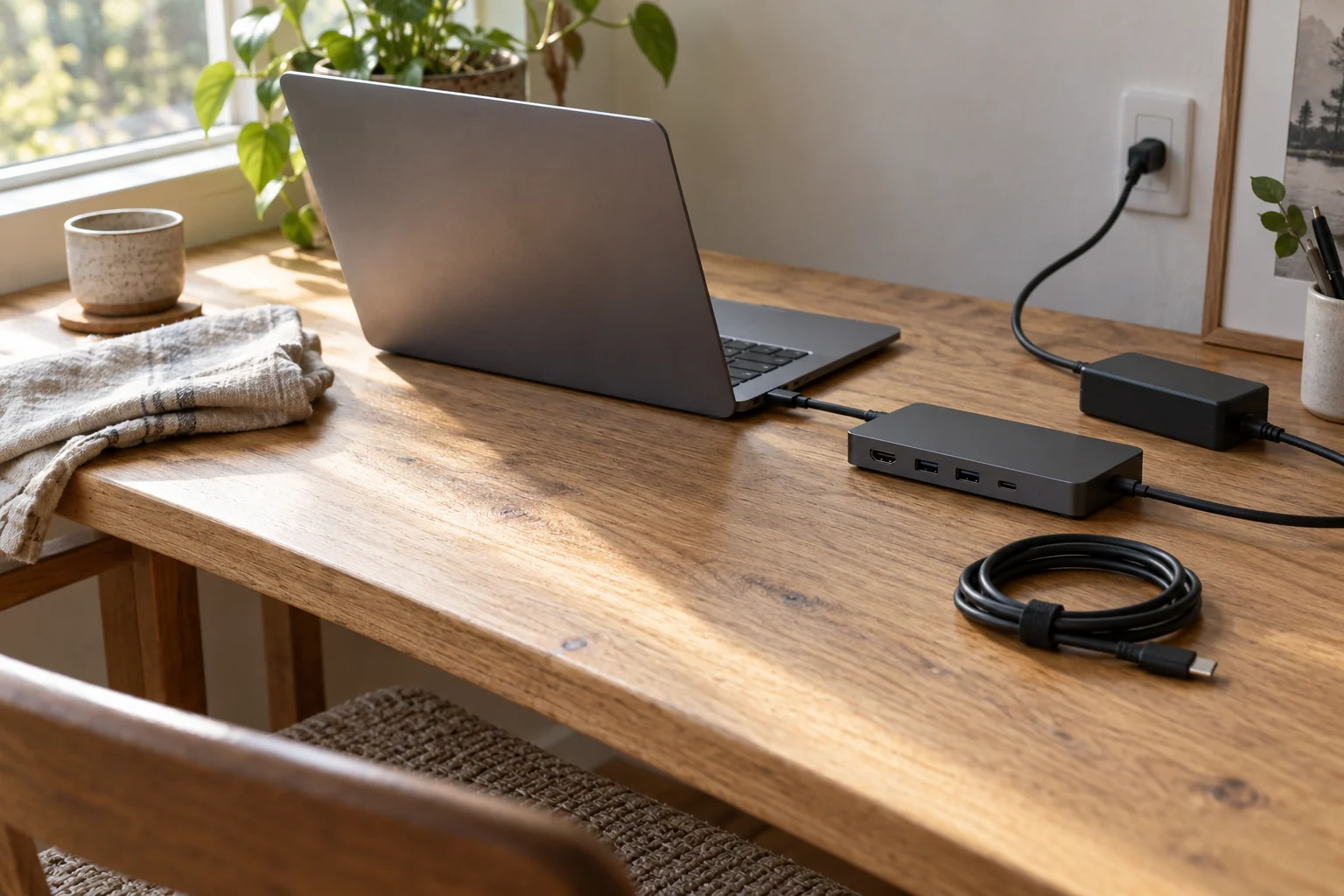
The A8383 is the first item to evaluate because it determines what the desk can connect. It supplies one HDMI output, gigabit Ethernet, SD and microSD slots, two USB-A data ports and a USB-C data port. Its advertised HDMI ceiling is 4K at 60 Hz with a compatible host and signal path. That is a useful mix for office work, file transfer and a single external screen.
The practical advantage is concentration of connections. A mouse receiver, wired network and monitor can remain attached to the hub while the laptop moves. The compromise is the short attached host cable and the need to manage power separately. Do not leave the hub hanging from the laptop port on a tall stand. Put it on the desk, check the cable reaches without tension, and place frequently used ports where your hand can reach them.
Choose it when those particular ports solve your routine. Pass if you only need one video cable, need a second display output, or require a different power envelope. The USB-C data socket and the PD input have different jobs; check the markings before connecting accessories.
 Product view
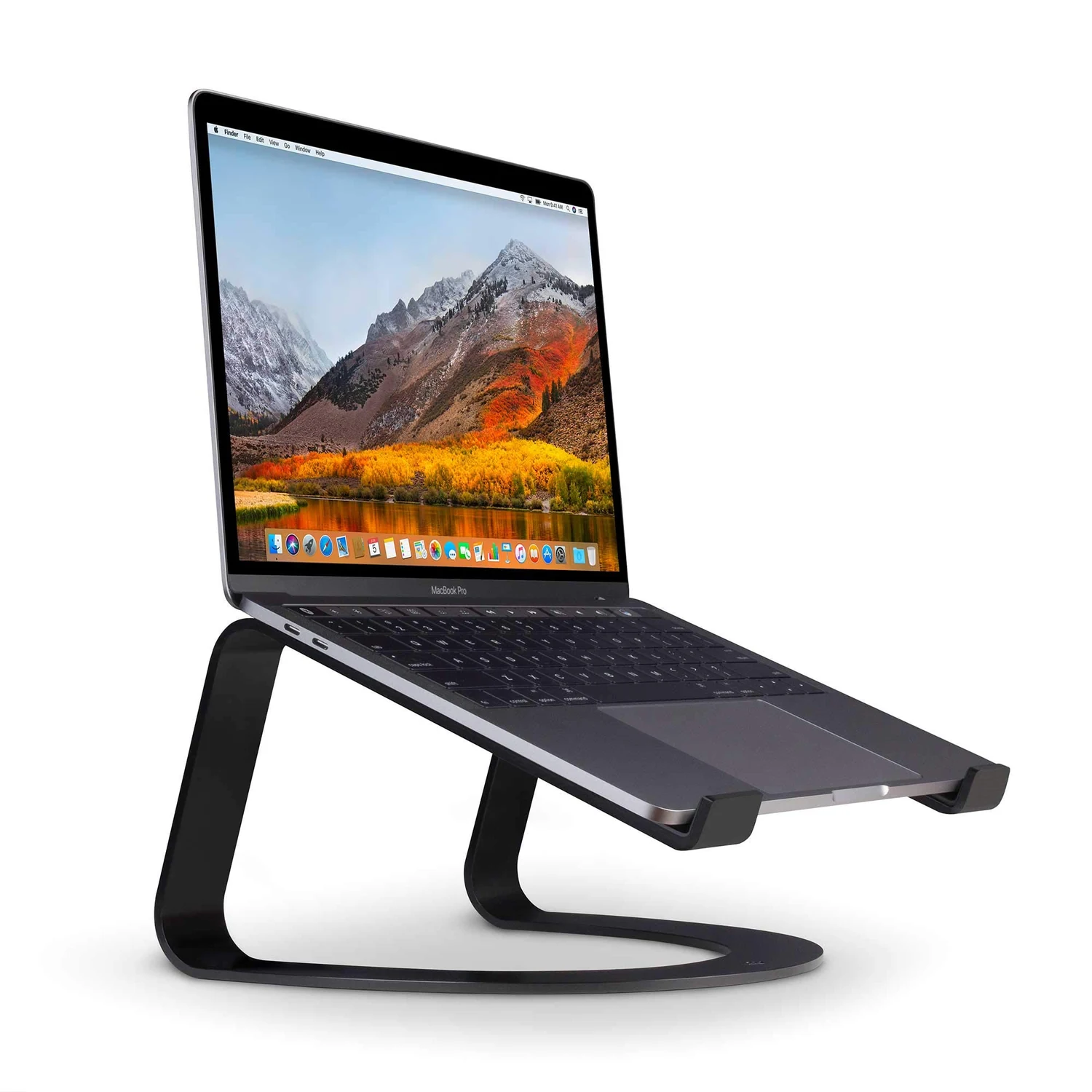
Curve · Fixed height · Matte Black
2. Twelve South Curve: a fixed position you must want
The original matte-black Curve raises a supported laptop by about 6.5 inches. It has a fixed structure rather than a height-adjustment mechanism. That simplicity suits a desk where the laptop normally occupies the same place and an external keyboard handles typing.
Its value comes from the resulting arrangement. You can keep reference material on the raised laptop without resting the computer on books or giving up the external display. The open space below is useful, but avoid turning it into a tightly packed home for warm adapters and cable tangles. Leave the computer's ventilation path clear and follow its maker's handling instructions.
The reason to pass is equally straightforward: a fixed stand cannot provide every viewing height or desk arrangement. Check the supported laptop dimensions and weight, try the intended position with the equipment you own, and account for the front retaining stops. Curve Flex is a different adjustable product. A listing that swaps between those names deserves a second look before ordering.
 Product view
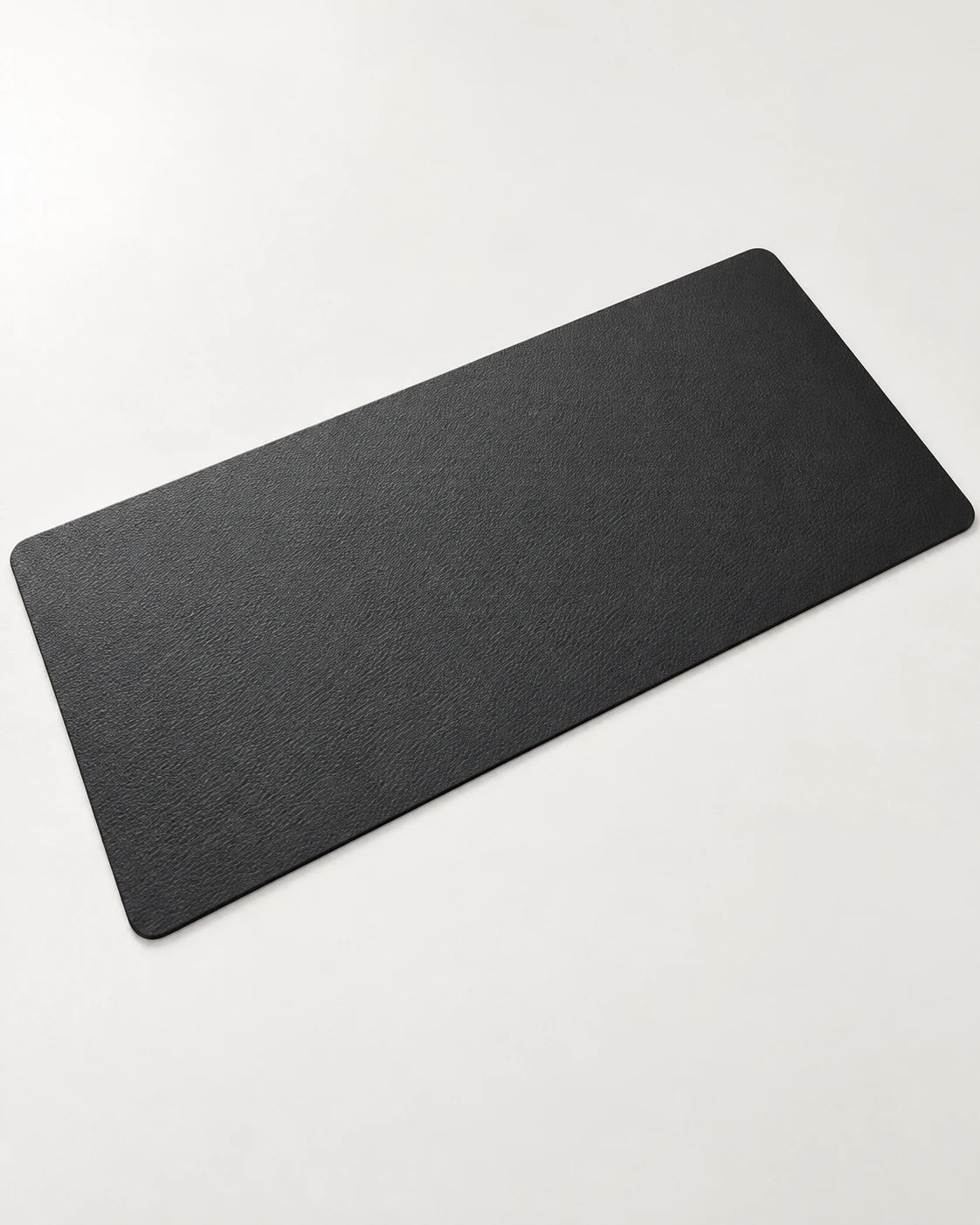
Black · 31.5 × 15.7 in / 800 × 400 mm
3. Aothia: a broad, wipe-clean working surface
The selected Aothia is Black, 31.5 by 15.7 inches, ASIN B082F5ZLS5. It uses PU faux leather, with rounded corners and a thin edge. That distinction matters: it is a practical synthetic surface, not a genuine-leather purchase.
Compared with a narrow strip beneath the keyboard, this size gives more room for a mouse and occasional writing. It also creates a clear boundary for the things you touch most often. Keep the monitor and laptop stand behind that boundary where possible; otherwise, their feet can take away the space the pad was meant to provide.
Surface feel is the tradeoff. Someone who likes a woven cloth mouse pad may prefer that texture, and grip depends partly on the desktop finish. Check whether the pad moves during ordinary work and follow the cleaning instructions. The workspace scene shows the layout; the keyboard and mouse are separate purchases. Measure first; changing to a larger pad is not automatically an improvement on a shallow desk.
 Product view
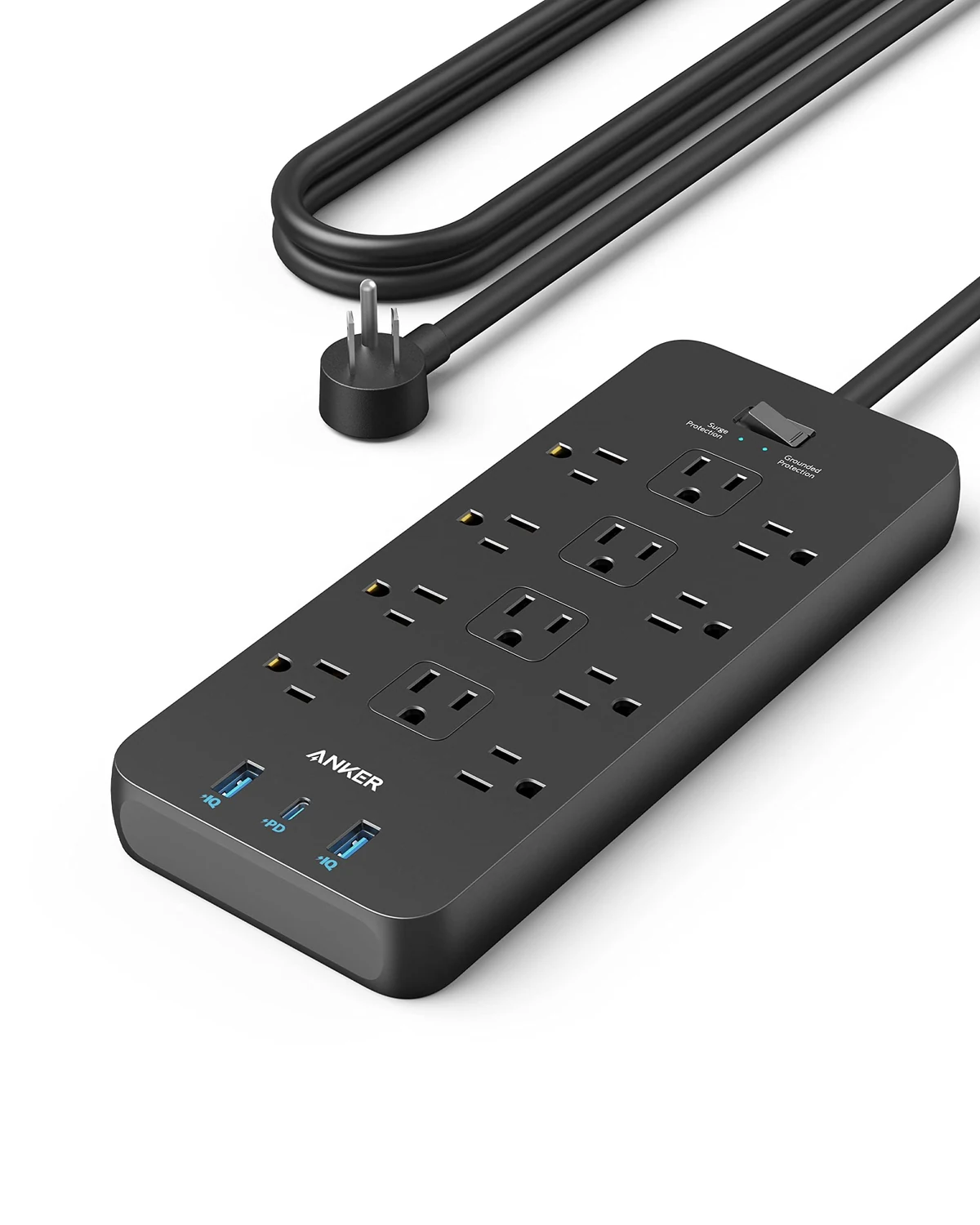
A9192 · 12 AC / 3 USB · Black · 5 ft
4. Anker 351: organize AC power without confusing it with laptop charging
The black five-foot A9192 provides twelve US AC outlets and three USB ports. Its USB-C port can offer up to 20 W when the two USB-A ports are unused. In this setup, think of that as a small-device option. The laptop's appropriate charger still has its own role.
Put the strip where the switch, connections and cable remain accessible. The objective is to stop adapters competing for inconvenient wall sockets, not to hide every electrical part beyond reach. Check how the actual power bricks fit; a count of twelve outlets does not guarantee twelve bulky adapters fit neatly at once.
This is the US version, with a combined 15 A / 1875 W AC limit at 125 V. Match the region and follow the supplied load and placement guidance. It is not a voltage converter, and a laptop desk strip should not become an improvised supply for high-draw heating equipment. If the local socket system is different, choose appropriate local equipment instead of buying this exact strip for appearance alone.
 Product view
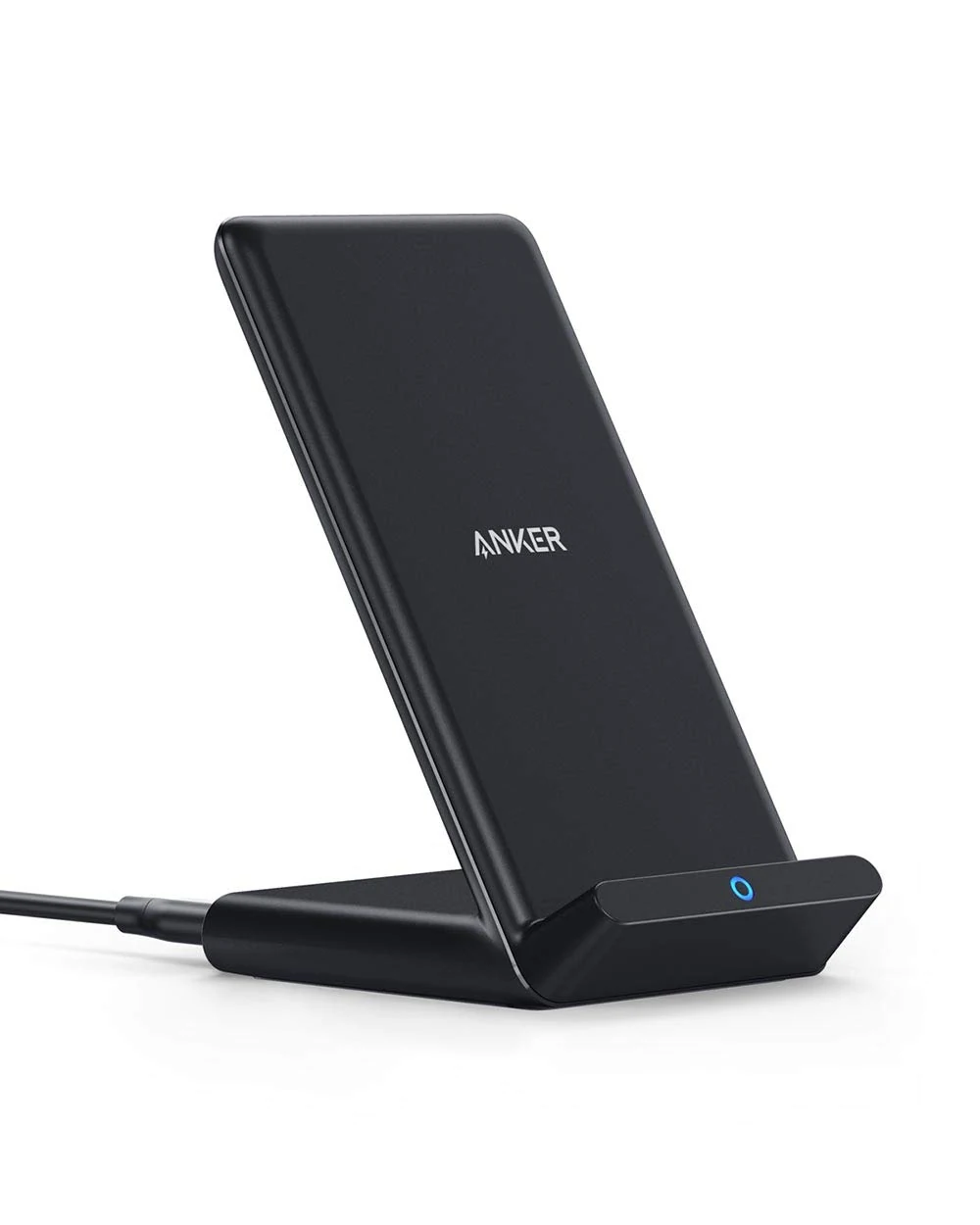
A2524 · Black · Qi stand
5. Anker 313: a modest phone-charging role
The A2524 stand gives a compatible Qi phone a visible resting place while it tops up. It uses a Micro-USB input and can deliver up to 10 W to supported phones under the relevant charging conditions. Phone model, case and power adapter affect the result. This selected listing does not include the wall adapter.
That makes it an option for steady background charging while a calendar or message is easy to glance at. It is less convincing if your priority is the fastest possible short charge before leaving home. A suitable cable connected directly to the phone may be the more useful tool for that job.
Keep the distinction from magnetic Qi2 stands clear. This is a conventional cradle-style Qi stand, not a magnetic mount. Check the exact phone compatibility and power-supply requirements, then test your normal case. Position it beside the main work area rather than between your hand and the mouse. A stand should reduce the search for the phone, not create another thing to reach around.
 Product view
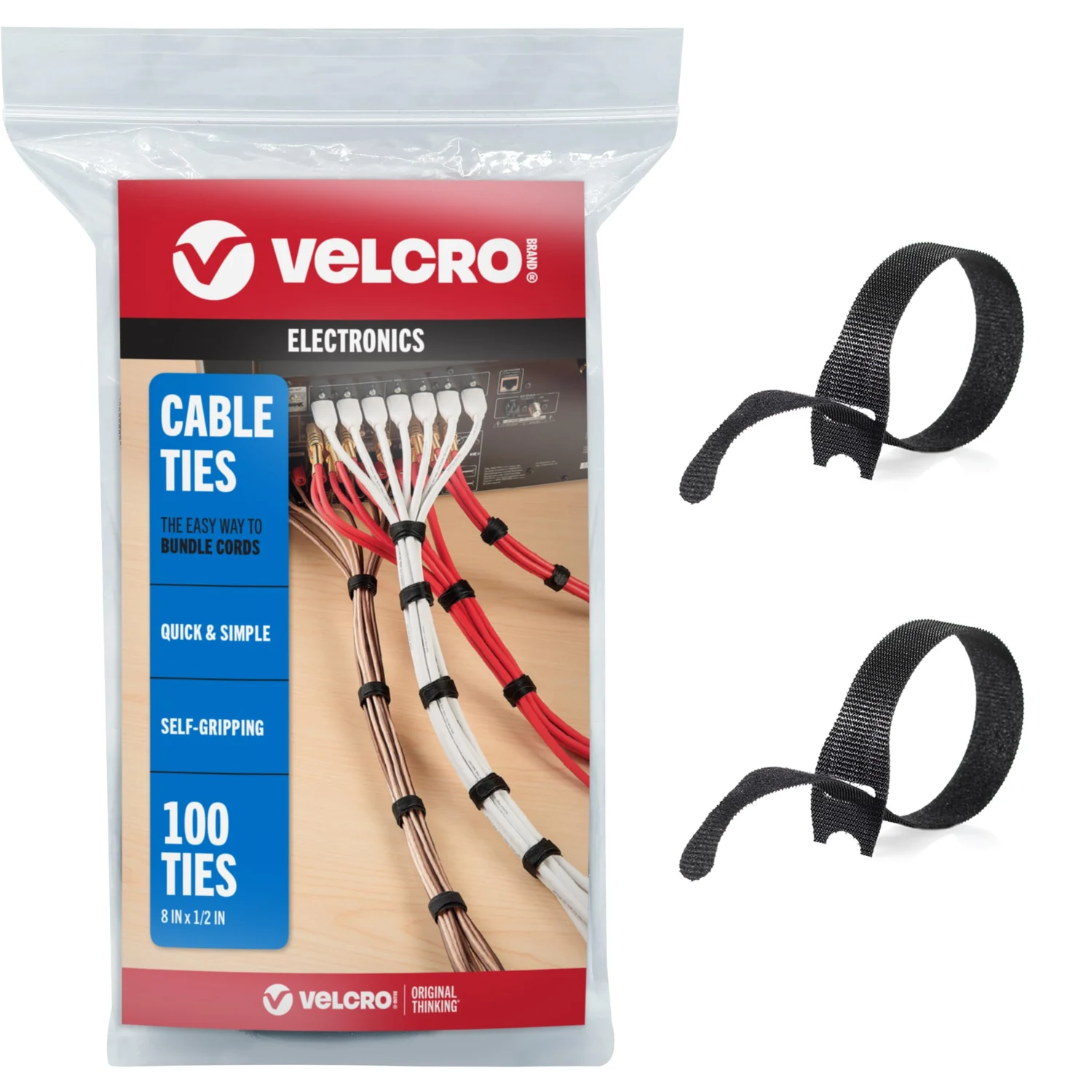
Black · 8 × 1/2 in · 100-pack
6. ONE-WRAP: make the layout easy to undo
The black eight-inch by half-inch ONE-WRAP ties are the least dramatic purchase in this kit and often the easiest to justify. Their job is to gather loose cable slack while allowing the arrangement to change. They are reusable hook-and-loop ties, not adhesive clips, equipment mounts or permanent fasteners.
Work from the connection outward. Leave enough movement for the laptop, stand and everyday unplugging before gathering the remaining slack. Separate the lead you remove daily from the bundle that stays at the desk. Otherwise, the tidy arrangement can become the reason you tug at a connector or avoid moving the computer.
The selected pack contains one hundred ties; most single desks need only a fraction of that. Share the remainder with a travel kit or spare-cable drawer rather than inventing more bundles. Avoid sharp bends and overly tight wraps. The useful result is a maintainable desk: you can identify a cable, remove it without cutting anything and return the desk to working order.
Put the kit together in the right order
Arrange the screen, laptop and input devices before connecting the decorative parts of the setup. Give the main task the main screen. Put the laptop where reference material remains readable without forcing constant turning. The Curve should sit fully supported, with the computer seated correctly on its arms.
Next, place the keyboard and mouse on the pad. Leave a clear path between your seated position and the controls. A centered keyboard is less useful if it forces the mouse into a cramped edge. Try a normal document, a spreadsheet and a few minutes of browsing before deciding the layout is finished.
Finally, set the hub down where its short lead reaches comfortably, position the phone stand, then gather spare cable length. The power strip comes last in the visual arrangement but must remain accessible. Our desk-upgrade buying order is useful if you are deciding which missing item deserves the budget first.
The first-week checks that matter
Start with the monitor at its intended resolution and refresh rate. Confirm the computer reports the mode you wanted, then let it sleep and wake. Open the applications you actually use. If the display behaves differently after waking, investigate the host, cable, settings and hub requirements before blaming the monitor or ordering another accessory.
Check charging during a normal work session rather than only while the laptop is idle. Note any warning from the computer and whether the connected supply meets its needs. The hub's 85 W ceiling is not a promise that an arbitrary charger will supply that amount. Read the exact charger and cable specifications.
Then check the physical details: the stand remains stable, the pad leaves enough mouse room, the phone charges with its everyday case, and no lead is under tension. These are acceptance checks you can perform before the retailer's return window ends. Keep a short note of any problem so you can repeat the same check after an adjustment.
What to buy first, and what to leave alone
If connections are the daily irritation, evaluate the hub first. If the layout is already functional and only the loose leads are annoying, the ties may be enough. The stand belongs in the plan when its fixed position actually works with the desk. A phone charger can wait if an ordinary cable already keeps the phone where you need it.
There is no single meaningful bundle price because sellers, configurations and discounts change. Build your own delivered total from the pieces you lack, including a suitable laptop power supply where required. Reusing a good keyboard, mouse or monitor usually matters more to the budget than choosing a cheaper accessory you immediately want to replace.
Quick questions about this USB-C desk kit
Does this setup give every laptop one-cable charging and video?
No. The host must support the required video mode and USB-C charging, and the supply must meet the computer's needs within the hub's limits. Check the exact computer and port.
Can the Anker 351 replace the laptop's USB-C charger?
Its up-to-20 W USB-C output is intended for smaller charging jobs. Evaluate the laptop's own power requirement and use an appropriate charger; sharing the strip's USB ports also changes available power.
Is the Aothia pad genuine leather?
No. This selected model is PU faux leather. Choose by its size, surface feel and cleaning requirements rather than treating the name as a genuine-leather specification.
Should I buy all six products together?
Only if all six solve something missing from the current desk. Keep existing equipment that fits the job and add the connection or layout improvement with the clearest everyday benefit.
Research notes and the final buying check
Model information was checked against Anker's A8383 and A9192 documentation, Twelve South's original Curve information, the selected Aothia and Anker A2524 listings, and the ONE-WRAP pack reference. The conclusions concern suitability and system planning. Seller bundles and support requirements can change, so match the exact reference on the linked Amazon page before ordering. Product views and workspace scenes help you inspect the arrangement; specifications decide compatibility.
- Anker A8383 specifications
- Anker A9192 specifications
- Twelve South original Curve
- Aothia desk-pad material and sizes
- Anker A2524 input specification
The next good question
Keep exploring.
 Read the story ↗
USB-C Monitor vs Dock: Build a One-Cable Laptop Setup Without Guesswork
A USB-C monitor can replace a separate dock when it supports the video mode, charging wattage and downstream ports your laptop needs. A dock is more flexible for several displays and peripherals. USB-C describes a connector, not a guaranteed feature set, so verify the exact laptop, monitor, cable and dock capabilities as a complete chain.
 Read the story ↗
Dual Monitor Office Setup: A DisplayLink Desk Kit Explained
Two work screens need a compatible connection plan. Here is where the UD-3900Z fits, where it does not, and how five supporting accessories earn their place.
 Read the story ↗
Laptop Charging Slowly Through a USB-C Monitor or Dock? Check the Power Path
The wattage on the power brick is only one part of the connection. Find the number that actually applies to the laptop-facing output.