Desk & tech / A closer look
Dell U2725QE Review: A Cleaner Desk, If You Can Use the Hub
A sharper screen is useful. A simpler working day is the real point.
Start here
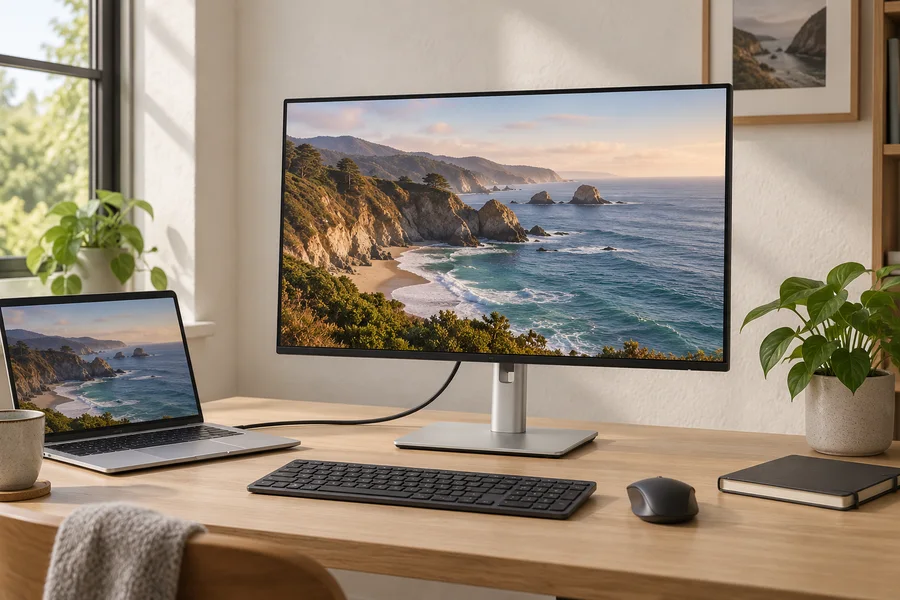
Shortlist the Dell U2725QE when you can use its 27-inch 4K 120Hz display and Thunderbolt hub together. Verify your laptop’s display modes, charging compatibility and peripheral routing first. It is less compelling if you already own a reliable dock or will leave most of its connections unused.
As an Amazon Associate, we earn from qualifying purchases. How our links work ↗
The useful details, in one place.
Specifications that shape the decision
| Detail | Published information | How to use it |
|---|---|---|
| Panel | 27-inch IPS Black | Manufacturer specification |
| Native grid / refresh | 3840 × 2160 / up to 120Hz | Confirm the complete host-to-display path |
| USB-C power | Up to 140W EPR via Thunderbolt upstream | Host and cable compatibility required |
| Desk hub | Built-in KVM and 2.5GbE | Upstream routing matters |
| Stand footprint | 189mm listed depth | Measure your actual screen and keyboard position |
Manufacturer information checked October 15, 2026. These are published claims, not our sample measurements. Match the exact model, revision and instructions.
The short answer: buy the hub you will actually use
The Dell U2725QE makes the most sense when your monitor is also the place where your working day plugs in. You arrive with a laptop, connect one cable, and want your display, keyboard, storage and wired network ready without rebuilding the desk. Its combination of 27-inch 4K resolution, 120Hz refresh and Thunderbolt connectivity is the attraction. The plain silver stand is almost beside the point: the cleaner desk comes from removing a separate box and its cables, rather than simply buying something that looks restrained.
That does not make it an automatic recommendation for every minimalist setup. A desktop computer already connected to a good dock may gain little from another hub. A laptop that cannot use the relevant display mode or charging arrangement leaves expensive features unused. This is a researched Dell U2725QE review, based on published documentation and practical buying checks. We have not measured a sample's brightness, contrast, color accuracy, wake behavior or latency. Those unanswered questions matter, and the return window is where you should resolve them with your own computer.
What the U2725QE specifications actually promise
Dell lists a 3840 × 2160 IPS Black panel at up to 120Hz, a 3000:1 native contrast ratio and Thunderbolt 4 upstream power delivery of up to 140W EPR. The specification also identifies a built-in KVM and 2.5GbE Ethernet. These are manufacturer specifications, not measurements from our desk. Their relevance is straightforward: sharper text, smoother motion, a potential laptop connection point and a way to share selected peripherals. Whether you get all of those benefits together depends on the host and configuration. See Dell's specification and connectivity table.
Read the model number before comparing offers. U2725QE is not interchangeable with U2723QE, a similar-looking 27-inch Dell, or a less expensive USB-C display. A retailer may put several generations under one product family. Save the selected model, supplied cable list, warranty provider and seller name before checking out. A discount is only meaningful against the same version and condition. We deliberately avoid presenting a fixed Amazon price, because the current offer can change independently of the product's suitability.
A 27-inch 4K screen is about comfortable text first
On a 27-inch panel, 4K gives you a dense pixel grid. It does not mean that every application should run at its smallest possible interface size. Start with text you can read while sitting normally, then judge how many useful windows remain. Moving your chair forward to read a spreadsheet is a poor trade for a larger-looking workspace. If your browser is constantly zoomed to compensate for tiny menus elsewhere, the operating system's scaling setting deserves attention before the monitor does.
There is a helpful distinction between resolution and workspace. Native resolution describes the physical pixel grid. Scaling changes the apparent size of text and controls. For example, the simple arithmetic behind 150% scaling gives an approximate 2560 × 1440 logical workspace from a 3840 × 2160 panel. That is an explanatory calculation, not a promise about every app or operating system. Try your actual editor, spreadsheet and meeting software. Our 4K versus QHD guide explains the broader choice.
What 120Hz adds to an ordinary working day
Moving from 60Hz to 120Hz can make scrolling and pointer movement look smoother. It does not double the speed at which you read, write or finish a project. Think about where motion appears in your routine: long documents, large spreadsheets, timeline scrubbing or frequent window movement. If your work mostly involves stationary pages, the improvement may be pleasant without being essential. There is no honest reason to turn that preference into an invented productivity percentage.
The important acceptance check is whether your computer actually offers 3840 × 2160 at the intended refresh rate through your chosen connection. A cable connector that physically fits is not proof that the whole path supports the mode. Inspect the display setting after connecting directly, before adding adapters or a dock. Compare the default connection with your proposed permanent arrangement. If the setting disappears through an extra device, investigate that path rather than assuming the monitor itself is defective.
One cable does not mean one universal charging result
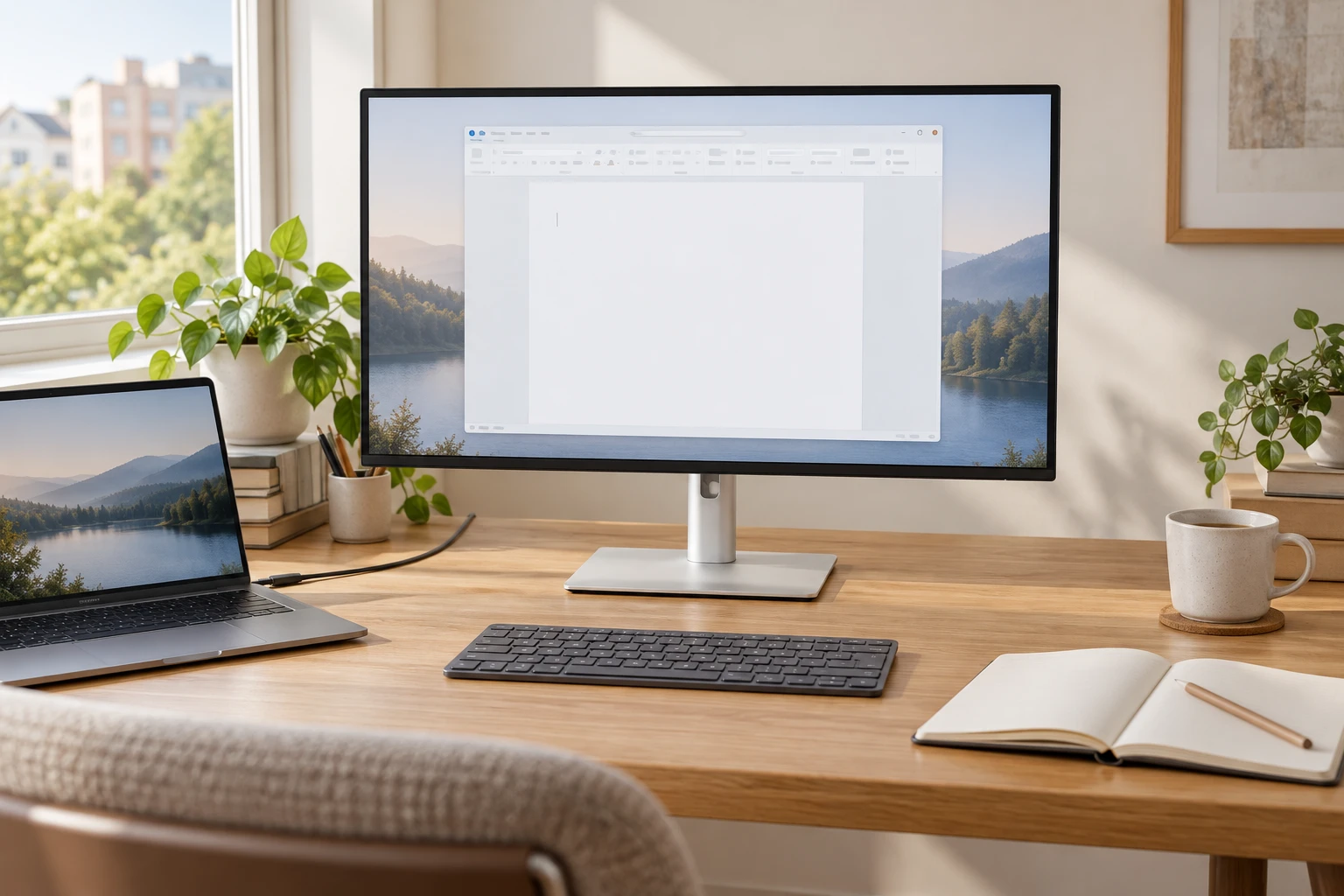
The headline 140W figure is an upper capability with conditions, not a promise that every laptop will take 140W from the screen. The monitor, cable and computer have to support the necessary power negotiation. A computer may accept a lower amount, use a different charging method or need its original adapter during demanding work. Dell publishes a separate 140W EPR compatibility sheet; use the host-specific documentation rather than guessing from the wattage printed on the laptop's usual charger.
A useful test is deliberately boring. Connect the laptop while it has a partially charged battery. Run your normal workload, including the tasks you perform during a long afternoon, and observe whether the battery rises, stays level or declines. A charging symbol alone does not answer that question. If your laptop occasionally needs a second charger, decide whether the remaining convenience is still worth the price. Minimalism can include an honest second cable when it solves a real power requirement.
The built-in KVM is valuable only with a clear cable plan
A KVM can be appealing when one desk serves a work laptop and a personal computer. The practical goal is to move the keyboard and mouse with the selected computer. That requires a video path and the appropriate USB upstream path for each host. Simply attaching two video cables does not tell the monitor where peripheral data should go. Before buying, sketch your two computers, label each video connection and draw the USB path separately. The exercise usually exposes missing ports or adapters immediately.
Also decide what should stay with each machine. A keyboard is easy to share; an external drive being written by one computer needs more care. Eject storage before switching hosts, and do not assume a corporate laptop permits every USB device. Check whether your input-switching routine suits the way you work, especially if you move between machines many times a day. Our monitor KVM versus separate KVM guide covers that decision without treating every shared desk as the same problem.
Ethernet and extra ports can remove clutter, or move it
Built-in networking and USB ports can replace a hub, but the cable count behind the desk still exists. Route permanent connections first: network, power, keyboard receiver and any storage that belongs at the desk. Leave quick-access ports for devices you actually disconnect. A monitor surrounded by several loose adapters is not necessarily a simpler arrangement than a compact dock fixed beneath the desktop. Count the visible objects and the steps needed to leave the desk, not just the number of sockets on the specification sheet.
Think about failure recovery too. If the monitor is the central hub, restarting or changing its input may affect more than the picture. Test your network and peripherals after sleep, after unplugging the laptop, and after reconnecting it with the lid in your usual position. These are proposed checks, not issues we observed on a tested sample. Keep an ordinary video cable available during the return period so you can distinguish a display problem from a hub or host problem.
The stand deserves a place in your desk measurements
Dell's listed stand depth is 189mm, with the display width a little over 612mm. That is useful planning information, but stand depth is not the same as the distance from your eyes to the screen. The keyboard, desk edge, chair position and screen plane all contribute. Make a paper rectangle for the base, place it on the desk, and sit down with your normal keyboard. Check whether a notebook can still open and whether your mouse has enough room to move naturally.
An arm may recover surface space, but it also creates another compatibility check. Confirm the monitor's mounting pattern, the arm's supported weight range, the clamp area and the desk's construction. A heavier-looking stand is not evidence that the desk will support a concentrated clamp load. On a shallow desk, an arm with poor rear clearance can push the screen forward instead of moving it back. We cover that trap in the shallow-desk mounting guide.
Contrast and HDR labels need realistic expectations
The published contrast ratio is a reason to investigate the U2725QE, particularly if ordinary IPS black levels bother you. It is not a guarantee of OLED-like dark scenes, and the product documentation identifies an edge-lit display rather than an OLED panel. Judge a dark application or a familiar film in the room where you work. Photographing a black screen with a phone can exaggerate what you see, so do not use a dramatic phone image as the only basis for a return decision.
Likewise, an HDR certification does not answer whether this is the best display for your entertainment priorities. Content, room lighting, tone mapping and local contrast all affect the result. For a work-first purchase, establish comfortable SDR brightness and readable text before experimenting with HDR. Turning on every enhancement at once makes it harder to identify what helped. A simple saved baseline gives you a way back if a setting makes white pages too bright or dark applications harder to read.
When a less expensive display is the better purchase
Choose a simpler monitor if you already own a dependable dock, use only one computer and do not care about higher-refresh scrolling. The ASUS PA279CRV is worth comparing when color-oriented work is the priority and 60Hz is enough. The BenQ MA270U takes a different approach for MacBook users who value its software integration and matte surface. None is a universal winner. Compare the complete setup you would need with each monitor, including adapters, any separate hub and the time spent reconnecting it.
There is also a good argument for keeping your current screen. If its text is comfortable and your only complaint is one visible cable, a cable sleeve or a better docking position may solve the actual problem. Buying a premium monitor should improve a recurring part of the day, not merely replace a desk photograph. Write down the three frustrations you expect the U2725QE to remove. If the list is vague, postpone the purchase until you can describe the benefit clearly.
A return-window test that produces useful answers
Begin with the supplied connection recommended for your host and establish a simple baseline. Confirm the selected resolution and refresh rate, look for obvious pixel defects, adjust brightness, then open three applications you use every day. Test a video call with your actual camera and microphone. The monitor has no built-in speakers, so include your normal audio route in that check. Record what works before adding optional software or changing several display settings together.
Over the following days, test sleep and wake, reconnecting the laptop, networking through the monitor and any KVM routine. Keep the packaging until those checks are complete. If something fails, write down the computer model, operating system, cable, input and exact symptom before contacting support. That information is more useful than “USB-C is unreliable.” Do not open the enclosure or attempt repairs during an ordinary buying evaluation. Your goal is to decide whether this particular unit works in your setup.
Mac compatibility needs more than a Thunderbolt logo
A second external screen is where a tidy cable plan can meet a computer limit. Dell describes Thunderbolt daisy chaining, but that does not remove the external-display limits of your particular Mac. Identify the exact chip and laptop model, then read Apple's supported-display specifications for that machine. A family name such as MacBook Air is not precise enough. Also distinguish an extended desktop from mirroring: two screens showing the same image are not the result most people expect when buying a second monitor.
For a single display, check your preferred resolution, scaling and refresh rate together before judging text quality. A screenshot sent to a friend will not show how the physical screen looks at your chair. Sit at your actual desk, open familiar work and keep the test repeatable. If you rely on Dell's management software, check its current operating-system and device support rather than assuming every advertised feature is identical on Windows and macOS. This extra preparation costs little and can prevent an expensive compatibility surprise.
Leave room for sound and calls in the budget
The U2725QE does not include built-in speakers or a webcam in the configuration documented here. If video calls occupy much of your day, plan the camera, microphone and listening arrangement before declaring the setup complete. A headset you already like may be the simplest answer. Check where its receiver or cable will connect, and confirm that the computer selects the expected audio device after reconnecting. These small details can determine whether a one-cable desk actually feels convenient on an ordinary working morning.
The buying decision I would make from the evidence
The U2725QE is a strong candidate for someone who can use its display and hub features together. The value proposition becomes weaker when most of those connections remain empty. Treat the premium as a payment for a complete daily workflow: a comfortable 4K screen, smoother motion and fewer separate connection boxes. That is a defensible reason to shortlist it. A polished product page, by itself, is not evidence that your laptop's charging and multi-display needs are covered.
Before ordering, confirm the exact U2725QE reference, seller, condition, local warranty, delivered total and return terms. Check the included cable against your intended host. If you follow an Amazon link from this page, it opens a model-specific search that can include other products; inspect the selected listing. Keep your compatibility notes next to the order confirmation. You will then have a clear way to decide whether the monitor delivered the cleaner working day you bought it for.
Make the next step concrete.
Your before-you-buy checklist
Use this as a personal decision list. The boxes stay in this page session; your answers are not submitted.
Mark the checks that you have completed.
Clear answers, without the shortcuts.
Questions readers ask
Is the Dell U2725QE a 4K 120Hz monitor?
Dell specifies 3840 × 2160 at up to 120Hz. Your computer, cable and any intermediate device must support the selected mode; the panel specification alone does not guarantee that mode through every connection.
Will the U2725QE charge every laptop at 140W?
No. The figure is an upper EPR capability, and the host and cable must support the relevant negotiation. Check Dell’s compatibility documentation and the computer’s own requirements.
Does the U2725QE include speakers or a webcam?
The configuration discussed here does not include built-in speakers or a webcam. Plan your normal audio, microphone and camera arrangements as part of the complete desk setup.
Is this a hands-on review?
No. It is a researched assessment of published specifications and buying checks. We have not measured a sample’s brightness, color, contrast, latency or reliability.
When the checks are settled.
Compare the exact offer
The links below open model-specific Amazon searches and may include other versions, accessories or unrelated results. Check the selected reference, seller, condition, delivered total, warranty and return terms before ordering.
As an Amazon Associate, we earn from qualifying purchases. We do not publish unverified live prices, availability, sales counts or star ratings. How our links work.
Explore the everyday picks →Evidence and limits.
Sources and how this review was prepared
This article was prepared by NextGen Editorial Desk from the published manufacturer specifications and manuals, checked October 15, 2026. It is a researched assessment. We have not claimed hands-on ownership, laboratory measurements, pressure tests, scratch tests or a representative analysis of Amazon reviews. Suggested arrival checks and arithmetic examples are guidance, not results from a tested sample.
Lifestyle scenes illustrate everyday settings and styling. They do not establish exact dimensions, fit, color accuracy or performance. Use the manufacturer's original product information to verify fine details. Manufacturer claims, our interpretation and your own checks are kept distinct.
- Dell U2725QE: published specifications, ports and stand dimensions
- Dell support: U2725QE manuals and EPR compatibility documents
- Apple: change your Mac display resolution
If a specification or model revision has changed, use the site contact information and include the exact reference and source. An update should improve the evidence, not merely change the date.
Keep following the useful question.
Read next
The next good question
Keep exploring.
 Read the story ↗
BenQ MA270U Review: A Simpler MacBook Desk, With a Few Checks
The right cable helps. Comfortable text and a routine that works matter more.
 Read the story ↗
Which Desk Upgrade Should You Buy First? A Home Office Buying Order
A better desk starts with the thing that interrupts your day. Fix that first, then stop buying when the problem is solved.
 Read the story ↗
USB-C Laptop Desk Setup: A Practical Six-Piece Kit
One screen, fewer loose connections and six clearly defined jobs. Start with the laptop's limits, then buy only the pieces your desk is missing.