Best 24-Inch Monitors for a Small Workspace: What to Check
A well-chosen 24-inch monitor is a practical default for a compact desk: it is easier to place than a large display, but the stand, panel resolution and ports still determine whether it feels like an upgrade. Compare complete dimensions, height adjustment, text clarity and return terms before choosing by refresh rate or marketing labels.
A well-chosen 24-inch monitor is a practical default for a compact desk: it is easier to place than a large display, but the stand, panel resolution and ports still determine whether it feels like an upgrade. Compare complete dimensions, height adjustment, text clarity and return terms before choosing by refresh rate or marketing labels.
| Option | Strength | Tradeoff |
|---|---|---|
| Stand depth | Predicts usable desk space | Check dimensions drawing |
| Height adjustment | Helps align viewing position | Avoid tilt-only if placement is fixed |
| USB-C | Can simplify one-cable setups | Verify video, charging and data separately |
Start with the job, not the spec sheet
For email, writing, browsing and spreadsheets, a 24-inch screen offers enough room for many single-window tasks without dominating a bedroom desk or shared table. If you often split two full-size documents, a larger or higher-resolution screen may be worthwhile. Write down the applications you use most and whether your current pain point is cramped windows, small text, glare or poor posture.
The phrase “24 inch” describes the diagonal, not the usable stand footprint or the amount of workspace. Two displays of the same diagonal can differ in bezel, depth, stand reach and adjustment. Product photos rarely show these measurements clearly, so check the specification diagram and compare it with the actual desk dimensions.
Choose a pixel density you can comfortably read
Many budget 24-inch displays use 1920×1080 resolution. This is a sensible starting point when you want familiar interface sizing and broad device compatibility. Higher-resolution 24-inch models can look sharper, but their denser text may lead you to increase scaling. The result depends on the operating system, app support and your eyesight, so resolution alone cannot predict comfort.
A useful test is to view ordinary text at your intended sitting distance rather than judging a magnified product image. Check that you can increase text size without blurring the interface and that your computer can output the chosen resolution and refresh rate over the input you plan to use.
Inspect the stand and ergonomics
Height adjustment is useful because a monitor that is too high or low can encourage awkward neck posture. If a candidate only tilts, ask whether a safe riser or compatible arm is needed. OSHA recommends centering the display and positioning its top at or slightly below eye level for many users, while noting workstation needs differ. Build the whole arrangement around the chair and keyboard.
Look at the base shape and depth: a large footprint may push the keyboard forward and reduce wrist room. A compact stand can be more valuable than a premium refresh rate for a writing-focused desk. If choosing an arm, confirm the display’s mounting pattern, weight including any adapter, desk thickness, clamp clearance and wall travel.
Compare panel and connectivity honestly
IPS is often selected for viewing-angle consistency and general-purpose color; VA panels may offer stronger native contrast but can show different motion behavior; OLED offers deep blacks but adds price and specific care considerations. These are broad tendencies, not a substitute for independent measurement of the exact model. Brightness, uniformity, coating and warranty deserve a look too.
For connectivity, separate three questions: can the port carry video, can it charge the laptop, and can it pass USB data? USB-C on a monitor may do one, two or all three. Confirm the manual for your computer and display. If using HDMI, check that the specific HDMI version and cable support the target resolution and refresh rate.
Buying checklist for a small desk
Before checkout, verify width, depth with stand, height adjustment, mounting support, input ports, included cable, warranty and return window. Confirm that the listing is the exact model and seller you intend to buy. Marketplace listings can combine variants; the same family name does not guarantee the same panel, stand or port configuration.
After delivery, set the screen directly in front of you, adjust text scaling, and check for reflections at morning and evening light levels. Keep packaging until you have confirmed the ports and physical fit. If the stand forces an uncomfortable position, return or remount it rather than accepting a daily posture compromise.
A practical comparison before you buy
Make a short two- or three-option comparison using the real constraint behind “24 inch monitor compact workspace.” Record the exact reference or version, one feature that matters, one tradeoff you can accept, and the return period. This keeps the decision anchored to your own needs and makes differences between current listings easier to spot. If two products appear equal, favor the clearer documentation, better fit and more dependable seller terms over a dramatic but unverified headline claim.
The affiliate link below opens a search for relevant current listings, not a promise that a single item is best or in stock. Search results can include variants, marketplace sellers and changing prices. Open the precise offer, compare the model number with the manufacturer’s page, and read recent buyer feedback for recurring fit or compatibility concerns. We do not quote review averages as research data because ratings change and listings may combine versions.
The decision in one minute
- Choose by use: A well-chosen 24-inch monitor is a practical default for a compact desk: it is easier to place than a large display, but the stand, panel resolution and ports still determine whether it feels like an upgrade. Compare complete dimensions, height adjustment, text clarity and return terms before choosing by refresh rate or marketing labels.
- Check the exact version: For 24 inch monitor compact workspace, confirm the specific model, listing details and current manufacturer guidance.
- Test the fit: Measure your own desk and computer setup before ordering.
- Keep expectations honest: Prices, stock, seller, specifications and return terms can change; verify them on the current product page.
Frequently asked questions
Is a 24-inch monitor good for a laptop desk?
Often yes, if the base leaves enough room and the laptop can drive the resolution and refresh rate. Measure the combined footprint first.
Should I pay more for 144Hz?
Only if smooth motion is valuable for your use, such as gaming. For routine office tasks, ergonomics, resolution and panel quality may matter more.
Can every 24-inch monitor use a VESA arm?
No. Check the exact model for a mount pattern and compatible load; some compact models have limited mounting support.
How this guide was built
This is a research-based editorial guide, not a claim of laboratory testing or long-term ownership of every product mentioned. We checked manufacturer, standards or workplace references where relevant and translated them into practical buying questions. We do not invent customer-review statistics. Confirm current availability, specifications, seller, price and return terms on the live product page.
Affiliate disclosure
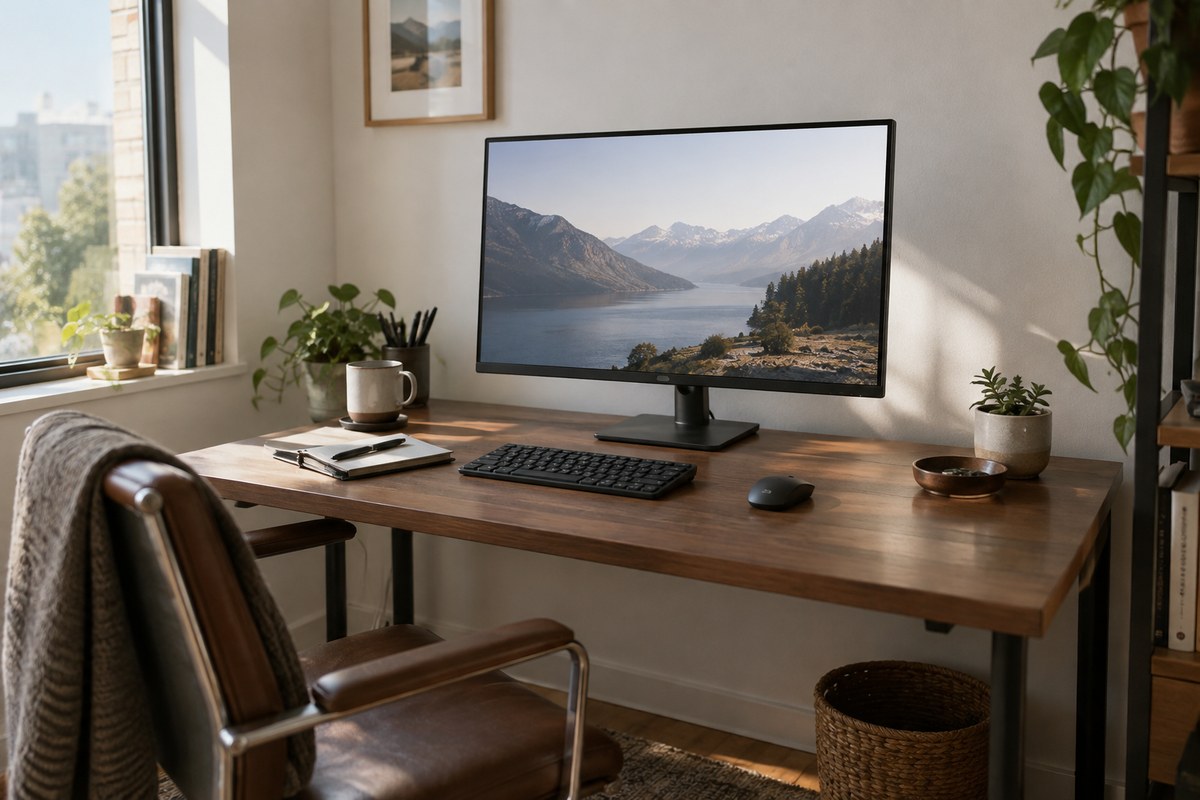
Links to Amazon may earn NextGen Essentials a commission from qualifying purchases at no additional cost to you. The illustration is generated and is not product photography. Confirm the exact item details on the linked listing.