27-Inch 4K vs QHD Monitor for Productivity: Which Makes Sense?
At 27 inches, QHD is usually the balanced productivity choice when you want more workspace without heavy scaling or a demanding graphics connection. 4K gives finer detail and more pixels, but may require operating-system scaling and a capable computer. Choose by text comfort, apps, viewing distance and workflow—not by pixel count alone.
At 27 inches, QHD is usually the balanced productivity choice when you want more workspace without heavy scaling or a demanding graphics connection. 4K gives finer detail and more pixels, but may require operating-system scaling and a capable computer. Choose by text comfort, apps, viewing distance and workflow—not by pixel count alone.
| Option | Strength | Tradeoff |
|---|---|---|
| QHD (2560×1440) | Balanced workspace and compatibility | Lower pixel density than 4K |
| 4K UHD (3840×2160) | Fine detail and sharp scaled text | More scaling and bandwidth checks |
| Both | Fit most desk workflows | Exact panel quality varies by model |
What QHD and 4K change
QHD commonly means 2560×1440 pixels; UHD 4K commonly means 3840×2160. At the same 27-inch diagonal, 4K packs more pixels into the panel. That can render fine details sharply, but the operating system may scale interface elements so menus and text remain readable. Scaled 4K can still be useful, although the practical desktop area is not simply four times that of 1080p.
QHD offers a clear step up from Full HD and often lets users keep a straightforward scaling setting. For a single 27-inch screen used at ordinary desk distance, that simplicity makes it a strong default. Creative work requiring fine detail, high-resolution media review, or a preference for crisp text can make 4K worth evaluating.
Check the graphics path before buying
A monitor can advertise a resolution and refresh rate that the computer cannot deliver through every port or cable. Check your graphics hardware, dock, operating system and the exact connector path. A laptop routed through a dock may have different limits than the same laptop connected directly. Read the vendor’s supported-mode table for the exact combination.
Higher pixel throughput can also make a high refresh rate more demanding. If you plan on 4K at high refresh, confirm that the GPU and connection support the target mode, color depth and any HDR setting together. Do not infer full performance from a connector’s shape alone; version, lane allocation, cable quality and device implementation matter.
Think about scaling and working distance
At a normal distance, some people can read 27-inch QHD comfortably at default scaling; others increase text size. A 4K panel allows sharper text under scaling, but app behavior varies and small controls can be inconvenient if scaling is poorly handled. If you switch between Windows and macOS or use older apps, review scaling support before committing.
OSHA recommends comfortable viewing distance, legible text and a neutral posture rather than a single fixed pixel density. Increase text size when needed instead of moving closer or leaning forward. If possible, test a similar display at the intended desk distance and check documents, spreadsheets, browser tabs and the applications that matter to you.
Color, HDR and panel quality are separate choices
Resolution does not tell you whether the panel has good uniformity, contrast, motion handling or color accuracy. HDR labels also represent requirements that depend on certification level and implementation; review measured performance for the exact model if HDR matters. VESA publishes DisplayHDR test criteria, but a certification label cannot answer every subjective question about brightness in your room.
For office use, prioritize readable text, comfortable brightness, adjustable stand and a return policy. For photo work, check the color gamut and calibration evidence. For gaming, compare refresh rate and response behavior. Spending on 4K while accepting a poor stand or harsh coating may make the desk experience worse, despite the higher resolution.
A simple decision rule
Choose QHD if you want a practical 27-inch screen for mixed productivity, broad compatibility and less scaling friction. Choose 4K if fine detail is important, your computer supports the intended mode, and you are comfortable tuning scaling. If prices are close, compare panel tests, stand ergonomics, warranty and ports before treating 4K as the automatic winner.
Before purchase, confirm exact model number, display inputs, supplied cable, supported refresh at native resolution, warranty and seller. Keep the setup centered, adjust brightness to the room and use text size that feels natural. The best resolution is the one that makes your work readable on your actual computer—not the largest number in the product title.
A practical comparison before you buy
Make a short two- or three-option comparison using the real constraint behind “27 inch 4k vs qhd productivity monitor.” Record the exact reference or version, one feature that matters, one tradeoff you can accept, and the return period. This keeps the decision anchored to your own needs and makes differences between current listings easier to spot. If two products appear equal, favor the clearer documentation, better fit and more dependable seller terms over a dramatic but unverified headline claim.
The affiliate link below opens a search for relevant current listings, not a promise that a single item is best or in stock. Search results can include variants, marketplace sellers and changing prices. Open the precise offer, compare the model number with the manufacturer’s page, and read recent buyer feedback for recurring fit or compatibility concerns. We do not quote review averages as research data because ratings change and listings may combine versions.
The decision in one minute
- Choose by use: At 27 inches, QHD is usually the balanced productivity choice when you want more workspace without heavy scaling or a demanding graphics connection. 4K gives finer detail and more pixels, but may require operating-system scaling and a capable computer. Choose by text comfort, apps, viewing distance and workflow—not by pixel count alone.
- Check the exact version: For 27 inch 4k vs qhd productivity monitor, confirm the specific model, listing details and current manufacturer guidance.
- Test the fit: Measure your own desk and computer setup before ordering.
- Keep expectations honest: Prices, stock, seller, specifications and return terms can change; verify them on the current product page.
Frequently asked questions
Does 4K look sharper than QHD at 27 inches?
It has more pixels and can show finer detail, but the perceived benefit depends on eyesight, scaling, content and viewing distance.
Is QHD enough for productivity?
For many general office users, yes. It provides more workspace than 1080p with a manageable scaling experience on many setups.
Do I need a special cable for 4K?
Possibly, depending on resolution, refresh rate, color settings and interface version. Verify the complete computer-to-monitor path.
How this guide was built
This is a research-based editorial guide, not a claim of laboratory testing or long-term ownership of every product mentioned. We checked manufacturer, standards or workplace references where relevant and translated them into practical buying questions. We do not invent customer-review statistics. Confirm current availability, specifications, seller, price and return terms on the live product page.
Affiliate disclosure
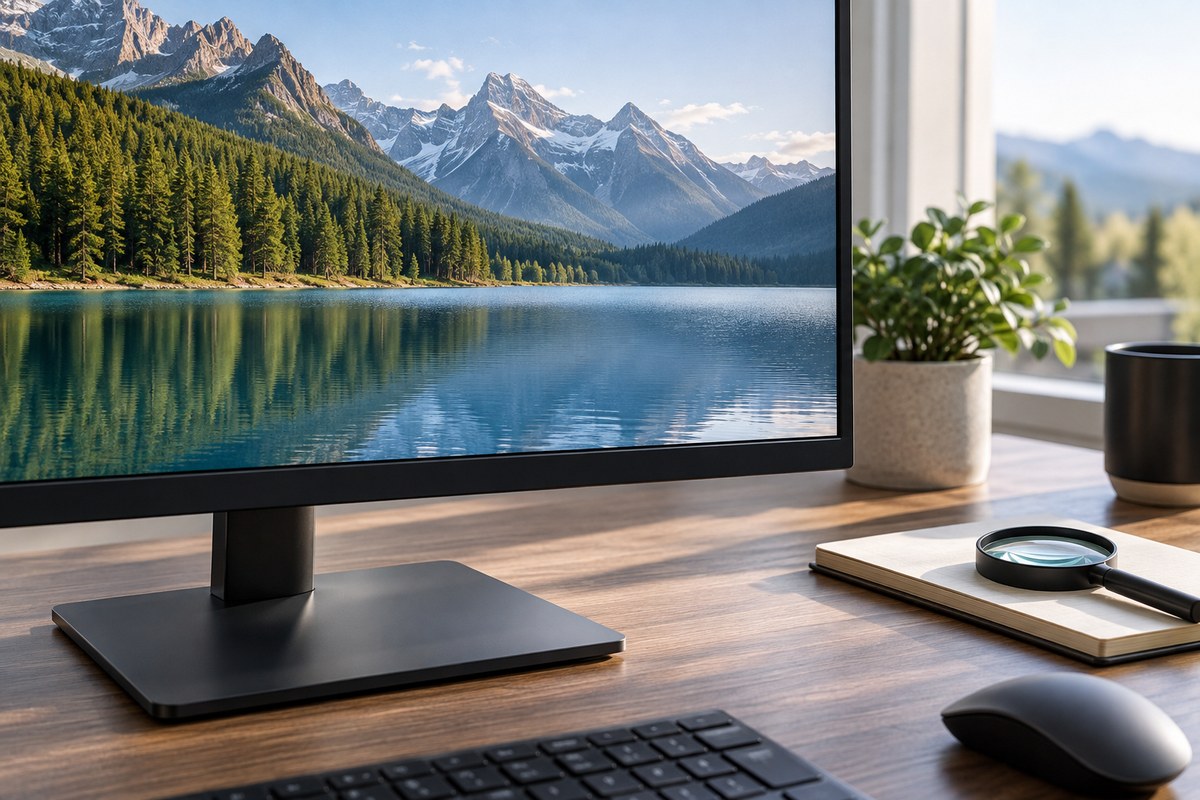
Links to Amazon may earn NextGen Essentials a commission from qualifying purchases at no additional cost to you. The illustration is generated and is not product photography. Confirm the exact item details on the linked listing.