24-Inch vs 27-Inch Monitor for Productivity: The Practical Desk Guide
A practical size-and-resolution guide for choosing a 24-inch or 27-inch monitor without crowding your desk or paying for screen space you cannot use.
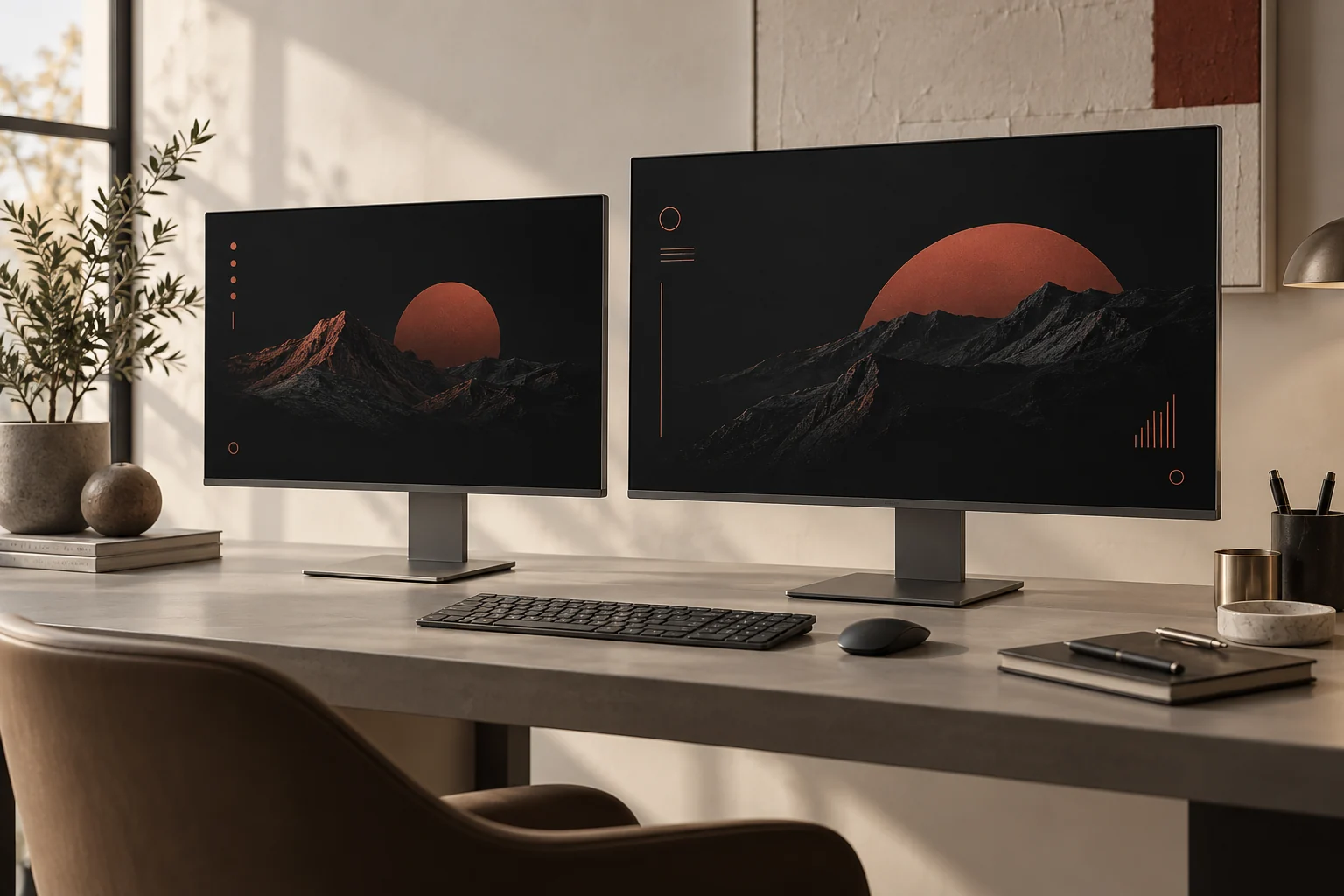
For most single-monitor productivity desks, a 27-inch 1440p display is the strongest all-around choice: it gives documents and timelines more room while keeping text comfortably sharp. Choose a 24-inch 1080p monitor when the desk is shallow, the budget is tighter, or you sit close to the screen. The better size is the one that fits your viewing distance and resolution; a larger panel is not automatically a more useful panel.
| Question | 24-inch monitor | 27-inch monitor |
|---|---|---|
| Best common resolution | 1920 × 1080 | 2560 × 1440 |
| Desk fit | Excellent on compact or shallow desks | Better with moderate desk depth |
| Typical strength | Focused work and simple setups | Side-by-side documents and creative tools |
| Text and UI | Comfortable at 1080p for many users | Sharper and roomier at 1440p |
| Choose it when | Space and cost matter most | One-screen productivity matters most |
Start with viewing distance, not the number on the box
Monitor size only becomes meaningful when it is tied to how far the display sits from your eyes. A 27-inch panel can feel calm and spacious on a deep desk, yet feel oversized when its stand pushes the screen toward you. A 24-inch panel can feel perfectly balanced at arm’s length and cramped when you expect it to replace two workspaces. Before comparing specifications, sit in your normal working position and measure from your eyes to the screen plane. That simple measurement is more useful than copying a setup photograph.
OSHA’s computer-workstation guidance places the generally preferred viewing distance between 20 and 40 inches, while also stressing that text must be readable without leaning forward. That is a range rather than a command. Your vision, text scaling, chair position, and desk depth all matter. The practical goal is an upright head and torso, a screen directly in front of you, and enough distance to scan the display without continually turning your neck. If a monitor forces you to lean or rotate, the nominal size advantage has become a layout problem.
Resolution changes what each size actually delivers
A 24-inch 1080p screen and a 27-inch 1440p screen are popular pairings for good reason. At 24 inches, Full HD can keep interface elements comfortably sized without demanding heavy scaling. At 27 inches, 1440p adds substantially more working area and finer pixel density than stretching the same 1080p image across a larger surface. The result is room for two documents, a wider spreadsheet, or a browser beside a notes window without making every element feel coarse.
A 27-inch 4K panel can look even sharper, but it does not automatically show four times as much useful information. Most people increase operating-system scaling so menus and text remain readable. That turns much of the additional pixel count into smoother type and cleaner graphics rather than raw workspace. This can be excellent for photography, design, and text-heavy work, but it may add cost and place more demands on the laptop, cable, and dock. Buy the resolution for a purpose, not because the specification sounds larger.
The 24-inch case: focus, compactness, and fewer compromises
A 24-inch monitor is still an excellent work tool. It fits apartment desks, dorm rooms, reception counters, and shallow tables where a 27-inch display may dominate the surface. It also leaves more physical room for speakers, a notebook, or a laptop stand. For writing, email, accounting software, customer support, and browser-based work, the smaller screen can reduce visual travel and keep attention inside a focused window. A good adjustable stand or monitor arm can improve the experience more than an extra three inches of diagonal size.
The value case is strong as well. Money saved on panel size can go toward an IPS panel, height adjustment, a 100Hz refresh rate, USB-C connectivity, or a better keyboard. Those upgrades may affect the workday more than screen area. A 24-inch display also makes a sensible secondary monitor. Two 24-inch panels provide a large combined canvas, although the bezels and added head movement mean they are best when one screen is clearly designated as primary.
The 27-inch case: a better single-screen canvas
A 27-inch 1440p monitor is the sweet spot for many home offices because it expands both physical size and usable resolution without becoming visually overwhelming. Editors can keep a document and reference open together. Analysts can see more columns before scrolling. Designers gain room for tool panels around the canvas. A larger single display also avoids the central bezel and mismatched color that often come with an improvised dual-monitor setup.
The tradeoff is space. Many included stands have deep feet, and the screen may sit several inches closer than expected. Measure the stand as carefully as the panel. A VESA arm can recover desk surface and let the display move backward, but the desk must support the clamp and weight. If you use a laptop below the monitor, check that the combined vertical arrangement does not push the 27-inch screen above a comfortable eye line. The top of the display should generally sit at or slightly below eye level, subject to your eyewear and posture.
Match the choice to the work you repeat every day
Writers and general office users can be happy with either size. The decision comes down to whether you prefer one maximized window or two useful windows at once. Spreadsheet users, developers, video editors, and anyone who works in timelines usually benefit more from the 27-inch 1440p canvas. Call-center work, point-of-sale use, focused writing, and compact hot desks often favor 24 inches. For photo work, prioritize panel quality and color controls before diagonal size; a well-calibrated smaller panel is more useful than a larger inaccurate one.
Also account for the computer. Most modern machines can drive 1440p easily, but an older laptop, basic dock, or limited HDMI port may restrict resolution and refresh rate. Check the computer’s published display-output specification, then check the cable and dock. The final image path is only as capable as its weakest link. This prevents the common disappointment of buying a 1440p or high-refresh monitor and discovering that the connected device is outputting a lower mode.
A five-minute decision method
First, measure desk depth and normal eye-to-screen distance. Second, decide whether your core workflow needs two readable windows side by side. Third, choose the resolution pairing: 1080p at 24 inches or 1440p at 27 inches are the safest mainstream starting points. Fourth, reserve budget for height adjustment or an arm. Fifth, confirm that your laptop and connection can supply the intended resolution at the intended refresh rate. This sequence keeps the decision grounded in the whole workspace.
If you remain undecided, choose 24 inches for a desk under roughly 24 inches deep or when you expect to sit close. Choose 27 inches when the desk can place it comfortably at arm’s length and you want one display to carry the entire workflow. Neither choice is permanent: scaling, window snapping, and an adjustable arm can refine the setup later. The aim is a screen that disappears into the workday rather than constantly reminding you that it is too large, too small, or poorly positioned.
The decision in one minute
- Choose 24-inch 1080p: for shallow desks, close viewing, straightforward office tasks, or the lowest sensible total cost.
- Choose 27-inch 1440p: for a primary single-monitor desk, frequent side-by-side windows, spreadsheets, coding, editing, and design.
- Consider 27-inch 4K: when text sharpness, high-resolution media, or detailed creative work matters more than price.
- Improve the stand first: when the current screen size is acceptable but height, depth, or desk space feels wrong.
Frequently asked questions
Is 27 inches too big for office work?
Usually not, provided the desk lets you sit at a comfortable distance and the screen is positioned directly in front of you. A deep included stand can make a 27-inch panel feel larger than it is, so measure stand depth or use an appropriate monitor arm.
Is 1080p sharp enough on a 27-inch monitor?
It can be usable, especially at a longer viewing distance, but text and interface edges look less dense than on a 27-inch 1440p display. For a new productivity purchase, 1440p is generally the more balanced 27-inch resolution.
Is a 24-inch 1440p monitor better?
It can deliver very crisp text, but interface elements may feel small without scaling, and the category offers fewer choices. It is a good specialist option, while 24-inch 1080p remains the simpler value pairing.
Should I buy two 24-inch monitors or one 27-inch monitor?
Choose two screens when you must keep separate applications visible continuously. Choose one 27-inch screen when you want a calmer desk, fewer cables, consistent color, and less head movement.
How this guide was built
This is a research-based editorial guide, not a claim of laboratory testing or long-term ownership of every product mentioned. We compared manufacturer documentation, standards and workplace guidance where relevant, then translated those details into practical buying questions. We avoid inventing test results, and we link the primary references below so readers can verify specifications and model-specific limits.