Desk & tech / A closer look
Best Monitors for Work and Gaming: 5 Picks by Use
An office screen, a USB-C creative-work option, a gaming-focused choice and compact alternatives. Start with the task that matters most.
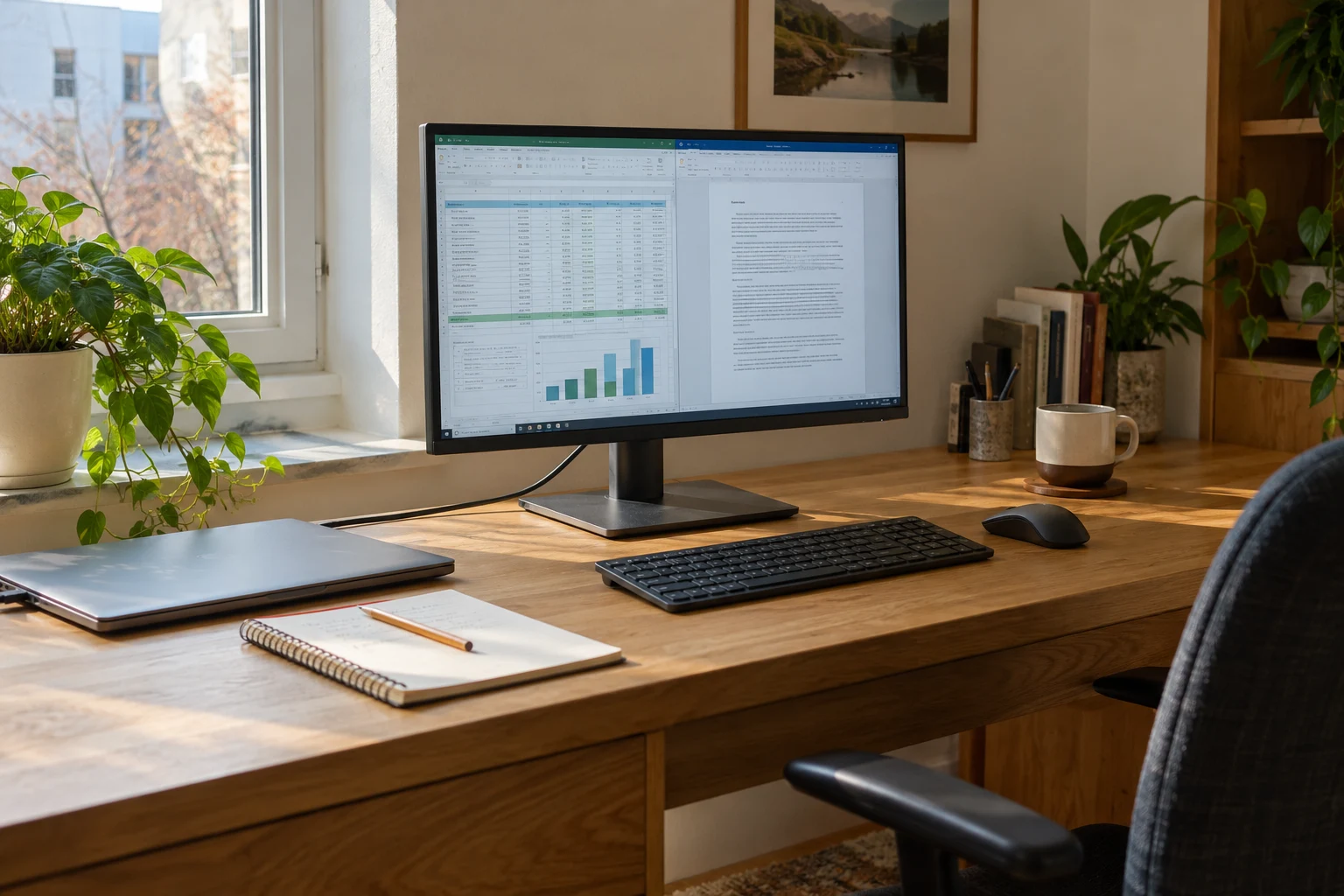
Start here
There is no universal monitor that wins every single category. Shortlist the Dell S2725QS for razor-sharp 4K text and smooth 120Hz office scrolling; choose the ASUS ProArt PA279CRV for a color-managed, single-cable 96W USB-C laptop workstation; evaluate the AOC Q27G3XMN for high-contrast Mini-LED HDR gaming; and rely on compact 24-inch Full HD displays like the Dell P2425H or Amazon Basics 100Hz when desk depth and total budget dictate your setup.
As an Amazon Associate, we earn from qualifying purchases. How our links work ↗
The useful answer
There is no universal monitor that wins every single category. Shortlist the Dell S2725QS for razor-sharp 4K text and smooth 120Hz office scrolling; choose the ASUS ProArt PA279CRV for a color-managed, single-cable 96W USB-C laptop workstation; evaluate the AOC Q27G3XMN for high-contrast Mini-LED HDR gaming; and rely on compact 24-inch Full HD displays like the Dell P2425H or Amazon Basics 100Hz when desk depth and total budget dictate your setup.
Compare the useful differences.
| Model | Consider for | The important check |
|---|---|---|
| Dell S2725QS | 4K office / general use | No USB-C laptop charging |
| ASUS PA279CRV | USB-C creative-work workflow | 60Hz / check required gamut modes |
| AOC Q27G3XMN | Gaming-focused QHD / Mini LED | Read measured motion tradeoffs |
| Dell P2425H | Compact adjustable office screen | Full HD / no USB-C laptop video |
| Amazon Basics 23.8-inch | Basic office or reference screen | Check complete setup cost |
As an Amazon Associate, we earn from qualifying purchases. How our links work. Choose the exact model and seller before ordering.
Five starting points, not five versions of “best”.
The single biggest mistake people make when shopping for a monitor is searching for a generic "best monitor" list. Modern displays are heavily specialized. A remote worker plugging a MacBook or Dell XPS into their screen every morning cares deeply about single-cable 90W power delivery, stable wake-from-sleep behavior, and clean font rendering. A competitive gamer prioritizes high-bandwidth DisplayPort inputs, low input latency, and snappy black-to-white pixel transitions. A writer working in a studio apartment needs a compact base that doesn't eat up their entire tabletop.
This guide cuts through marketing jargon by curating five distinct hardware routes. We do not pretend that one product satisfies every desk. Each pick is matched to a clear everyday workflow, with its engineering boundaries and compromises laid out in plain English. Before spending your money, identify which daily task is least flexible: resolution, connection architecture, color management, or physical desk footprint.
| Starting point | Published display mode | Reason to consider it | Key limitation |
|---|---|---|---|
| Dell S2725QS | 27-inch 4K, up to 120Hz | Detailed everyday work & fluid text motion | No USB-C laptop video input or charging |
| ASUS PA279CRV | 27-inch 4K, 60Hz | Single-cable USB-C video + 96W charging | Capped at 60Hz; not built for fast gaming |
| AOC Q27G3XMN | 27-inch 1440p; up to 180Hz via DisplayPort | Mini-LED local dimming & high-contrast HDR | VA panel viewing angles; noticeable dark smearing |
| Dell P2425H | 23.8-inch Full HD, up to 100Hz | Shallow desk fit with full ergonomic stand | USB-C is downstream 15W only; no laptop video |
| Amazon Basics 24-inch | 23.8-inch viewable Full HD, up to 100Hz | Tight-budget productivity or reference screen | Fixed-height stand; factor in mounting costs |
Always verify your computer’s graphics pipeline before purchasing. A display specifying a 4K 120Hz or 1440p 180Hz mode requires compatible HDMI 2.1 or DisplayPort 1.4 outputs on your host machine to achieve those numbers.
Dell S2725QS
For a detailed everyday work screen
The Dell S2725QS is our premier recommendation when your primary goal is clean text rendering, ample spreadsheet room, and smooth scrolling across daily documents. Its 27-inch 4K IPS panel packs 163 pixels per inch (PPI), which renders fonts with the crispness of a high-resolution printed book. When paired with its fluid 120Hz refresh rate, cursor tracking and window dragging feel instantaneous compared to standard 60Hz office panels.
The boundary you must know before buying is its port selection. The S2725QS provides standard HDMI 2.1 and DisplayPort 1.4 connections, but it completely omits an upstream USB-C video-and-charging port. If you use a desktop tower or already plug your laptop into a dedicated Thunderbolt docking station, this is completely irrelevant. But if you were hoping to connect your laptop with a single USB-C cable and ditch your wall charger, you will still need a separate dock or adapter.
Good fit if
You prioritize razor-sharp 4K typography, smooth 120Hz productivity, and connect through standard HDMI or a standalone desktop dock.
Look elsewhere if
Single-cable USB-C laptop power delivery is a mandatory requirement, or you need competitive esports pixel overdrive.
Decision rule: Add the cost of a high-quality USB-C to DisplayPort cable or separate dock if you work from a laptop. If the total cost approaches a dedicated hub display like the ASUS ProArt, evaluate whether built-in docking solves your daily setup cleaner.
Check current offer on Amazon ↗ASUS ProArt PA279CRV
For a compatible laptop and a 4K workspace
The ASUS ProArt PA279CRV is engineered specifically around the modern creative laptop workflow. It pairs a factory-calibrated 27-inch 4K IPS display with an upstream USB-C port that delivers video, peripheral data, and up to 96W of USB Power Delivery simultaneously. You set your laptop down, plug in one cable, and your workstation is ready.
The tradeoff is its refresh rate. The PA279CRV is capped at 60Hz. If you spend your evenings playing fast first-person shooters or demand ultra-high frame rates, this is not the screen for you. But for photographers, UI designers, software engineers, and writers, its 99% DCI-P3 and 100% sRGB color spaces, robust factory calibration certification (Delta E < 2), and clean cable management make it one of the most productive tools on the market.
Good fit if
You work from a MacBook or modern Windows laptop and want verified color spaces, crisp 4K scaling, and true single-cable docking.
Look elsewhere if
High-refresh gaming (120Hz+) is your priority, or your computer lacks DisplayPort Alt Mode over USB-C.
Always verify your laptop’s power requirements. 96W easily powers 14-inch and 16-inch MacBooks as well as most 15-inch ultrabooks, but heavy gaming laptops equipped with power-hungry discrete GPUs may still require their proprietary DC charging bricks.
Check current offer on Amazon ↗AOC Q27G3XMN
For a gaming-oriented 1440p shortlist
The AOC Q27G3XMN is a unique standout in the sub-$350 monitor category. It features a 27-inch 2560 × 1440 VA panel paired with a genuine Mini-LED backlight boasting 336 local dimming zones and VESA DisplayHDR 1000 certification. In high-contrast cinematic games, space simulators, and HDR media, it produces deep inky blacks and specular highlight punch that blow standard edge-lit office monitors out of the water.
However, it comes with unmistakable tradeoffs. Because it uses a VA panel, viewing angles are narrower than IPS screens; shifting off-center causes noticeable color washing and gamma shift. Furthermore, like many VA panels, dark-scene pixel transitions can exhibit trailing and black smearing in fast-paced competitive esports titles. Finally, its local dimming algorithm can produce subtle blooming around bright mouse cursors or white subtitles against pure black backgrounds.
Good fit if
You want stunning, high-contrast HDR gaming and movie playback at 1440p up to 180Hz without spending $800+ on an OLED.
Look elsewhere if
You do color-critical graphic design, need single-cable USB-C laptop charging, or hate VA viewing angle shifts during daily office work.
Before choosing: Check your graphics card. Achieving 180Hz at 1440p with HDR enabled requires a modern GPU and a DisplayPort connection. Over HDMI, the monitor is capped at 144Hz.
Check current offer on Amazon ↗Dell P2425H
For a compact office screen with useful adjustment
The Dell P2425H represents the sensible, ergonomic solution for tight workstations. Spanning 23.8 inches with a Full HD (1920 × 1080) resolution, it delivers an upgraded 100Hz refresh rate and an exceptional factory stand offering 150mm of smooth height adjustment, swivel, tilt, and vertical pivot. If your desk is only 50cm to 60cm deep, a 24-inch panel fits your natural focal distance far better than an overwhelming 27-inch screen.
Do not confuse the P2425H with a USB-C docking monitor. While it features a USB-C port on its lower chin, Dell documents that port strictly as a downstream data and 15W charging port for phones or flash drives. It will not carry display signals from a laptop and it will not charge your computer. If you require true single-cable laptop video and 90W power delivery, you must step up to the sibling P2425HE model.
Good fit if
You have a small, shallow desk and want reliable Full HD productivity, 100Hz scrolling smoothness, and top-tier stand ergonomics.
Look elsewhere if
You expect single-cable laptop docking, or your workload requires side-by-side multi-window 4K multitasking.
For standard document drafting, administrative tasks, and web browsing, the 93 PPI pixel density is crisp and comfortable without requiring complex OS scaling adjustments.
Check current offer on Amazon ↗Amazon Basics 24-inch 100Hz
For uncomplicated work, subject to total cost
The Amazon Basics 23.8-inch Full HD 100Hz monitor (ASIN B0CP7TRZWR) is our budget-conscious candidate for basic computing, student bedrooms, or a secondary reference screen. It delivers a competent IPS panel with wide viewing angles, built-in speakers, and digital HDMI/VGA connectivity at an entry-level price point.
The deciding factor with any budget screen is calculating total setup cost. The included stand is fixed-height and only tilts forward and backward. If keeping the screen at eye level requires purchasing a separate monitor riser, an aftermarket VESA arm, and specialty video adapters, your total expenditure can quickly surpass that of an office monitor like the Dell P2425H, which includes full height adjustment out of the box.
Good fit if
You need an uncomplicated Full HD screen for email, web browsing, or video calls, and the total price remains strictly below $100.
Look elsewhere if
You need an adjustable ergonomic stand, USB-C laptop power delivery, or verified wide-gamut color accuracy for media production.
Read our in-depth Amazon Basics 24-inch monitor review for detailed setup checks and connection verification.
Check current offer on Amazon ↗Do these checks before comparing deals.
Choose resolution for your actual workload.
Resolution should match the complexity of your daily software layout. A 1080p screen is excellent for single-window focus or secondary reference material. If your workflow requires keeping two readable browser windows, a code editor, and an email client open side-by-side, stepping up to 1440p or 4K delivers the canvas you actually need.
Trace your complete video and power pipeline.
Write down every link in the chain: computer port → cable → dock/adapter → monitor input. Never assume a USB-C shaped port automatically outputs video or that an external hub labeled "4K" supports your target refresh rate. If you plan to use single-cable laptop docking, verify that your computer supports DisplayPort Alternate Mode over USB-C.
Factor in total installed cost.
Do not judge a monitor by its headline price alone. Add the cost of any necessary VESA arms, desk risers, certified cables, or laptop power bricks. A slightly more expensive monitor that integrates the exact stand adjustments and docking ports you need is often the more economical choice over the long haul.
Distinguish marketing labels from physical performance.
A 180Hz label on a spec sheet does not guarantee ghost-free motion. An "HDR" logo does not mean a monitor has the local dimming zones required for true high dynamic range. When performance in high-speed motion, color grading, or HDR contrast is critical to your satisfaction, look for independent laboratory measurements rather than retail packaging claims.
Make the final choice at the model level.
Your final buying check
These validation checks remain local to your browser and help you finalize your decision systematically.
When you narrow down your finalists, focus on the single feature that removes daily friction. Choose the USB-C route if laptop clutter drives you crazy; choose 4K 120Hz if text clarity and smooth scrolling are paramount; choose Mini-LED if high-contrast gaming excites you; or choose compact 24-inch models if desk space is limited.
What independent measurements add to the shortlist
A specification table tells you what a monitor is engineered to support on paper; independent testing reveals how it actually behaves under real-world conditions. For example, testing from RTINGS confirmed that while the AOC Q27G3XMN delivers astonishing HDR peak brightness and deep contrast due to its 336 Mini-LED zones, its VA panel exhibits noticeable black smearing in dark transitions. Knowing that tradeoff beforehand prevents buyer remorse.
Similarly, independent evaluations of the ASUS ProArt PA279CRV confirm excellent factory color accuracy and razor-sharp text rendition, while noting that its edge-lit backlight cannot produce true HDR contrast. Transparent testing allows you to choose hardware based on verifiable facts rather than marketing hyperbole.
Work-first or game-first: use your least flexible task
If you spend eight hours a day writing, coding, or analyzing financial statements, and play an occasional game on the weekend, your least flexible task is optical text clarity and ergonomics. Buying an aggressive gaming monitor with poor font rendering or a massive V-shaped stand will irritate you all week long.
Conversely, if you compete in fast-paced games where input lag and motion blur directly impact your performance, prioritizing a high-refresh panel with fast pixel response times makes sense. Let your most demanding, least forgiving task dictate your purchase.
The two-monitor comparison that is worth doing
If you are stuck between two models, don't build a confusing 20-row spreadsheet. Compare just four practical metrics: (1) Does it fit my desk depth? (2) Does it connect cleanly to my primary computer? (3) Does it resolve my main pain point (text sharpness, gaming motion, or cable clutter)? (4) What is its total delivered cost including required accessories? Whichever model answers those four questions cleanly is the right monitor to buy.
Buy the complete solution once
There comes a moment when over-analyzing reviews becomes counterproductive. Once you have confirmed physical desk clearance, verified port compatibility, and identified an offer with favorable return terms, execute your purchase with confidence. A well-chosen monitor transforms your daily workspace into a calm, focused environment where you can get things done.
Before you decide.
Does a higher refresh rate guarantee clearer motion?
No. While a higher refresh rate updates screen frames more frequently, motion clarity depends heavily on pixel response times and overdrive tuning. A fast gaming panel with poor subpixel layout or slow dark-state transitions can still suffer from ghosting and fuzzy text.
Does a USB hub imply a KVM?
No. A standard USB hub simply connects peripherals to one active computer. An integrated KVM switch requires dedicated hardware routing to seamlessly toggle your keyboard, mouse, and display between two separate host computers.
The next good question
Keep exploring.
 Read the story ↗
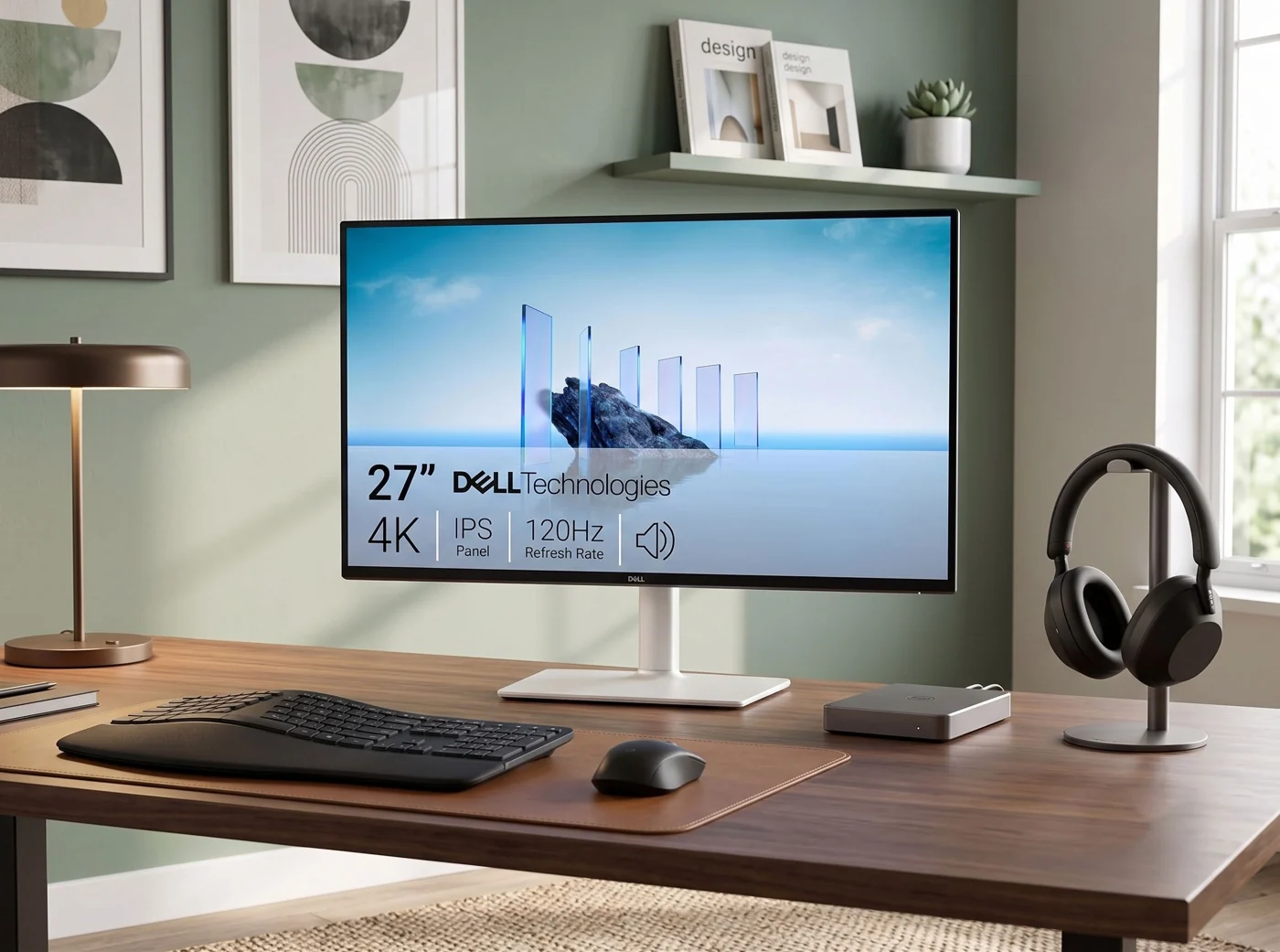
5 Best Minimalist Monitors for a Clean Desk Setup
A clean desk is nice. A screen you can read, connect and position comfortably is better. Here are five minimalist monitors for 4K office work, one-cable USB-C laptops and compact desks—plus the catches worth knowing before you buy.
 Read the story ↗
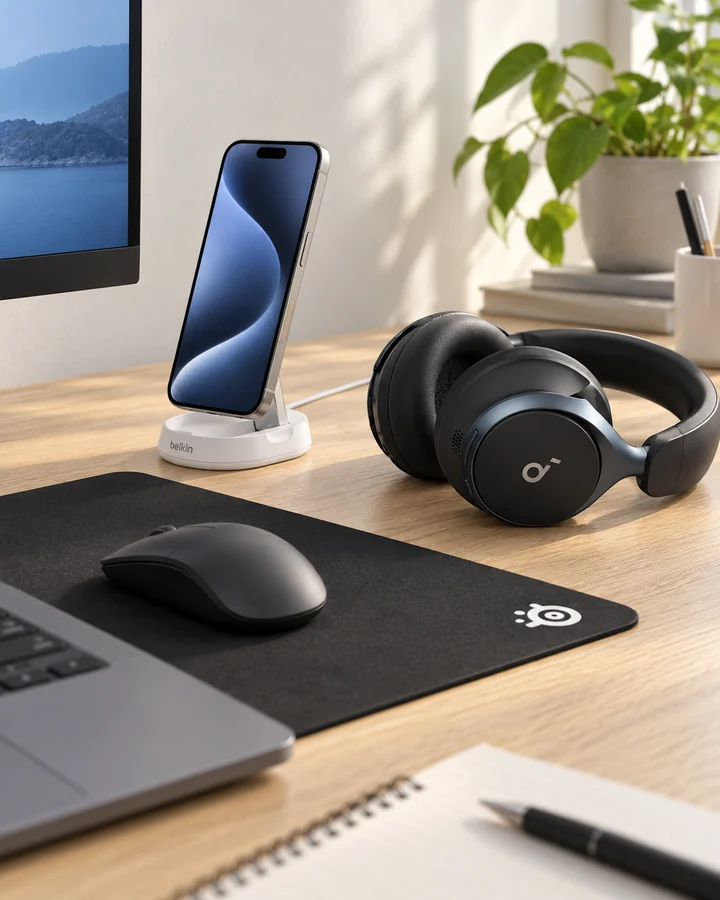
Home Office Desk Accessories for Focus: Six Picks Explained
Choose one audio format, give charging a routine and keep room for the mouse. A quiet-looking desk is useful when the arrangement also fits the way you work.
 Read the story ↗
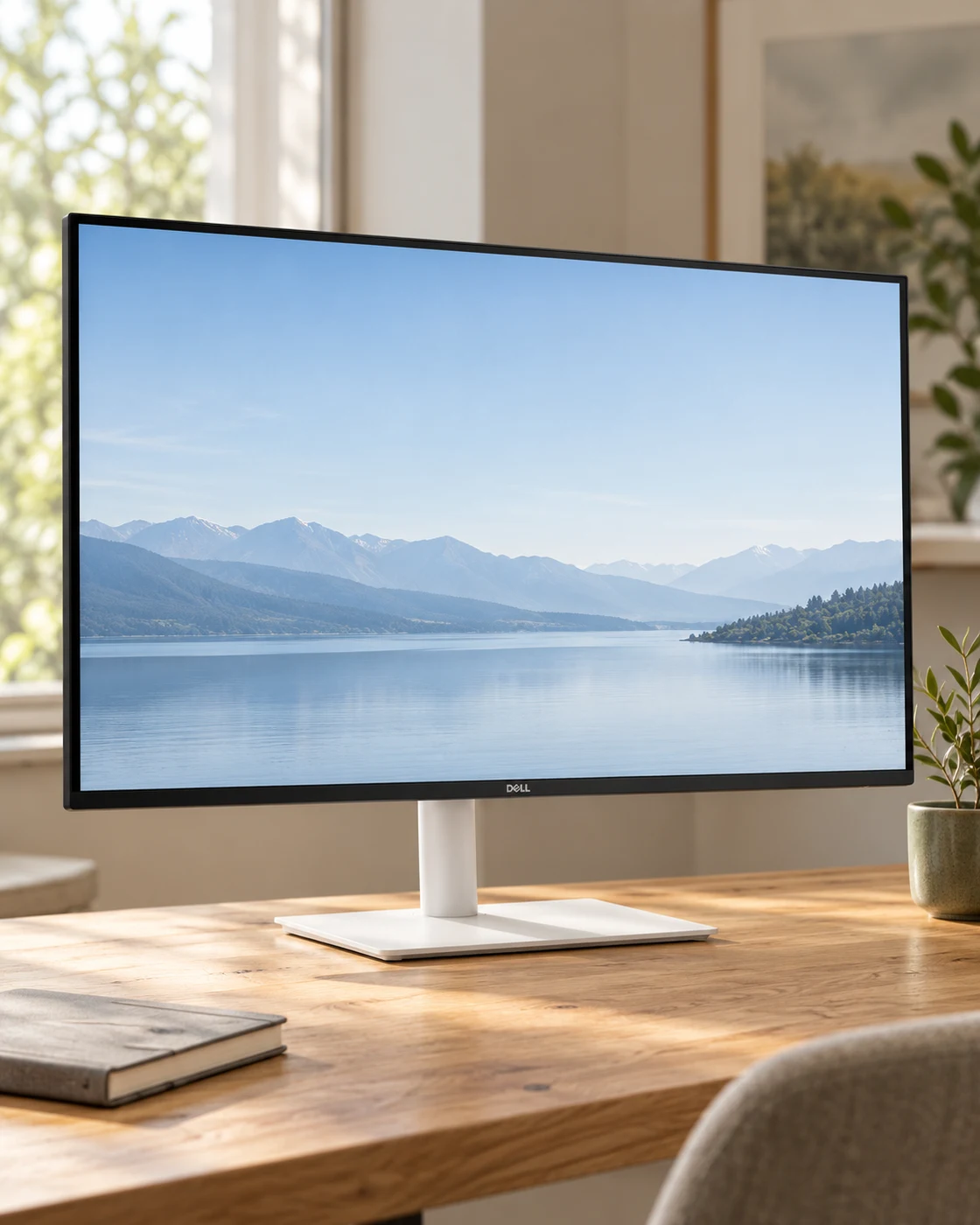
144Hz Monitor for Office Work: A Useful Upgrade or a Gaming Distraction?
The refresh-rate number has escaped the gaming aisle. That does not mean it should be the first thing you buy for a desk.