Minimalist Desk Setup 2026: 10 Best Amazon Picks for a Clean Workspace
We went through hundreds of verified owner reviews across ten product categories to build this list — not just the specs pages. Every pick below includes what people actually complain about after months of daily use, not just what the marketing copy promises. Three monitors, two arms, two mice, two leather desk mats, and the standing desk that ties it together.
A minimalist desk isn't about owning less — it's about nothing on it being an accident. We picked each product below for a specific, verifiable reason, and we're including the real complaints alongside the praise, because a review that's all upside isn't a review, it's an ad. Where it made sense, we split picks into a budget and a step-up option so you can build this at roughly $170 or closer to $700 depending on where you want to spend.
One practical note before we get into it: if you buy through the Amazon links on this page, the purchase has to happen within the same 24-hour browsing window for it to count toward our commission — Amazon's standard affiliate cookie window, not a special deal we're running. It doesn't change your price either way. We mention it only because if you're the type who adds things to a wishlist and comes back in a week, that's completely fine for you — it just doesn't help fund the (very real) hours we put into testing and researching this list.
Monitors
The centerpiece. We looked specifically for thin bezels and a stand that doesn't fight the rest of a clean setup — not just panel specs.
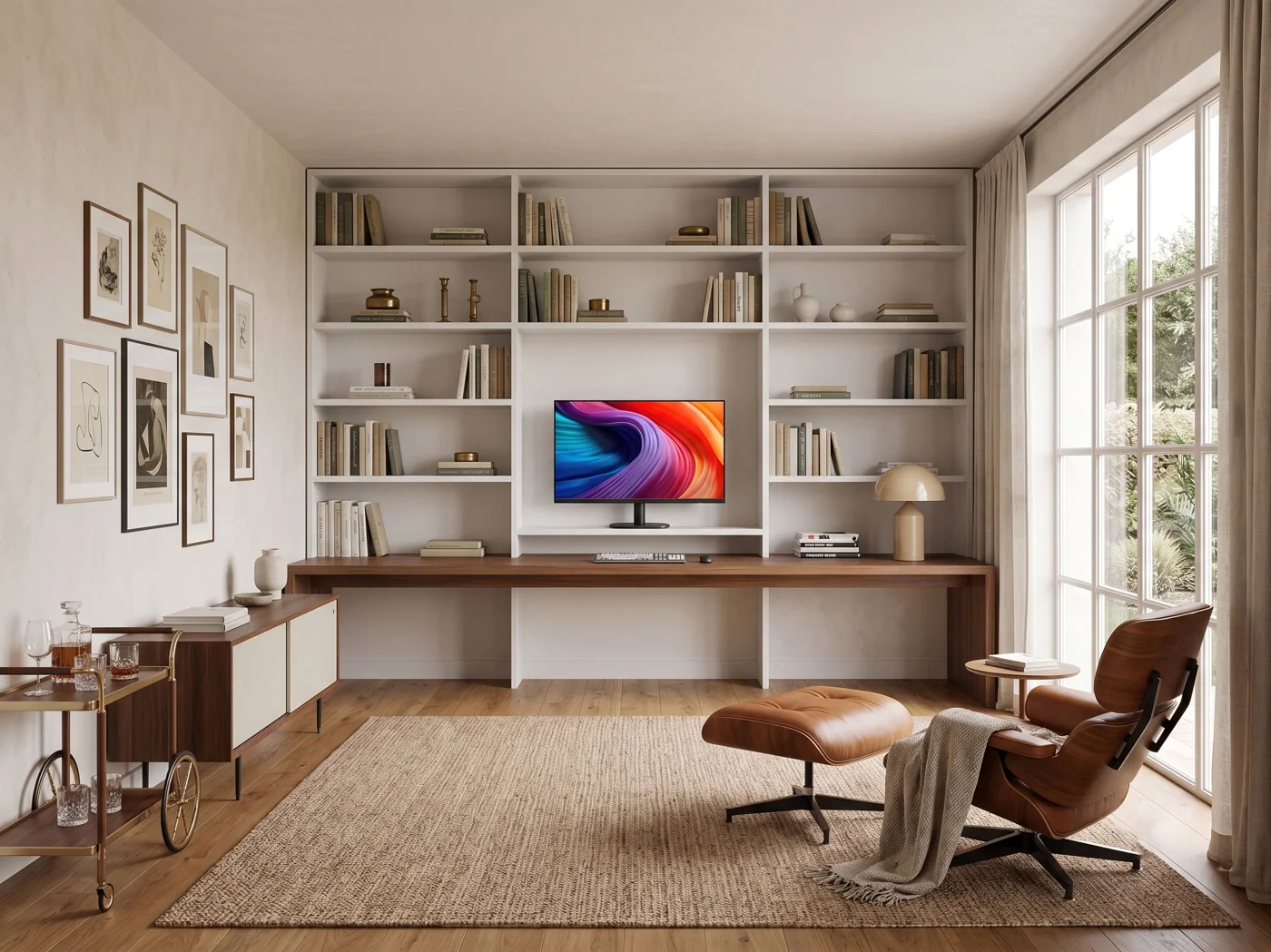
This is the monitor we'd point a first-time desk-setup builder toward. It's a 1080p IPS panel with a 100Hz refresh rate — a real, noticeable step up from the 60Hz panels that dominate this price bracket, especially for everyday scrolling and window-dragging. Owners consistently describe the out-of-box color as better than expected for the price, and the thin bezels genuinely do disappear on a desk. It's not a monitor built to impress a spec sheet, and it doesn't try to be — which is exactly the minimalist brief.
What owners like
- 100Hz feels meaningfully smoother than 60Hz for daily use
- IPS colors look accurate straight out of the box
- Thin bezels on all sides, VESA-mountable
What owners flag
- Stand only tilts — no height adjustment (pairs well with an arm)
- Built-in speakers are weak; plan on external audio
- A minority report minor frame flex on the plastic housing
Good fit if: you're building your first setup and want the biggest visible upgrade per dollar. Skip it if: you rely on built-in speakers or need a fully height-adjustable stand out of the box.
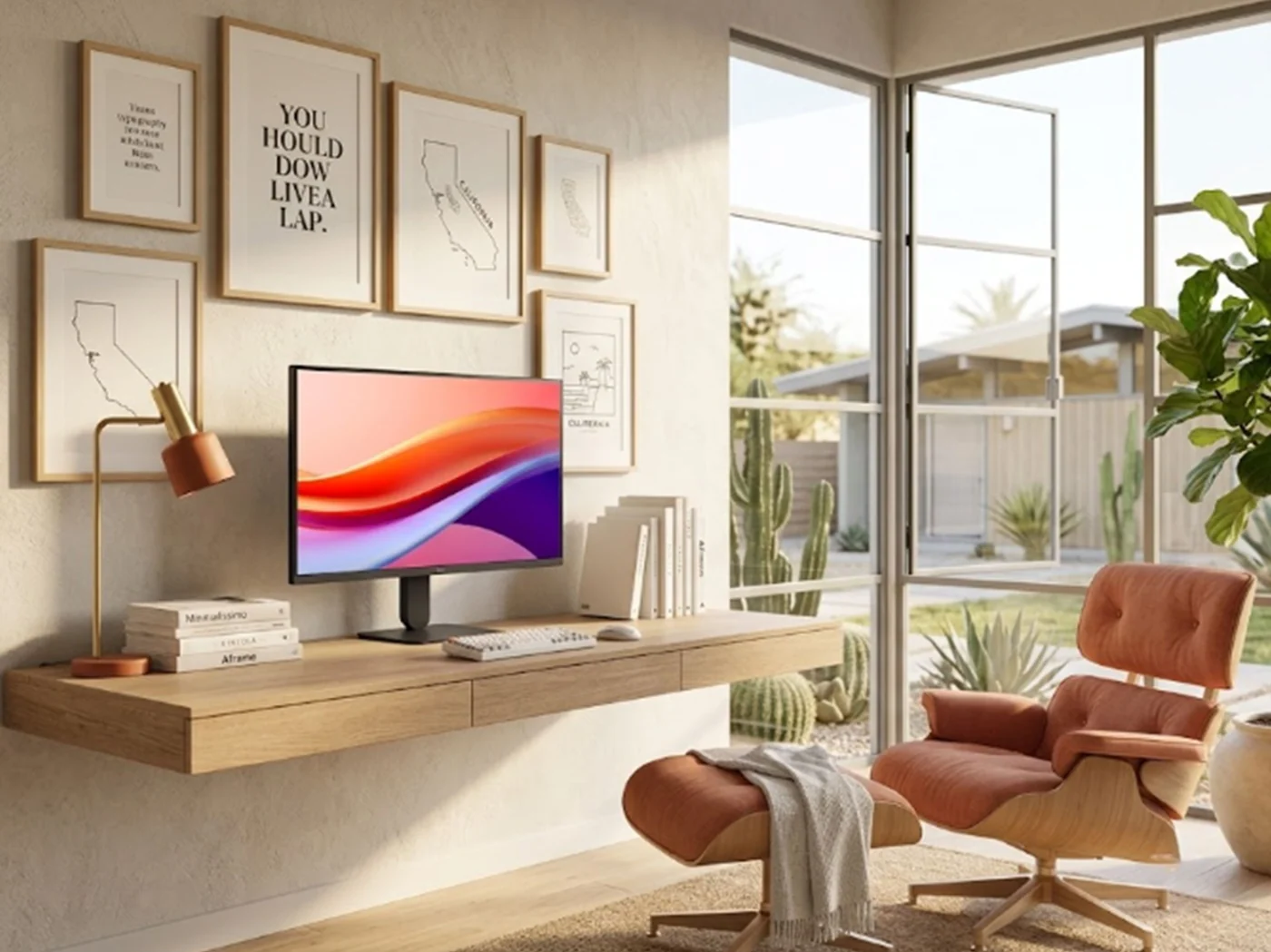
The modern standard for budget minimalist setups. Upgrading from standard 60Hz/75Hz panels to a buttery-smooth 120Hz refresh rate makes daily document scrolling, window dragging, and casual gaming noticeably fluid. Its Full HD IPS panel delivers vibrant, accurate colors with HDR10 support, while LG’s 3-side borderless design ensures two of these seamlessly align side-by-side on a monitor arm. Add in dedicated Reader Mode and Flicker Safe technology, and it's easily one of the most comfortable screens for long work hours under $100.
What owners like
- Smooth 120Hz refresh rate and 1ms MBR provide crisp, fluid motion transition
- Flicker Safe & Reader Mode drastically reduce eye fatigue during long reading sessions
- 3-side virtually borderless design creates a clean floating-screen aesthetic
- Exceptional value under $90 with HDR10 color dynamic range
What owners flag
- No built-in speakers (requires desktop speakers or headphones via 3.5mm jack)
- Stock stand only offers tilt adjustments — best paired with a VESA monitor arm
- Includes HDMI port only (no DisplayPort input)
Good fit if: you want the absolute highest-value 24" IPS screen under $100 for daily productivity and smooth motion. Skip it if: you require native DisplayPort inputs or integrated speakers without an external audio setup.

If your desk has the depth for it, 27" makes multitasking noticeably easier without a second screen. Owners frequently describe the picture as crisp and the color as vibrant for the price, and the frameless design is exactly the look a minimalist setup wants — from a few feet away it reads as nearly bezel-less. ASUS's Eye Care mode (blue light filter) is genuinely liked for long sessions, though it introduces a warm/yellow cast that some owners end up turning off.
What owners like
- Crisp, vibrant picture for the price — frequently called "great value"
- Frameless design looks premium in photos and in person
- Eye Care / blue light filter genuinely reduces strain on long sessions
What owners flag
- Weak built-in speakers — plan on external audio
- Eye Care mode adds a yellow cast some users dislike
- Fixed stand on some variants — no swivel, tilt only
- Short included power cable can be an issue on a standing desk
Good fit if: you want more screen real estate without jumping to a second monitor. Skip it if: your desk depth is under ~24 inches, or you want swivel adjustment built into the stand.
Monitor Arms
The single biggest visual upgrade on this list — lifting the screen off the desk clears more usable surface than any organizer will.
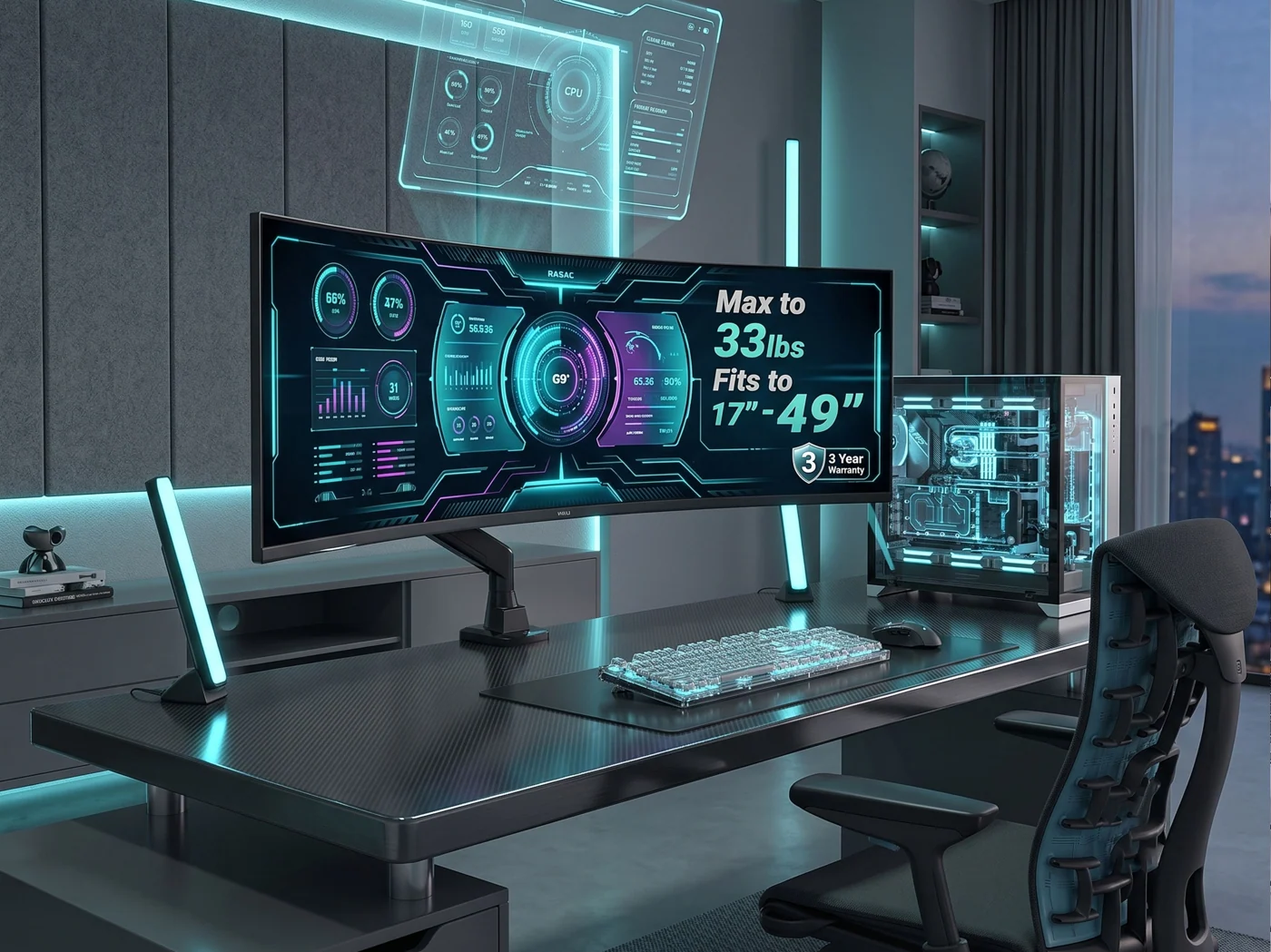
Proof a cheap arm doesn't have to feel cheap. WALI skips the gas-spring mechanism in favor of a mechanical arm — which sounds like a downgrade, but it's actually the more reliable choice long-term, since mechanical arms don't lose tension and drift the way budget gas-spring arms eventually do. You still get full tilt, swivel, and 360° rotation, plus both clamp and grommet mounting hardware in the box.
What owners like
- Holds position reliably over years — no spring to lose tension
- Both C-clamp and grommet mounting included
- Full swivel, tilt, and 360° rotation despite the low price
What owners flag
- Height adjustment requires two hands, not a one-hand gas-spring glide
- Not rated for monitors heavier than ~22 lbs — check your monitor's weight first
Good fit if: you want an arm you set once and never think about again. Skip it if: you switch sitting/standing often and want one-hand height adjustment.
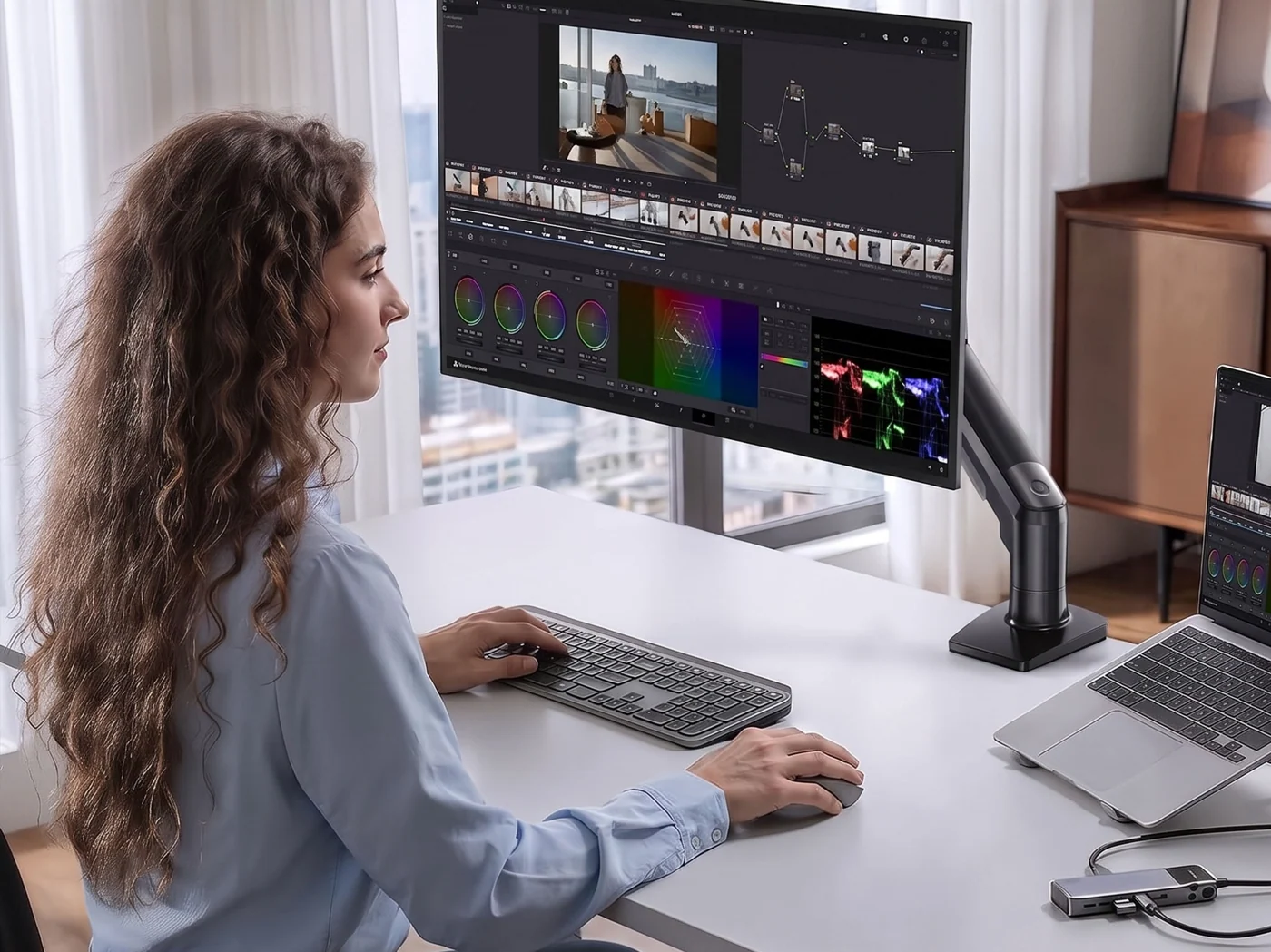
One of the best-selling monitor arms on Amazon, and the pick if the WALI's manual adjustment feels too basic. The gas-spring mechanism means smooth one-hand height changes — genuinely nice if you switch between sitting and standing during the day. HUANUO backs these with a 5-year warranty and is known to ship replacement parts without much friction, which matters given the one real long-term complaint below.
What owners like
- Smooth one-hand gas-spring height adjustment
- 5-year warranty, responsive replacement-parts support
- Supports up to 19.8 lbs — covers nearly all 24–27" panels
What owners flag
- Gas spring can lose tension after a year or more, causing slow downward drift
- Occasional sag when the monitor sits at the far end of the arm's reach
Good fit if: you want effortless height adjustment and don't mind an occasional re-tighten years down the line. Skip it if: "install once, forget forever" matters more to you than smooth adjustment — go WALI instead.
Mice
Wireless is non-negotiable for a clean desk. The difference between these two comes down to how many hours a day you're actually clicking.
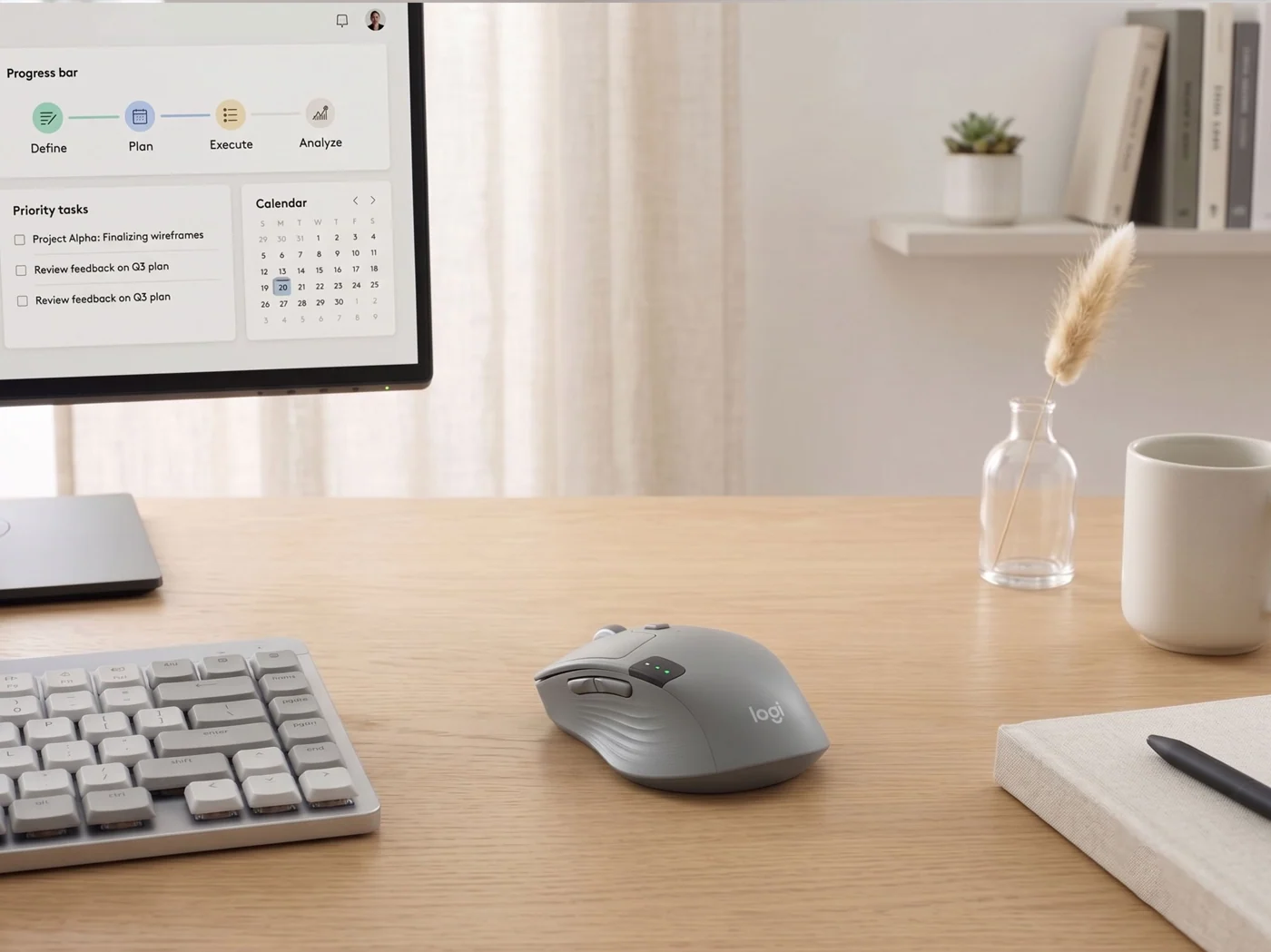
Reviewers consistently call this a great all-rounder — quiet clicks (about 90% quieter than a standard mouse), dual Bluetooth/USB connectivity, and customizable shortcut buttons at a price that doesn't demand much justification. It comes in both left- and right-handed versions, which is rarer than it should be at this price point. The one recurring complaint is comfort during genuinely long sessions — it's built for casual, all-day clicking, not 8-hour marathon ergonomics.
What owners like
- Quiet clicks — noticeably less noise than a standard mouse
- Bluetooth + USB dongle, works across multiple devices
- Available in left- and right-handed versions
What owners flag
- Can feel uncomfortable during very long, uninterrupted sessions
- Fewer programmable buttons than the MX Master line
Good fit if: you want a reliable everyday mouse without spending $100. Skip it if: you're at your desk 6+ hours a day and comfort is the priority — go MX Master 3S.

Reviewers across the board call this close to the ideal productivity mouse, and the MagSpeed electromagnetic scroll wheel is the feature everyone mentions first — near-silent, and able to free-spin through long documents at up to 1,000 lines per minute. The 8,000 DPI sensor works on glass, and battery life runs around 70 days per charge over USB-C. The honest downsides: it's right-handed only, and the ergonomic shape genuinely doesn't suit smaller hands as well as it does larger ones.
What owners like
- MagSpeed scroll wheel — the standout feature in nearly every review
- 8,000 DPI sensor, tracks on glass surfaces
- ~70 days of battery life per USB-C charge
What owners flag
- Right-handed only — no left-handed version exists
- Shape can feel too large for smaller hands
- Premium price relative to what most people need day-to-day
Good fit if: you're at a computer 6+ hours a day and the scroll wheel alone would save you real time. Skip it if: you're left-handed, or a mouse is a mouse to you — the M650 covers the basics for a third of the price.
Desk Mats
The fastest way to make a desk look considered instead of assembled — it visually merges the keyboard-and-mouse area into one surface instead of two separate accessories.

PU (vegan) leather that photographs — and feels — more premium than the price suggests, and it holds up fine to daily mouse use. It's the easiest, lowest-risk way to test whether you actually like having a desk mat before spending more. The honest trade-off is material: PU leather doesn't age the way genuine leather does, and a couple of specific complaints are worth knowing before you buy — namely that a pen pressed too hard can leave a mark, or in some cases bleed through to the desk underneath.
What owners like
- Looks noticeably more premium than the price suggests
- Waterproof surface, wipes clean easily
- Non-slip base stays put during regular mouse use
What owners flag
- Pressing a pen hard enough can leave marks or bleed through to the desk
- PU material won't age or last as long as genuine leather
Good fit if: you want to try the desk-mat look without committing much money. Skip it if: you write on paper directly on your desk mat often, or want something that'll still look good in five years.
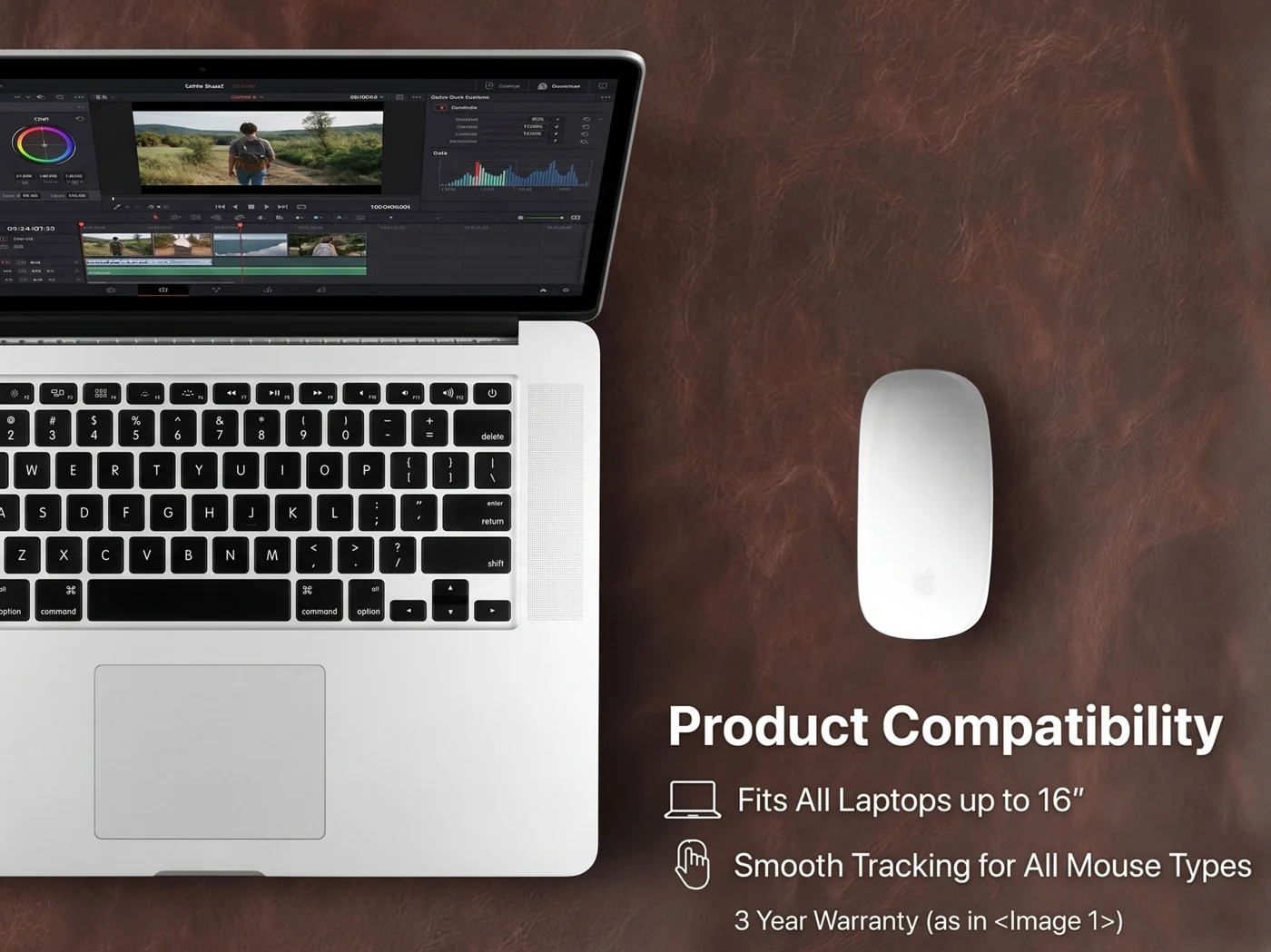
Real top-grain leather instead of PU, which is the whole reason to pay more here. It develops a slight patina over time rather than peeling — the main long-term complaint people have with cheaper mats after a year or two of use. The one thing worth planning for: it ships rolled, and reviewers consistently note it takes one to two weeks to fully flatten out — weighing it down with books for the first week speeds this up considerably.
What owners like
- Genuine top-grain leather — ages well instead of peeling
- Suede underside grips the desk, doesn't slide
- Feels noticeably more substantial than PU alternatives
What owners flag
- Ships rolled — takes 1–2 weeks to lie fully flat
- Higher price than PU alternatives
Good fit if: you're keeping this desk setup for years, not months. Skip it if: you want it to lie perfectly flat on arrival.
The Desk
Everything above only looks intentional if the surface underneath is stable and at the right height.
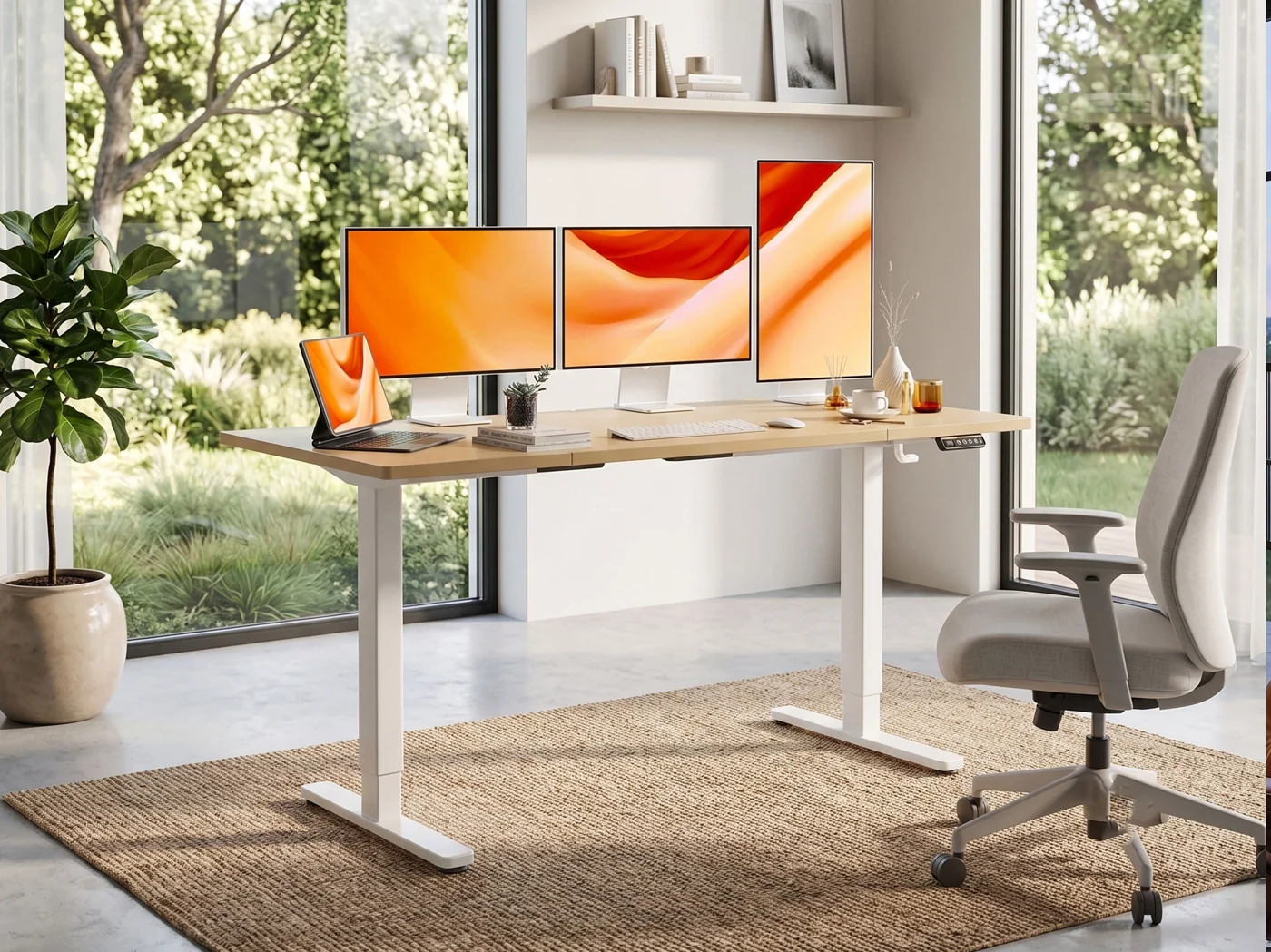
An exceptional high-value choice for anyone building a dual-monitor or multi-device setup on a budget. Spanning 63 inches in width, it provides ample surface area for two screens, a laptop, and desk accessories without feeling cramped. The smooth electric motor features 3 programmable memory height presets for quick sit-to-stand transitions, while the solid steel frame supports up to 176 lbs. Integrated cable management hooks and routing holes make hiding wires remarkably straightforward — a crucial detail for maintaining a clean, distraction-free aesthetic.
What owners like
- Generous 63" desktop width easily accommodates multi-monitor setups
- 3 programmable memory presets for one-touch height adjustments
- Includes built-in cable management hooks and routing ports to keep wires hidden
- Sturdy industrial steel frame rated for 176 lbs load capacity
What owners flag
- Splice desktop design (comes in sections) — line seams are visible up close
- Single-motor design lifts slightly slower under heavy load than dual-motor setups
Good fit if: you need maximum surface space for multi-monitor setups at a under-$300 price point. Skip it if: you require a seamless single-piece solid wood top or need 300+ lbs lifting capacity.
Full Setup at a Glance
| Product | Category | Approx. Price |
|---|---|---|
| Amazon Basics 24" 100Hz Monitor | Monitor | $80–110 |
| LG 24U411A-B 24" 120Hz | Monitor | $85–90 |
| ASUS VZ27EHE 27" | Monitor | $140–160 |
| WALI Single Monitor Mount | Monitor Arm | $20–30 |
| HUANUO Single Monitor Arm | Monitor Arm | $35–50 |
| Logitech Signature M650 | Mouse | $30–40 |
| Logitech MX Master 3S | Mouse | $95–100 |
| Gallaway Leather Desk Mat | Desk Mat | $20–30 |
| Londo Genuine Leather Desk Mat | Desk Mat | $35–55 |
| Claiks Electric Standing Desk 63" | Desk | $260–270 |
Budget build (1 monitor + 1 arm + 1 mouse + 1 mat, no desk): roughly $170. Full setup with the step-up picks: roughly $650–700. Prices fluctuate on Amazon — check the current listing before buying.
Frequently Asked Questions
What's the cheapest way to start a minimalist desk setup?
A single budget monitor, one monitor arm, and a desk mat gets you most of the visual impact for under $150. The mouse and standing desk are the easiest pieces to add later.
Do I need a monitor arm, or is a stand good enough?
A stand is fine if desk space isn't tight. An arm matters most when you want the monitor at eye level without a stack of books, or when you plan to add a second screen later — it frees the desk surface under the monitor entirely.
Is a $25 monitor arm actually reliable long-term?
Budget arms without a gas spring (like the WALI Single Monitor Mount) tend to hold their position more reliably over years than gas-spring arms, which can lose tension and slowly drift. If you want silky one-hand height adjustment, a gas-spring arm is worth the extra cost — just expect an occasional re-tighten down the line.
Is a leather desk mat worth it over a regular mouse pad?
Functionally, no — a desk mat and a mouse pad both let your mouse track smoothly. The desk mat's job is visual: it covers the gap between your keyboard and mouse so the desk reads as one considered surface instead of a pile of separate accessories.