USB-C Hub vs Thunderbolt 4 Dock: Which One Does Your Desk Need?
A plain-language guide to choosing a portable USB-C hub or full Thunderbolt 4 dock based on the devices you actually connect.
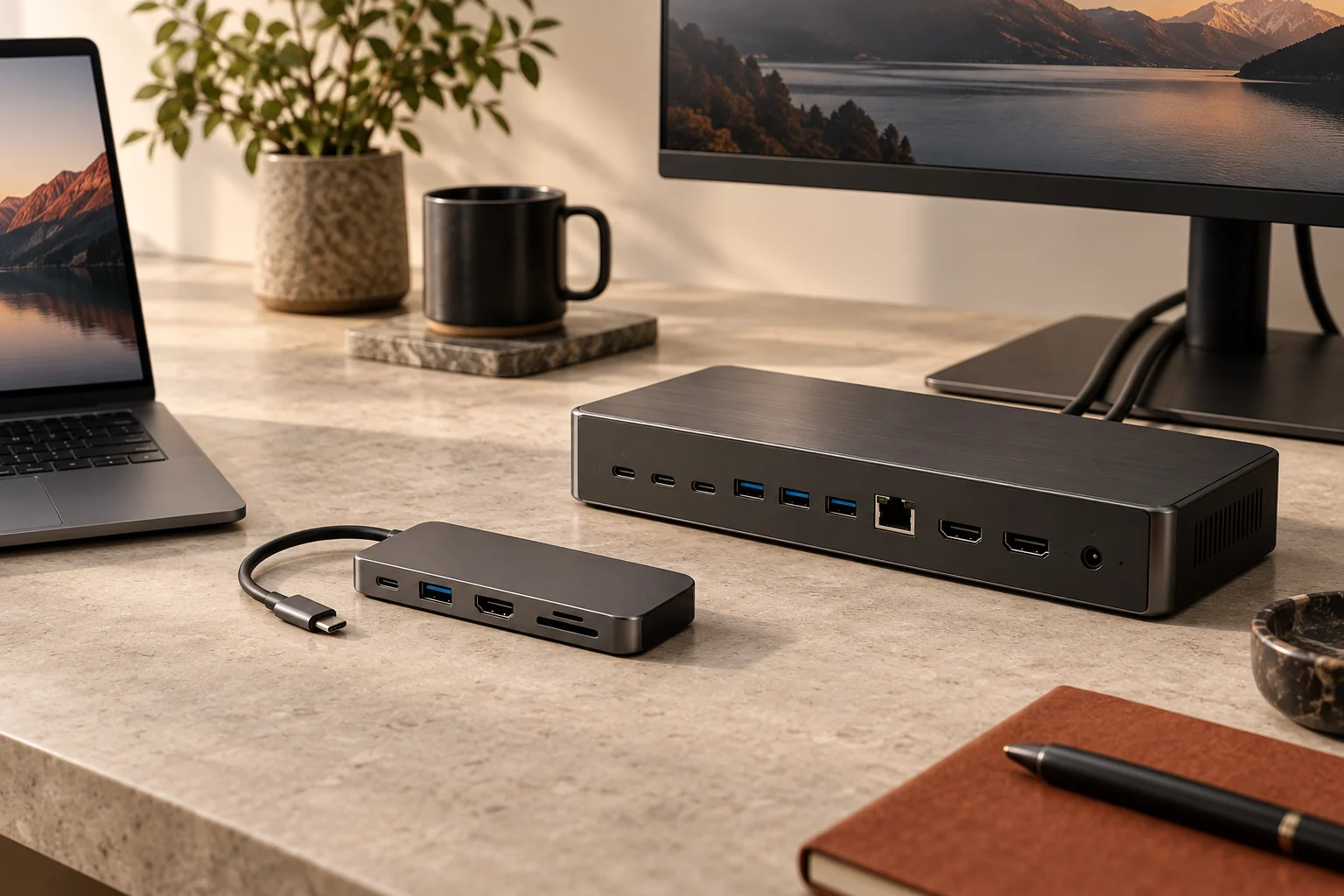
Choose a USB-C hub for travel, basic port expansion, one external display, card readers, and occasional accessories. Choose a Thunderbolt 4 dock for a permanent desk with multiple high-resolution displays, fast external storage, Ethernet, several peripherals, reliable laptop charging, and one-cable arrival. The USB-C connector shape alone does not guarantee video, charging, or a specific speed, so the laptop port and the hub or dock must be checked as a pair.
| Need | USB-C hub | Thunderbolt 4 dock |
|---|---|---|
| Typical role | Portable expansion | Permanent workstation anchor |
| Bandwidth | Varies widely by product and host | 40 Gbps minimum connection standard |
| Displays | Often one; exact limits vary | At least dual 4K support in the standard |
| Power | Often passes through a charger | Usually includes or expects substantial power |
| Best buyer | Traveler and light peripheral user | Multi-device desk and creator workflow |
USB-C describes a connector, not a complete capability
The oval USB-C plug is convenient, reversible, and widely used, but identical-looking ports can support very different features. One laptop port may carry basic USB data only. Another may add DisplayPort video and USB Power Delivery. A USB4 or Thunderbolt port may carry far more bandwidth and multiple protocols. The same uncertainty applies to cables. That is why buying a hub by counting ports can end in a monitor that stays dark or a laptop that charges too slowly.
Start with the computer manufacturer’s port specification. Look for data speed, display output, Power Delivery, USB4, or Thunderbolt markings. Then match the accessory to that capability. A premium dock cannot create display outputs that the host computer does not support, and a low-spec cable can restrict a capable dock. Treat the laptop, cable, dock, displays, and power supply as one system rather than five unrelated purchases.
What a USB-C hub does well
A USB-C hub is usually small, bus-powered, and designed to add the ports removed from thin laptops. A practical model may provide USB-A, HDMI, an SD card reader, Ethernet, and a USB-C power-input port. It can live in a bag and turn one laptop port into the connections needed for a hotel television, projector, wired network, keyboard, or camera card. For a simple home desk with one 1080p or 1440p monitor, it may be all that is necessary.
The limitations are product-specific and easy to miss. Several ports may share one upstream data link. The advertised charging figure may describe input to the hub rather than power delivered to the laptop after the hub consumes its share. A 4K HDMI claim may be limited to 30Hz. Some USB-C ports on the hub are data-only rather than video or charging outputs. Read the port diagram and footnotes; the physical count is less informative than what each port can do simultaneously.
What Thunderbolt 4 adds
Thunderbolt 4 uses the USB-C connector but applies a stronger required feature set and certification. Intel lists 40 Gbps minimum bandwidth, support for two 4K monitors, PC charging requirements on relevant systems, wake-from-sleep behavior through a dock, and compatibility with USB4. Those requirements make it easier to build a predictable desk around fast storage, multiple displays, networking, audio, and peripherals connected through a single upstream cable.
That consistency is the main value. A dock can stay wired to monitors, keyboard, mouse, Ethernet, speakers, and power. Arriving at the desk becomes one connection. Creative users can add fast external SSDs without asking a basic hub to divide a smaller link among storage and video. The cost, size, and power brick are higher, so the benefit appears when the dock replaces a cluster of adapters and daily cable handling—not when it merely adds two USB-A sockets.
Display support is where careful reading matters most
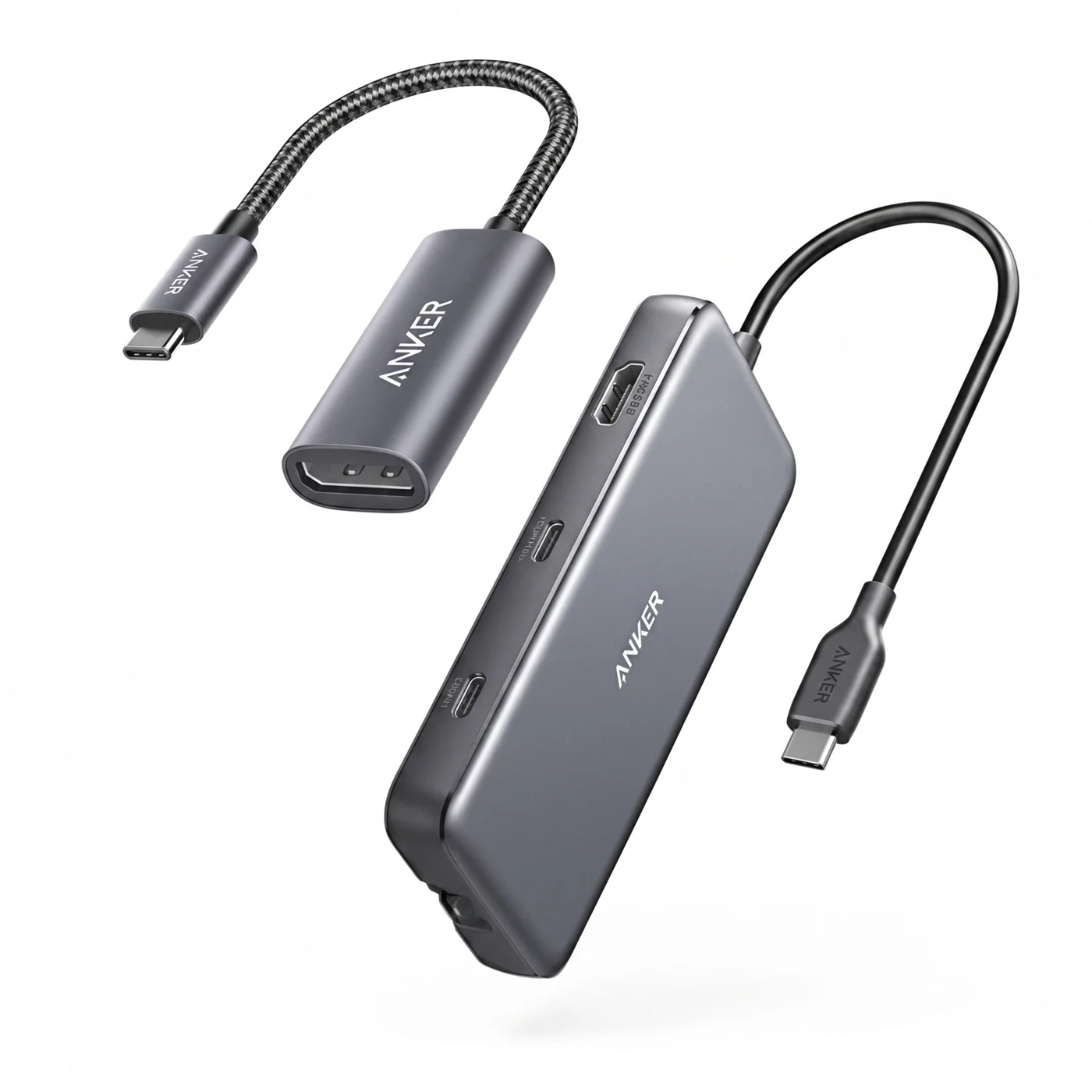
Display capability depends on the host computer as well as the accessory. Some laptops support only one external display even through a powerful dock. Certain operating systems and processor families impose their own limits. Resolutions, refresh rates, color depth, and high-dynamic-range settings all consume bandwidth. A product page that says “dual display” may achieve it only at reduced resolution or through software-based display technology with tradeoffs for protected video and fast motion.
Write down the exact target before shopping: for example, one 1440p monitor at 100Hz, or two 4K monitors at 60Hz. Confirm that target in the laptop documentation and dock documentation. If the manufacturer provides a compatibility table, use it. Direct display connections may be preferable for high-refresh gaming, while a Thunderbolt dock is excellent for work displays. This specificity prevents paying for theoretical bandwidth that your computer cannot expose.
Charging, heat, and desk behavior
A portable hub commonly relies on pass-through charging: you connect the laptop charger to the hub, and the hub sends most of that power upstream. Check the delivered wattage, particularly for larger laptops that may charge slowly or lose battery under load. Many desktop docks ship with a dedicated power supply and provide a stated amount to the computer. That can replace the laptop charger at the desk, which adds real convenience and keeps the travel charger in the bag.
Warmth is normal when a compact device is moving data, converting video, and negotiating power, but ventilation still matters. Do not bury a hub under fabric or stack it on a hot laptop exhaust. Short captive cables reduce clutter but can pull awkwardly on raised laptop stands; detachable upstream cables are easier to replace and route. For a permanent installation, place the dock where its power button, card slot, or front ports remain accessible while the messier cables exit toward the rear.
Buy for the next two years of connections
List every device that will stay connected, then add one spare high-speed port. If the list is one monitor, a keyboard receiver, and occasional SD cards, a reputable USB-C hub is the efficient answer. If it includes two displays, fast storage, wired networking, audio, a webcam, charging, and frequent laptop arrivals, a Thunderbolt 4 dock earns its place. The larger upfront cost can be rational when it replaces several adapters and reduces reconnection friction every day.
Avoid buying only by the largest number printed on the page. Verify the host port, delivered charging power, exact monitor modes, port sharing, included power supply, cable length, warranty, and return policy. A simple compatible hub is better than an elaborate dock whose features remain unused. A well-matched dock is better than a chain of bargain adapters. The correct choice makes the desk boring in the best way: one cable connects, everything wakes, and the work begins.
The decision in one minute
- Choose a USB-C hub: for travel, one common external display, card reading, occasional Ethernet, and a smaller budget.
- Choose a Thunderbolt 4 dock: for two high-resolution displays, fast storage, many permanent peripherals, and dependable one-cable desk use.
- Check the host first: because a dock cannot add video modes or charging behavior the laptop port does not expose.
- Calculate total cost: including a charger, display adapters, extra cables, and any monitor-arm routing needs.
Frequently asked questions
Is every USB-C port Thunderbolt?
No. USB-C describes the connector. Thunderbolt ports use that connector but meet a specific capability and certification standard. Look for the Thunderbolt symbol and confirm the computer specifications.
Will a Thunderbolt 4 dock work with a USB-C laptop?
Many Thunderbolt docks offer some USB-C compatibility, but features may be reduced and behavior varies. Check the dock’s compatibility documentation for the exact laptop and operating system.
Can a USB-C hub run two monitors?
Some can, but the result depends on the laptop, operating system, video technology, and target resolutions. Confirm the exact dual-display mode rather than relying on the number of HDMI ports.
Is a dock faster for normal USB accessories?
A dock provides more aggregate bandwidth and expansion, but a keyboard or ordinary mouse does not become meaningfully faster. The advantage appears when displays, storage, networking, and several devices work at once.
How this guide was built
This is a research-based editorial guide, not a claim of laboratory testing or long-term ownership of every product mentioned. We compared manufacturer documentation, standards and workplace guidance where relevant, then translated those details into practical buying questions. We avoid inventing test results, and we link the primary references below so readers can verify specifications and model-specific limits.