Monitor with Built-In KVM vs Separate KVM Switch: Which Fits Two Computers?
A built-in monitor KVM is convenient when two computers share one display and a keyboard/mouse, but its USB routing and video inputs must match your setup. A standalone KVM provides more flexibility across monitors and peripherals. Draw the actual signal path before buying and confirm resolution, refresh, USB switching and laptop charging separately.
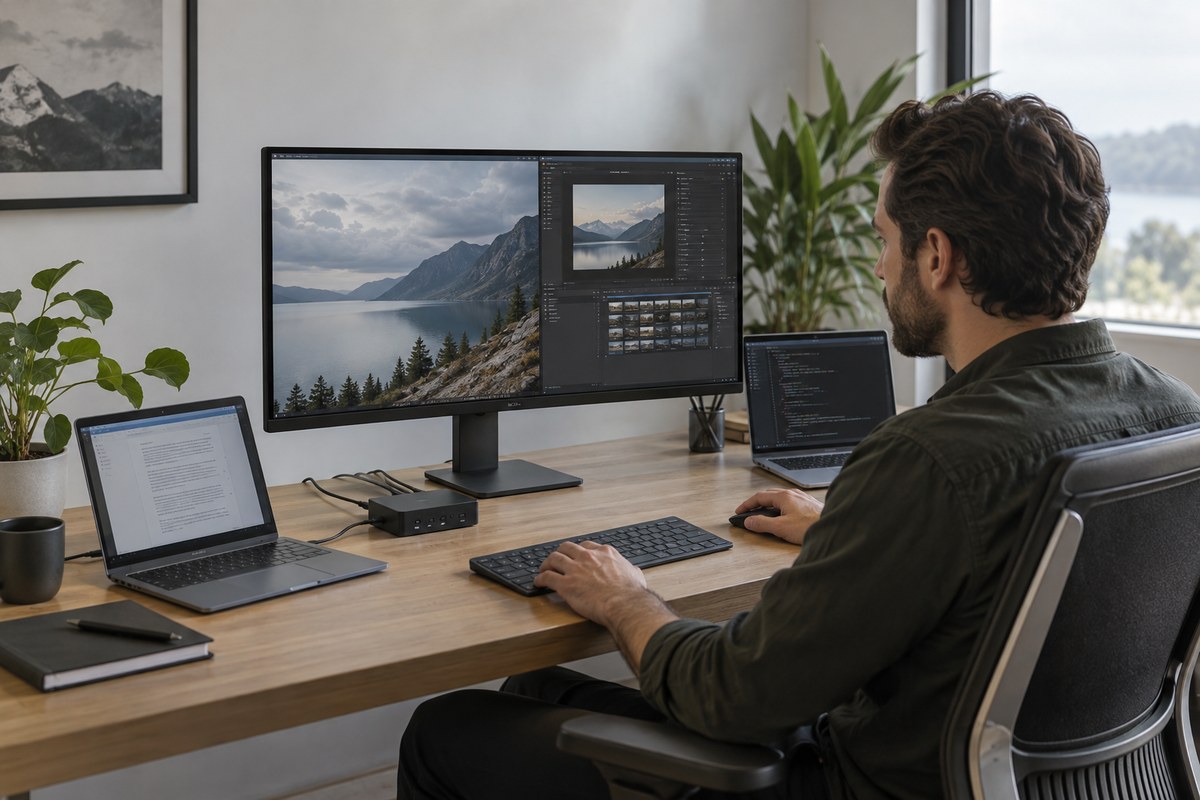
A built-in monitor KVM is convenient when two computers share one display and a keyboard/mouse, but its USB routing and video inputs must match your setup. A standalone KVM provides more flexibility across monitors and peripherals. Draw the actual signal path before buying and confirm resolution, refresh, USB switching and laptop charging separately.
| Option | Strength | Tradeoff |
|---|---|---|
| Monitor KVM | Minimal hardware and tidy desk | Limited by monitor ports/features |
| Standalone KVM | More routing options | Extra box, cables and compatibility checks |
| Software sharing | Can switch keyboard/mouse | Does not switch video |
What to compare first
Write down the two computers and display arrangement. A desktop plus work laptop on one monitor differs from a gaming PC and two displays. Count the keyboard, mouse, webcam, audio device, storage and other USB accessories that need to follow the active computer.
For a reader comparing monitor built in kvm vs kvm switch, this detail is most useful when it is checked against the exact item rather than inferred from a category label. Write down the model number, read the maker’s current specification, and compare the measurement or feature with your own setup. If the listing leaves a key point unclear, treat that uncertainty as a reason to verify before buying.
How this affects everyday use
A monitor KVM usually uses one video input per computer and an upstream USB connection for each host. Pressing the monitor control changes which host receives the USB peripherals. Some monitors also provide USB-C upstream; confirm whether switching happens automatically or requires an on-screen menu.
Turn this into a simple shopping check: note what you currently own, what problem you want to solve, and the one measurable change that would count as an improvement. Compare that against the exact product page and its return terms. A familiar brand or attractive image cannot answer questions about fit, compatibility, care, or whether the item suits your actual routine.
Check the exact specification
A standalone KVM can serve displays without a built-in switch and may provide dedicated buttons or hotkeys. Its limits matter: maximum resolution and refresh, EDID handling, HDR, adaptive sync, USB speed and support for multiple screens can vary widely.
The practical tradeoff is personal: the “best” choice depends on the room, wrist, body, equipment, weather, and habits behind the search. Use this point to narrow the shortlist, then evaluate two or three current options using the same criteria. Consistent comparison makes differences visible and helps avoid paying extra for features that do not solve the problem described in this guide.
Fit the choice to your setup
KVM switching can briefly disconnect devices or cause windows to rearrange if the computer sees the monitor disappear. Features such as EDID emulation help maintain display identity, but implementation differs. Check independent documentation and user reports for the exact model before depending on a seamless switch.
Before checkout, confirm the precise version, current price, seller, stock, included accessories, warranty and return policy. Product families change and marketplace listings can group variants. Specifications and images on the live listing should take precedence over any older editorial reference. This guide is a decision aid, not a guarantee that every current offer has identical features.
Avoid common buying assumptions
USB-C laptop charging is a separate capability from KVM. A monitor may route USB data and display video while supplying too little power for the laptop. A standalone switch often carries video and USB but not laptop power. Plan an independent charger if required.
A sensible low-risk test is to measure or inspect the part of your setup this recommendation affects before ordering. Keep the box until you have checked fit and operation. If the product does not improve the issue without introducing a new one, use the stated return process. That is more dependable than trying to predict personal comfort from a product photo alone.
A low-risk way to decide
For a simple office pair, a built-in KVM can reduce clutter and avoid an extra box. For a multi-monitor or unusual AV setup, a dedicated switch may be easier to adapt. If only the keyboard and mouse need to move, software sharing may work, but it will not switch screen inputs.
Do not overvalue a single headline number. A specification helps narrow options, but the complete experience also depends on materials, design, compatibility, manufacturing variation and maintenance. Look for the maker’s manual or support page for the exact reference, and compare independent evidence where the difference matters to your decision.
Final pre-purchase checklist
Sketch each connection and check that the switch supports the precise formats on the path. Include cables and power adapters in the budget. Return terms matter because KVM compatibility is a system-level question and a setup can fail even when each individual port looks correct.
This guide avoids claiming that the editorial team tested or owned every item. The image is generated editorial illustration and is not a photograph of the product in the link. We use the image to set the scene; always rely on the current manufacturer and retailer listing for product appearance, exact dimensions, available colors and included features.
A practical comparison before you buy
Make a short two- or three-option comparison using the real constraint behind “monitor built in kvm vs kvm switch.” Record the exact reference or version, one feature that matters, one tradeoff you can accept, and the return period. This keeps the decision anchored to your own needs and makes differences between current listings easier to spot. If two products appear equal, favor the clearer documentation, better fit and more dependable seller terms over a dramatic but unverified headline claim.
The affiliate link below opens a search for relevant current listings, not a promise that a single item is best or in stock. Search results can include variants, marketplace sellers and changing prices. Open the precise offer, compare the model number with the manufacturer’s page, and read recent buyer feedback for recurring fit or compatibility concerns. We do not quote review averages as research data because ratings change and listings may combine versions.
The decision in one minute
- Choose by use: A built-in monitor KVM is convenient when two computers share one display and a keyboard/mouse, but its USB routing and video inputs must match your setup. A standalone KVM provides more flexibility across monitors and peripherals. Draw the actual signal path before buying and confirm resolution, refresh, USB switching and laptop charging separately.
- Check the exact version: For monitor built in kvm vs kvm switch, confirm the specific model, listing details and current manufacturer guidance.
- Test the fit: Measure your own desk and computer setup before ordering.
- Keep expectations honest: Prices, stock, seller, specifications and return terms can change; verify them on the current product page.
Frequently asked questions
Does a KVM switch charge my laptop?
Usually not unless specifically designed for power delivery. Check the exact model’s power specs.
Can a KVM support high refresh?
Some can, but confirm the target resolution, refresh, color depth and interface version across every port.
Do both computers need USB cables?
Typically, yes for keyboard/mouse sharing; read the wiring diagram for the specific monitor or switch.
How this guide was built
This is a research-based editorial guide, not a claim of laboratory testing or long-term ownership of every product mentioned. We checked manufacturer, standards or workplace references where relevant and translated them into practical buying questions. We do not invent customer-review statistics. Confirm current availability, specifications, seller, price and return terms on the live product page.
Affiliate disclosure
Links to Amazon may earn NextGen Essentials a commission from qualifying purchases at no additional cost to you. The illustration is generated and is not product photography. Confirm the exact item details on the linked listing.