60Hz vs 100Hz Monitor for Office Work: Is the Upgrade Noticeable?
What a 100Hz office monitor changes, what it does not, and when resolution, panel quality, or an adjustable stand should come first.
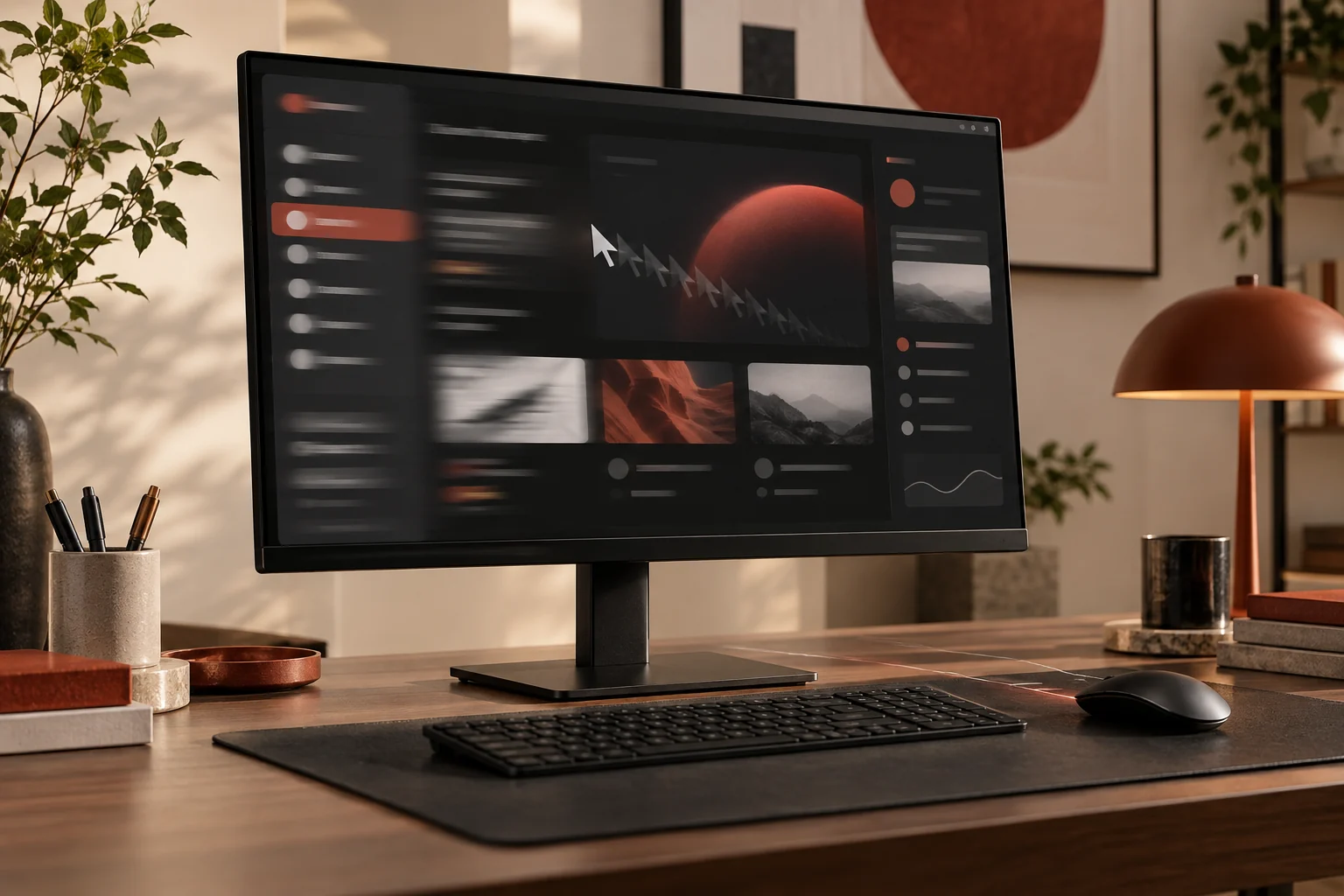
A 100Hz monitor refreshes the image 100 times per second instead of 60, so cursor movement, window dragging, and scrolling can look smoother. The difference is visible to many people, but it does not make documents sharper or guarantee less eye strain. For office use, choose 100Hz when the price premium is modest and your laptop supports it; keep resolution, panel quality, brightness control, and ergonomic adjustment ahead of refresh rate when the budget forces a tradeoff.
| Office priority | 60Hz | 100Hz |
|---|---|---|
| Scrolling and cursor motion | Standard smoothness | More fluid motion |
| Static text and spreadsheets | Same sharpness at equal resolution | Same sharpness at equal resolution |
| Laptop and cable demands | Very broadly compatible | Requires output support for the chosen resolution |
| Power and graphics load | Typically lower | Slightly higher |
| Best value | When heavily discounted | When the premium is small |
What refresh rate actually measures
Refresh rate is the number of times a display can present a new image each second. At 60Hz, the panel can update 60 times per second; at 100Hz, it can update 100 times. In office work, the clearest differences appear during motion: moving the pointer, dragging a window, scrolling a long page, or watching interface animation. Static text does not gain extra detail from refresh rate. A 100Hz 1080p panel remains 1080p, and a poor-quality panel remains poor regardless of how often it refreshes.
This distinction prevents a common buying mistake. Resolution controls how much pixel detail the screen can show. Panel type and implementation affect color, contrast, viewing angles, and response behavior. Brightness control, coating, and flicker behavior affect the viewing experience. Refresh rate is one layer in that stack. It can make interaction feel more immediate, but it should not be used as a shortcut for overall display quality.
Where 100Hz feels better in a normal workday
The improvement is easiest to notice when content moves across the screen. Text remains more visually coherent while a webpage scrolls. The pointer covers smaller visual steps as it moves. Window animations and timeline scrubbing look more continuous. People who rapidly move between documents, browse research, edit long pages, or work in visual timelines encounter these motions hundreds of times a day, so the screen can feel calmer and more responsive even though no single moment is transformative.
That sensation is subjective. Some users notice the change immediately; others adapt quickly and stop thinking about it. A faster panel also needs competent pixel response to deliver clean motion. Marketing a 100Hz number does not guarantee that every transition is free of smearing or overshoot. Independent reviews can help, but a straightforward return policy is equally useful when buying an unfamiliar model. The honest expectation is refinement, not a productivity revolution.
What 100Hz will not fix
Higher refresh does not repair tiny text caused by the wrong scaling, washed-out contrast, a glossy screen facing a window, or a stand that sits too low. It does not add working space, improve color accuracy, or make a low-resolution image sharper. It also does not replace healthy breaks or thoughtful lighting. Eye comfort is affected by many factors, and it would be misleading to promise that a refresh-rate upgrade alone prevents fatigue.
If your current display makes you lean forward, prioritize resolution, scaling, and placement. If whites look uneven or colors shift when you move, prioritize panel quality. If the top of the screen sits far above or below your eye line, choose height adjustment or a compatible arm. These changes solve clear physical problems. Once those fundamentals are handled, 100Hz becomes an appealing finishing upgrade rather than a distraction from a weak setup.
Check the entire signal path before buying
A monitor only runs at 100Hz when the computer, port, cable, adapter, dock, resolution, and operating-system setting all support the mode. A laptop may output 100Hz at 1080p but not at 4K through a particular port. A basic USB-C hub may limit the display connection. An older HDMI cable can become the unknown link. Read the laptop’s display-output specification and the monitor manual, then confirm the required HDMI or DisplayPort version.
After connecting the monitor, open the operating system’s advanced display settings and select the intended refresh rate. Do not assume it switches automatically. If 100Hz is missing, connect the monitor directly to the laptop to isolate the dock, try the supplied cable, and verify the correct input mode in the monitor menu. This troubleshooting order is faster than randomly replacing accessories. ASUS, for example, now sells office-oriented 100Hz displays, showing that the specification has moved beyond gaming, but compatibility still belongs to the complete chain.
How to prioritize features on a fixed budget
For a compact 24-inch office screen, a sensible priority order is an IPS-class panel, 1080p resolution, useful brightness controls, an appropriate matte coating, VESA support or an adjustable stand, and then 100Hz. At 27 inches, 1440p resolution usually matters more than moving from 60Hz to 100Hz because it changes both sharpness and workspace. USB-C with adequate laptop charging can be more valuable still if it removes a charger and adapter from the desk.
Compare total setup cost rather than the panel price alone. A cheap fixed stand may require a monitor arm. A display without the right port may require a dock. A model with weak controls may be difficult to tune at night. Conversely, if two otherwise similar monitors are separated by a modest premium, the 100Hz option is easy to recommend. It is a feature you can appreciate in every scroll without changing how you organize the desk.
The practical recommendation
Buy 100Hz for a new office monitor when it comes with the resolution, panel, ports, and stand you already need. It is especially attractive for mixed work and casual gaming, long-form web research, code, design timelines, and anyone sensitive to choppy cursor motion. Stay with 60Hz when a discounted professional display offers better color, resolution, connectivity, or ergonomics for the same money. A high-quality 60Hz monitor remains a serious work tool.
If you already own a good 60Hz display, an upgrade based only on refresh rate is difficult to justify unless you have seen 100Hz in person and value the difference. If you are replacing an old or poor monitor anyway, 100Hz is a sensible modern target. Treat it as part of a balanced specification rather than the headline that makes every other compromise acceptable.
The decision in one minute
- Choose 60Hz: when it buys a better resolution, panel, stand, color system, or single-cable connection within the same budget.
- Choose 100Hz: when the core specifications are equal and the price difference is modest.
- Verify first: that the laptop, cable, hub or dock, and selected resolution can all carry 100Hz.
- Upgrade later: if your current 60Hz display is already sharp, well positioned, and comfortable.
Frequently asked questions
Can office workers see the difference between 60Hz and 100Hz?
Many can, especially while scrolling, moving the pointer, and dragging windows. The size of the benefit varies by person and workflow, and it is less relevant when the image is mostly static.
Does 100Hz make text sharper?
No. Text sharpness is driven mainly by resolution, pixel density, scaling, panel behavior, and font rendering. Higher refresh rate makes moving text look more continuous, not static text more detailed.
Will 100Hz reduce eye strain?
It may feel more comfortable to some users, but eye fatigue has multiple causes, including glare, brightness, viewing distance, dry eyes, and long viewing time. Do not treat refresh rate as a medical solution.
Can HDMI run a 100Hz office monitor?
Often yes, but support depends on the resolution, HDMI versions at both ends, cable, and monitor input. Confirm the specific resolution-and-refresh combination in the computer and monitor documentation.
How this guide was built
This is a research-based editorial guide, not a claim of laboratory testing or long-term ownership of every product mentioned. We compared manufacturer documentation, standards and workplace guidance where relevant, then translated those details into practical buying questions. We avoid inventing test results, and we link the primary references below so readers can verify specifications and model-specific limits.