Desk & tech / A closer look
Dual Monitor Office Setup: A DisplayLink Desk Kit Explained
Two work screens need a compatible connection plan. Here is where the UD-3900Z fits, where it does not, and how five supporting accessories earn their place.

Start here
The Plugable UD-3900Z is a USB DisplayLink option for two HDMI office displays up to 1920 × 1200 each at 60 Hz on a supported system. It does not charge the laptop and is not the right foundation for dual 4K, high-refresh gaming or HDCP-protected streaming. Confirm the display modes and current software requirements before building the rest of the desk.
As an Amazon Associate, we earn from qualifying purchases. How our links work ↗
Two monitors can make ordinary office work easier to arrange. A document can stay open beside the spreadsheet that explains it; a meeting can occupy one screen while notes remain visible on the other. The awkward part is connecting the screens reliably to the laptop you actually own. A dock with two display sockets can look like a complete answer before the important questions have been asked.
This kit is built around the Plugable UD-3900Z, a USB DisplayLink dock for a particular kind of dual-monitor office setup. The other pieces address adapter spacing, laptop position, input space, phone top-ups and cable maintenance. They do not change the dock's resolution, software or charging limits. Read those limits first, then decide whether this is the right foundation for your desk.
The short answer: useful for two modest office screens
The UD-3900Z is worth considering for supported computers running two HDMI displays up to 1920 × 1200 each at 60 Hz, with the relevant driver support. It adds USB connections, Ethernet and audio, but does not charge the laptop. That makes it a practical document-and-browser option when its display mode fits the work and the computer can run the required software.
For dual 4K screens, high-refresh gaming, protected streaming video or a computer where software installation is prohibited, choose a different route. The presence of USB-C in the box does not make this a Thunderbolt dock. A useful shortlist starts by separating the connection method from the connector shape.
What DisplayLink changes, and what it leaves alone
A native display connection sends a supported video signal from the computer through its display-capable port. DisplayLink adds a USB graphics route supported by software. That difference can be useful when a particular computer's native external-display arrangement does not meet the desired office layout. It also makes driver support part of the purchase, not a small optional step after the box arrives.
Plugable describes the UD-3900Z as an office and productivity device. Its current information identifies Windows, macOS and ChromeOS support, with operating-system-specific setup. Windows can obtain drivers through Windows Update; macOS requires DisplayLink software. Check the current requirements for your exact system and ask workplace IT before purchasing equipment that depends on installation permissions.
Software-based display support does not increase the computer's processing resources or guarantee every application behaves identically. Plugable does not recommend this model for gaming or full-screen video playback, and it does not support HDCP-protected content. A tidy two-screen office can be a good outcome without pretending the dock is a universal entertainment and graphics workstation.
Write down the resolution before buying the dock
The important number is the actual display mode you want on each monitor. Two screens capable of 4K are not the same purchase requirement as two screens you are content to use at 1920 × 1080 or 1920 × 1200. The UD-3900Z's ceiling belongs in that decision before you compare prices or count USB ports.
Running a higher-resolution monitor below its native resolution may change text appearance and available working space. Whether the result is acceptable depends on the screen and the task. Do not assume a cheap dock is a bargain if it forces a compromise that bothers you throughout the day. Our external-monitor text guide explains why signal and scaling choices deserve attention.
Also confirm HDMI inputs on both screens. Similar-looking Plugable names can refer to different output combinations; the model here is UD-3900Z with dual HDMI. If you need DisplayPort, USB-C monitor video or a different dock family, follow the exact product's compatibility information instead of transferring this guide's conclusions to it.
The six-piece dual-monitor kit
| Product | Role | Check first |
|---|---|---|
| Plugable UD-3900Z | Dual HDMI, USB and network connections | Resolution, drivers and host support |
| Belkin PivotPlug | Space for US power adapters | Region, load and outlet clearance |
| Twelve South Curve | A fixed laptop position | Height, footprint and laptop support |
| Aothia PU pad | Keyboard and mouse area | 800 × 400 mm clear space |
| Anker 313 stand | Visible phone charging | Qi phone, case and supply |
| ONE-WRAP ties | Serviceable cable bundles | Slack for everyday movement |
 Product view
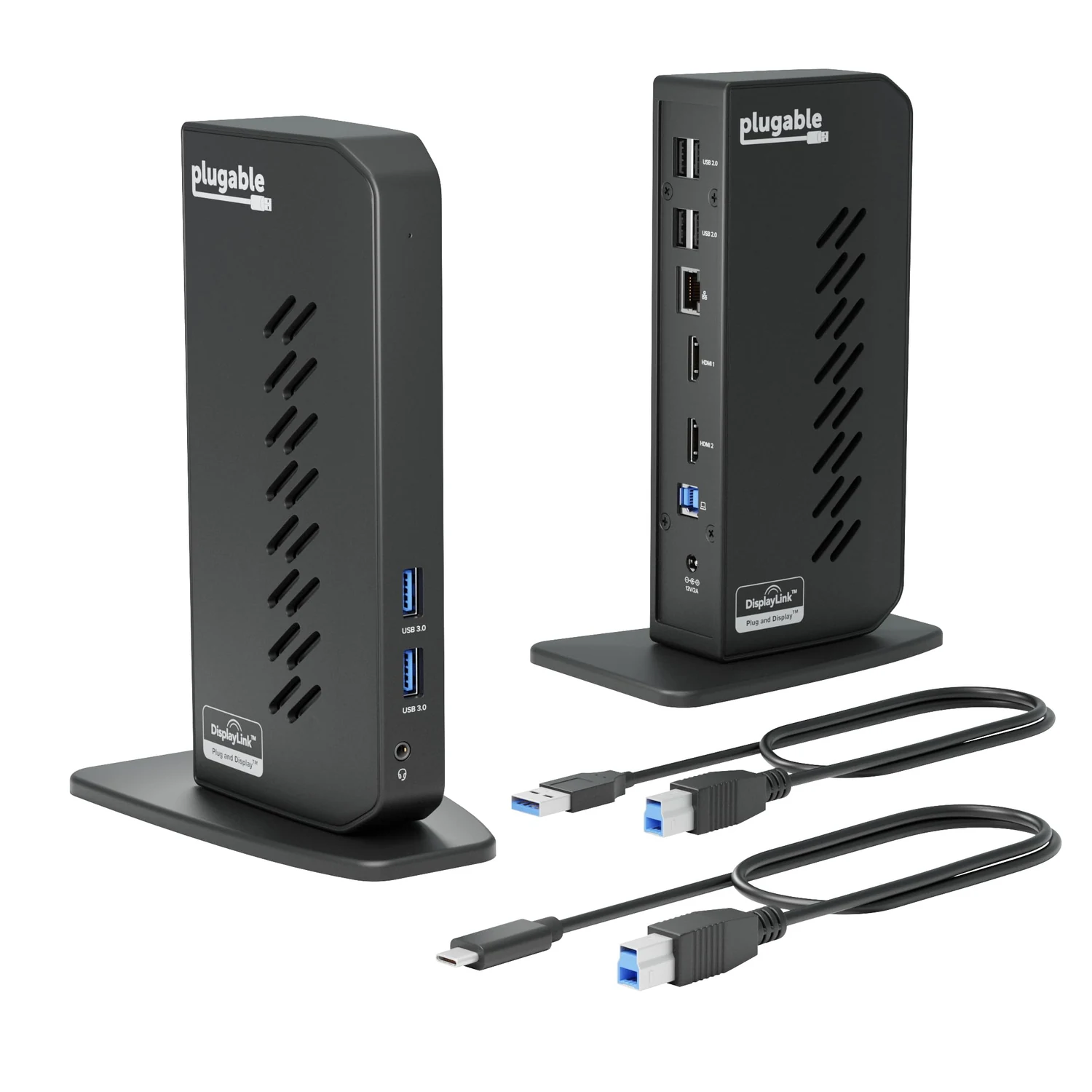
UD-3900Z · Dual HDMI · Black
1. Plugable UD-3900Z: choose the right compromise
The reason to consider this dock is a supported two-screen office workflow through USB. Alongside its two HDMI outputs, the specified model provides two faster USB ports, four USB 2.0 ports, gigabit Ethernet and a 3.5 mm audio connection. Its vertical base can keep the connection center beside the monitors rather than spreading small adapters across the front of the desk.
The important omissions are laptop charging and support for every kind of video use. Keep the computer's own appropriate power supply connected. Check current operating-system support, driver access and any screen-capture permissions requested by the installed DisplayLink software. Avoid buying first and assuming workplace restrictions can be worked around later.
For a person working mainly in documents, mail and browser applications, those limits may be acceptable. For a person who wants native high-refresh graphics, dual high-resolution displays or seamless protected streaming through the dock, they are reasons to choose differently. Verify the Z suffix, the supplied host cables and the HDMI configuration on the actual offer.
 Product view
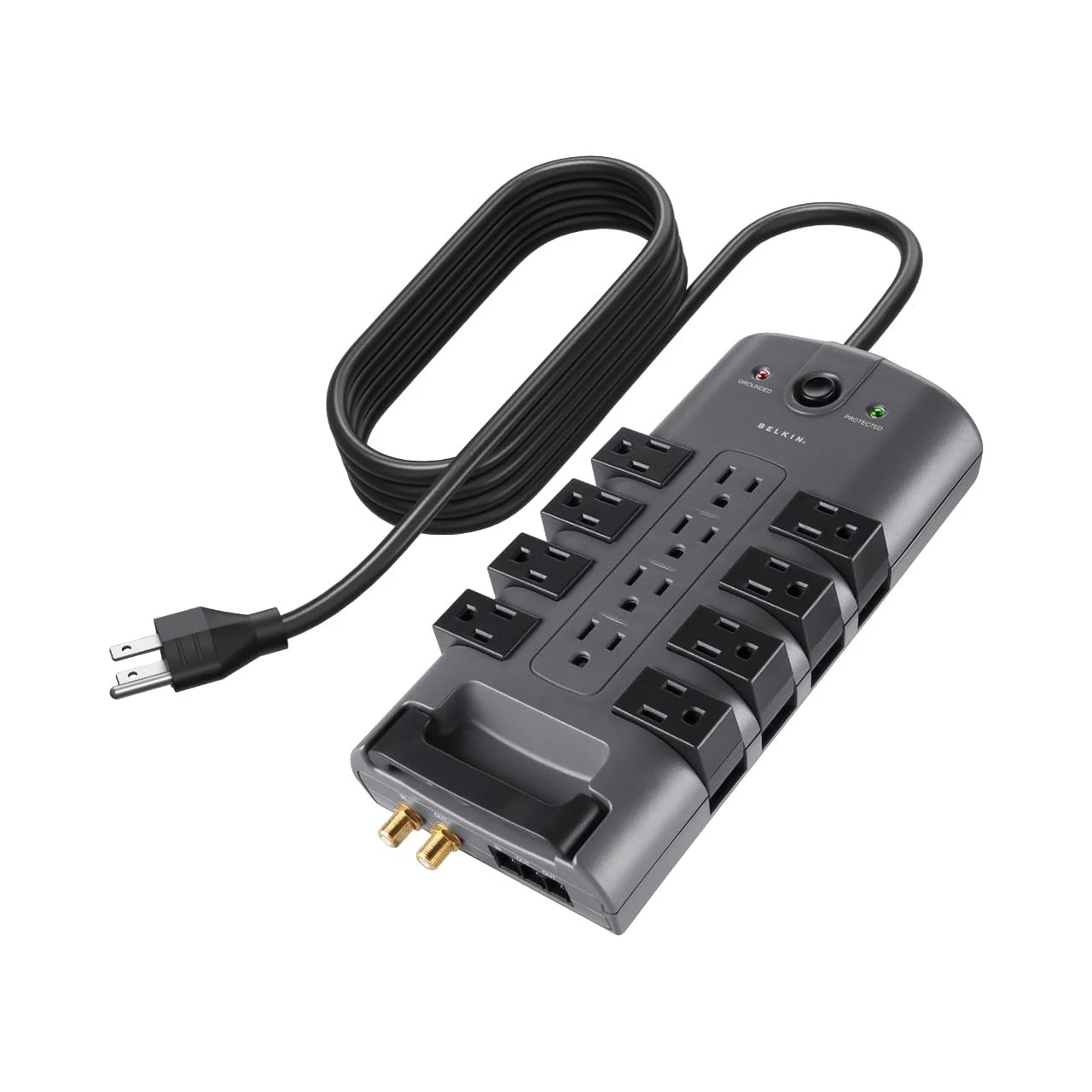
BP112230-08 · 8 ft · Gray / black
2. Belkin PivotPlug: give the adapters room
The selected BP112230-08 has twelve AC outlets, including eight pivoting outlets, and an eight-foot cord. The appeal on a two-screen desk is physical spacing. Monitor supplies, the dock's adapter and a laptop charger do not always sit politely beside one another on a straight strip.
Turn the relevant outlets to accommodate the actual plugs while following the product instructions. Check clearance around the complete adapter, not only the prongs. Keep the switch and protection indicators accessible. Its 4320-joule rating describes a surge-protection specification; it does not make the strip a battery backup or guarantee protection from every electrical event.
This is a US 125 V product with a combined 15 A / 1875 W limit. It has no USB charging ports. Choose it for suitable AC equipment and adapter spacing, not because a large outlet count sounds universally better. Follow the load guidance, avoid chaining strips and use appropriate local electrical equipment if your socket system differs.
 Product view
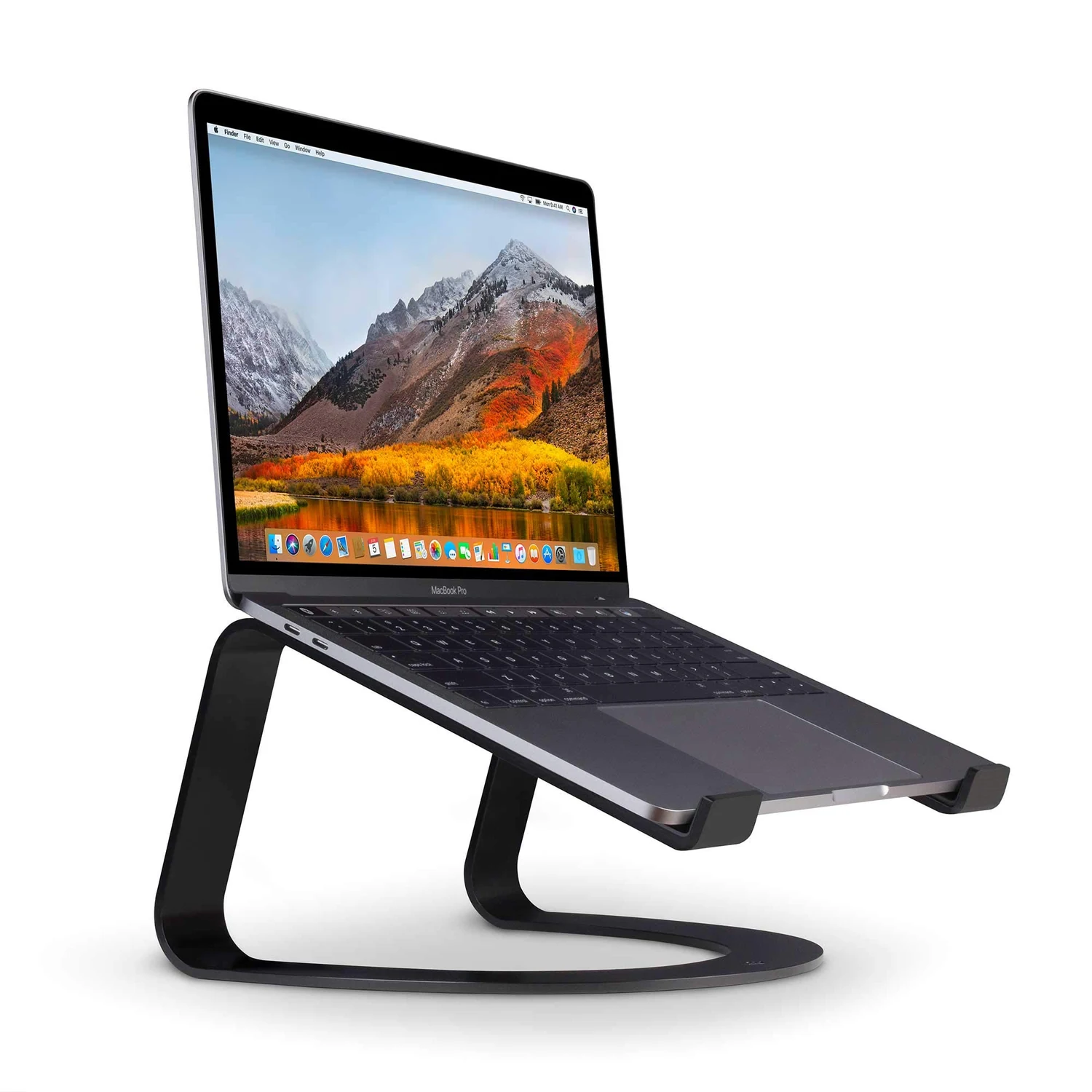
Curve · Fixed height · Matte Black
3. Twelve South Curve: decide whether the laptop stays open
With two external screens, the laptop can become a useful third reference area or an unnecessary visual distraction. Decide which role you want before placing the stand. The original fixed-height Curve can support an open laptop at an elevated position, with external input devices handling the main work.
Its best location is not automatically between the two large monitors. That can push the main screens apart and create more turning than the work requires. A side position may make better sense for occasional reference material. Check that the host and power leads reach without pulling, especially if you disconnect the laptop every evening.
If you prefer closed-lid operation, follow the computer maker's requirements rather than assuming the dock supplies everything needed. A different storage arrangement may suit that routine better. Match the laptop's size and weight to the stand, leave ventilation clear and remember that the original Curve cannot adjust to every screen height. A fixed stand earns its place only when the chosen position is useful.
 Product view
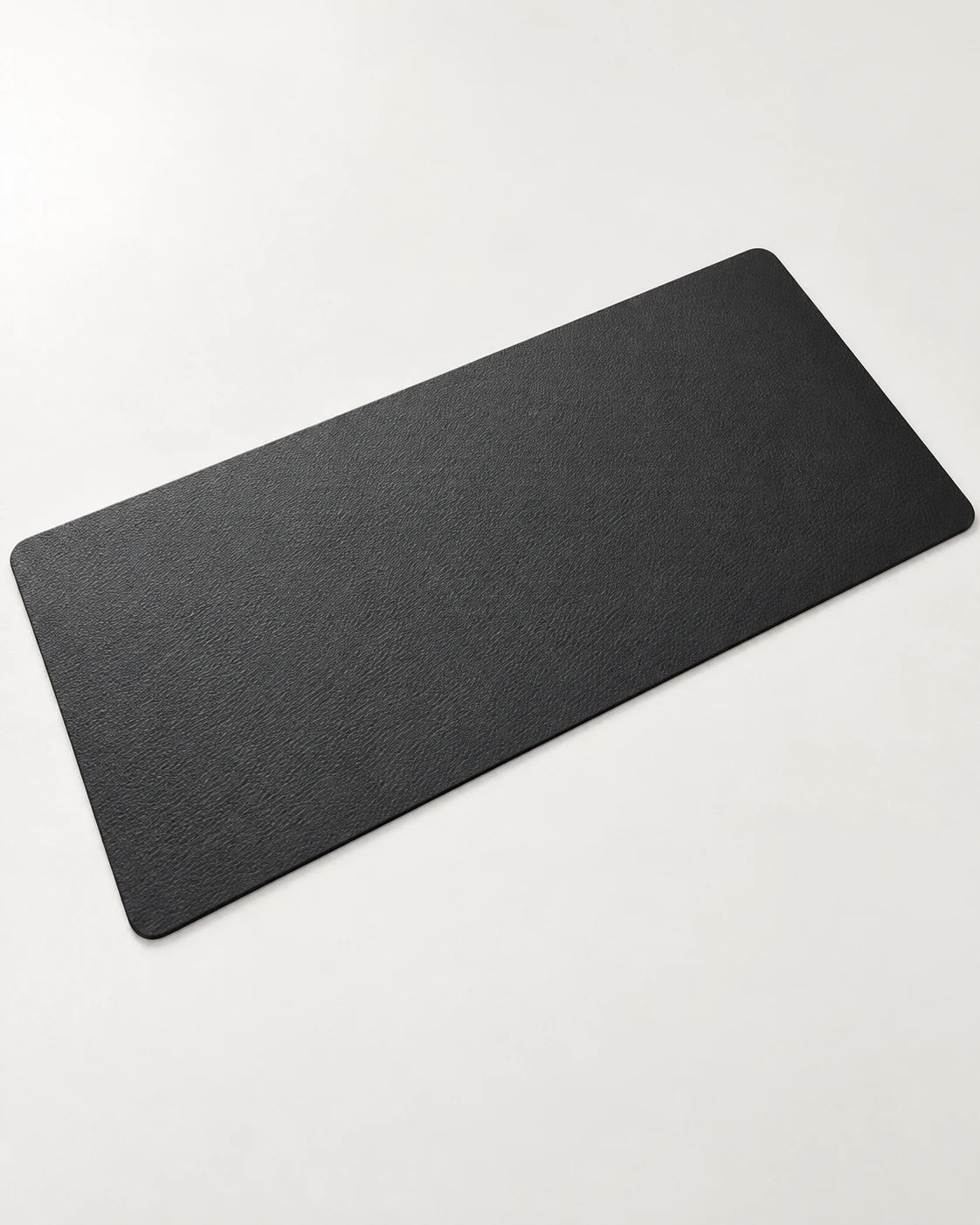
Black · 31.5 × 15.7 in / 800 × 400 mm
4. Aothia pad: reserve space for your hands
Two screens can use a surprising amount of desktop once their stands are included. The black Aothia pad in this kit is about 800 × 400 mm. Its job is to protect a working area for the keyboard and mouse; it is not a promise that a pair of monitors will fit on any desk.
Place the stands first, then check what remains at the front. If their feet intrude too far into the pad, reconsider the screen arrangement or measure an appropriate mounting alternative before ordering another accessory. The pad should not be a decorative patch squeezed into the last available gap.
PU faux leather provides a different feel from cloth. Check mouse tracking and grip on your own desktop, and clean it according to the supplied instructions. If you already have a pad that gives the controls enough room, keep it. The extra benefit here is a clear, maintainable input area shared with a laptop that comes and goes, rather than a new surface for its own sake.
 Product view
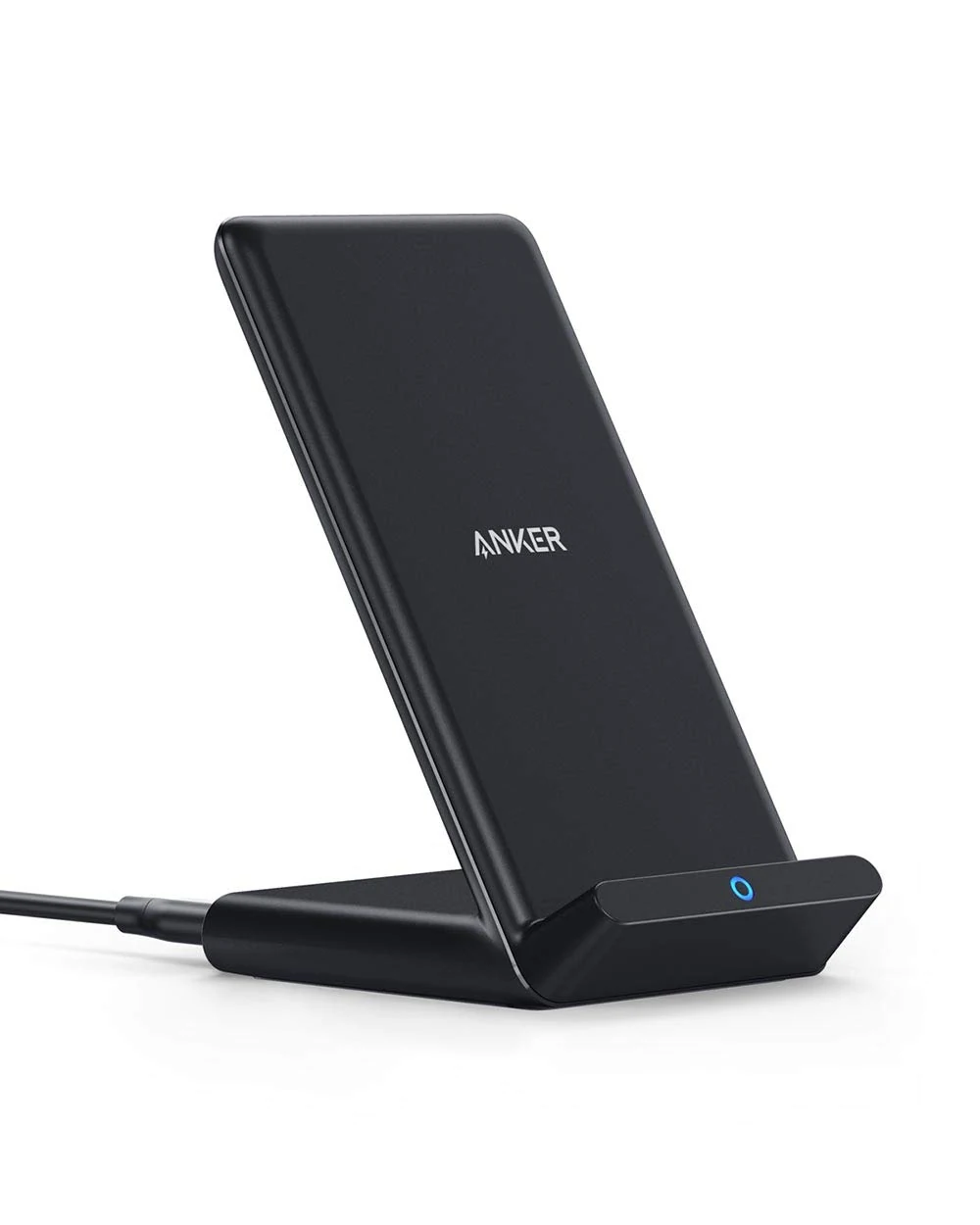
A2524 · Black · Qi stand
5. Anker 313: keep the phone outside the main display task
A phone stand can be useful beside two monitors when it has one quiet job: keep a compatible phone charged and easy to locate. The A2524 is a conventional Qi stand with Micro-USB input. It is not a magnetic Qi2 mount, and the selected package requires a suitable wall adapter separately.
Set it beside the secondary screen or near the desk edge where you can collect the phone without reaching through cables. Decide which notifications are useful during work. A prominently displayed phone can become another interruption, so a visible resting place works best with sensible notification settings.
Charging speed depends on the supported phone, case, supply and conditions. The advertised up-to-10 W figure is a ceiling for compatible use, not a guarantee for every phone. If you regularly arrive with a nearly empty battery and need a rapid departure, a suitable wired charger may fit that routine better. Check the phone with its everyday case during the return period rather than assuming a bare-phone demonstration settles compatibility.
 Product view
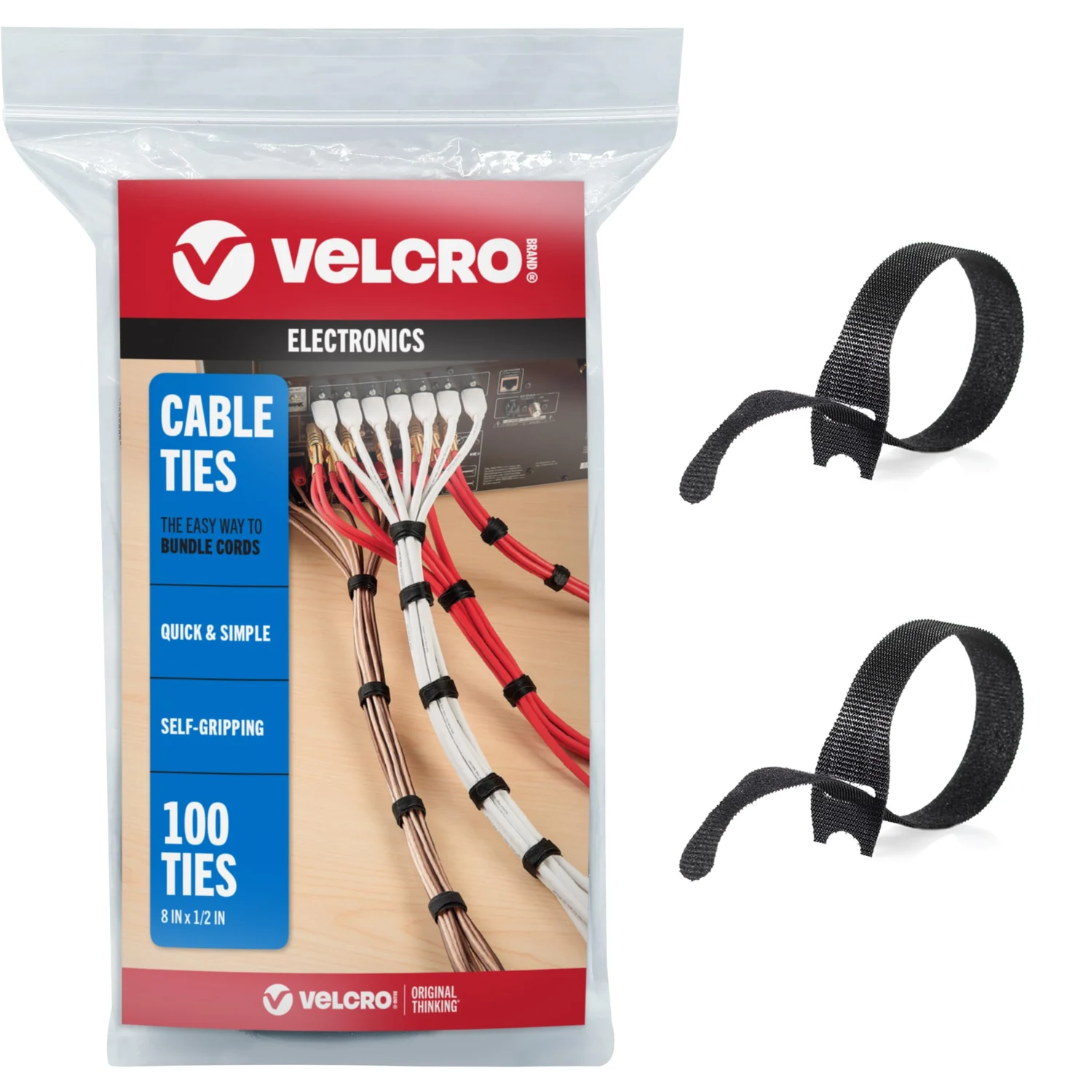
Black · 8 × 1/2 in · 100-pack
6. ONE-WRAP: make two screens easier to service
This is where reusable ties are more useful than an impressively tight cable bundle. A dual-screen setup can include two display leads, a dock host cable, several power cords, Ethernet and ordinary peripherals. You should be able to identify and remove one of them without dismantling the whole arrangement.
Leave a small service loop appropriate to each device's movement before gathering slack. Keep the laptop's daily disconnect path distinct from the monitor leads that usually stay put. A small label near each end can save time later, especially if the monitors and their adapters look identical.
The selected black eight-inch ONE-WRAP ties can be reopened as the desk changes. They do not mount the dock or support a suspended power strip. Avoid tight bends, crushed cable bundles and fastenings that interfere with ventilation or the product instructions. The aim is access: a screen can move, a connection can be checked and a damaged cable can be replaced without creating another project.
Build and verify one layer at a time
Begin with the computer and one screen. Confirm the current driver requirements, install through the proper source if permitted, and check the first display at the desired mode. Add the second screen only after the first connection works. This gives a problem a smaller set of possible causes than attaching every peripheral at once.
Arrange the displays in the operating system so pointer movement follows their physical positions. Set the primary display deliberately and check text scaling in the applications you use. If one monitor is the main workspace and the other is reference space, the physical layout should reflect that rather than forcing perfect symmetry for a photograph.
Then add the network, USB devices and audio. Run a normal meeting or working session, put the computer to sleep, and check the return to work. Record what changes if a problem occurs. Our guide to mirrored external screens can help separate display arrangement from a connection limitation.
The shared-desk details people forget
A desk used by more than one laptop needs more than a host cable that fits both sockets. Check the supported operating systems, available drivers, display modes and charging arrangements for each computer. A successful setup on one machine does not certify another machine with a different workplace policy or software version.
Keep the right host cable accessible and label the separate laptop charger. Test Ethernet and audio selection after switching computers; the desired microphone or speaker may not remain the default. If the desk is for a team, write a short connection note with the exact dock model and the expected display modes.
Buy one complete, compatible arrangement and evaluate it before standardizing several desks. That is a more useful trial than treating a large review count as proof of compatibility with an entire mixed fleet. The ability to return an unsuitable item and obtain model-specific support belongs in the purchasing decision.
When to choose a different foundation
If the laptop already drives both monitors natively through suitable outputs, you may not need a DisplayLink dock. If the goal is one-cable charging plus higher-resolution displays, evaluate a dock designed for that requirement and the computer's native support. Avoid stacking adapters just to preserve an unsuitable first purchase.
Use our USB-C monitor and dock guide to compare those arrangements. The right setup can be simpler than this six-piece kit. Keep the pad, ties or power arrangement only if they solve an independent need; replacing the dock does not require replacing every useful object around it.
Questions before buying the dual-screen kit
Does the UD-3900Z charge a laptop?
No. Keep an appropriate laptop power supply connected. Its USB host connection and the presence of USB-C support should not be read as a Power Delivery charging specification.
Is this a good dock for two 4K monitors?
The specified display ceiling is two HDMI screens up to 1920 × 1200 each at 60 Hz. Choose a different verified solution if your requirement is dual 4K output.
Can I use it without permission to install software?
Check the operating-system requirements and workplace policy first. macOS requires DisplayLink software, and managed computers may restrict installation or the permissions it needs.
Will the Belkin strip keep the desk running through an outage?
No. It is a surge protector, not an uninterruptible power supply. Evaluate backup power separately if continued operation during an outage is required.
Sources and the purchasing decision
The dock assessment uses Plugable's current UD-3900Z model information and setup requirements. The surrounding selections use the exact Belkin BP112230-08, original Curve, Aothia Black 31.5 × 15.7 inch, Anker A2524 and ONE-WRAP references. This is a researched compatibility and buying assessment. Match the final seller configuration, support terms and return window before purchase, and use the first working days to check the complete arrangement with your own applications.
- Plugable UD-3900Z model information and support
- Belkin BP112230-08 model information
- Twelve South original Curve
- Aothia desk-pad material and sizes
- Anker A2524 input specification
The next good question
Keep exploring.
 Read the story ↗
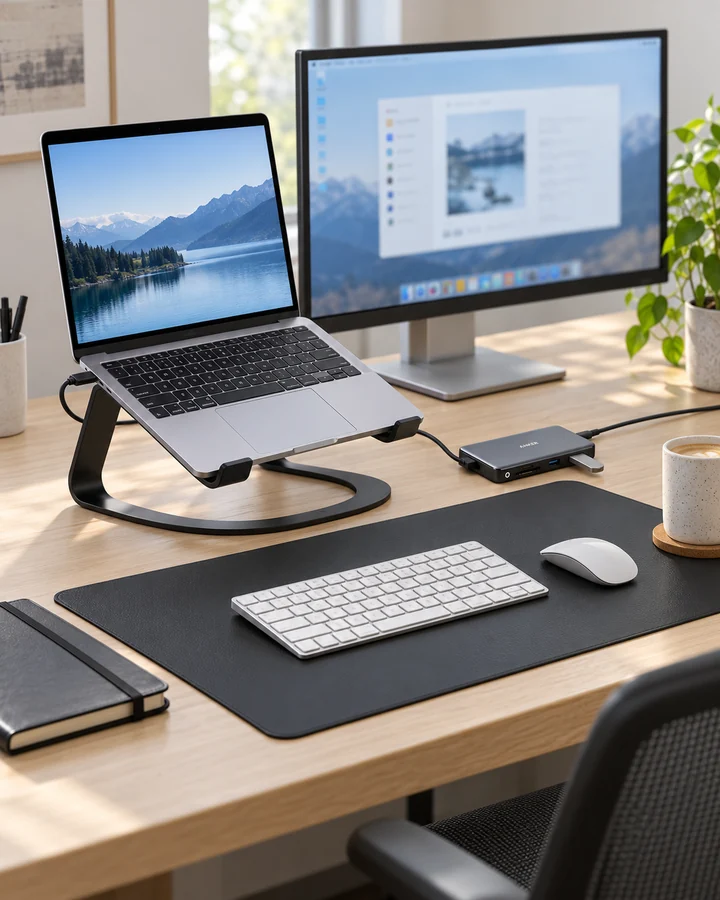
USB-C Laptop Desk Setup: A Practical Six-Piece Kit
One screen, fewer loose connections and six clearly defined jobs. Start with the laptop's limits, then buy only the pieces your desk is missing.
 Read the story ↗
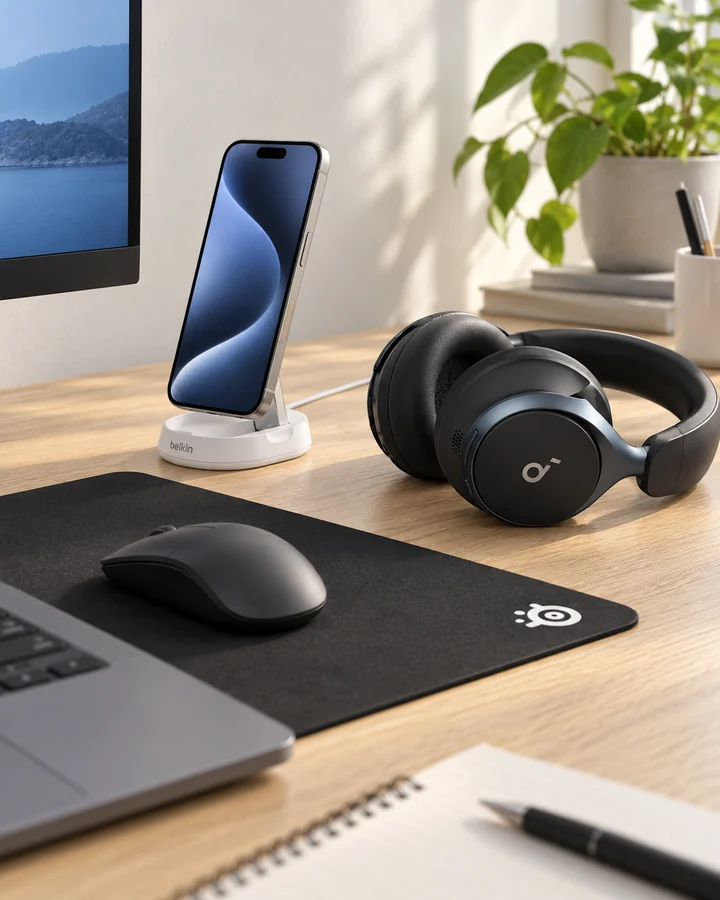
Home Office Desk Accessories for Focus: Six Picks Explained
Choose one audio format, give charging a routine and keep room for the mouse. A quiet-looking desk is useful when the arrangement also fits the way you work.
 Read the story ↗
144Hz Monitor for Office Work: A Useful Upgrade or a Gaming Distraction?
The refresh-rate number has escaped the gaming aisle. That does not mean it should be the first thing you buy for a desk.