Desk & tech / A closer look
Laptop Charging Slowly Through a USB-C Monitor or Dock? Check the Power Path
The wattage on the power brick is only one part of the connection. Find the number that actually applies to the laptop-facing output.
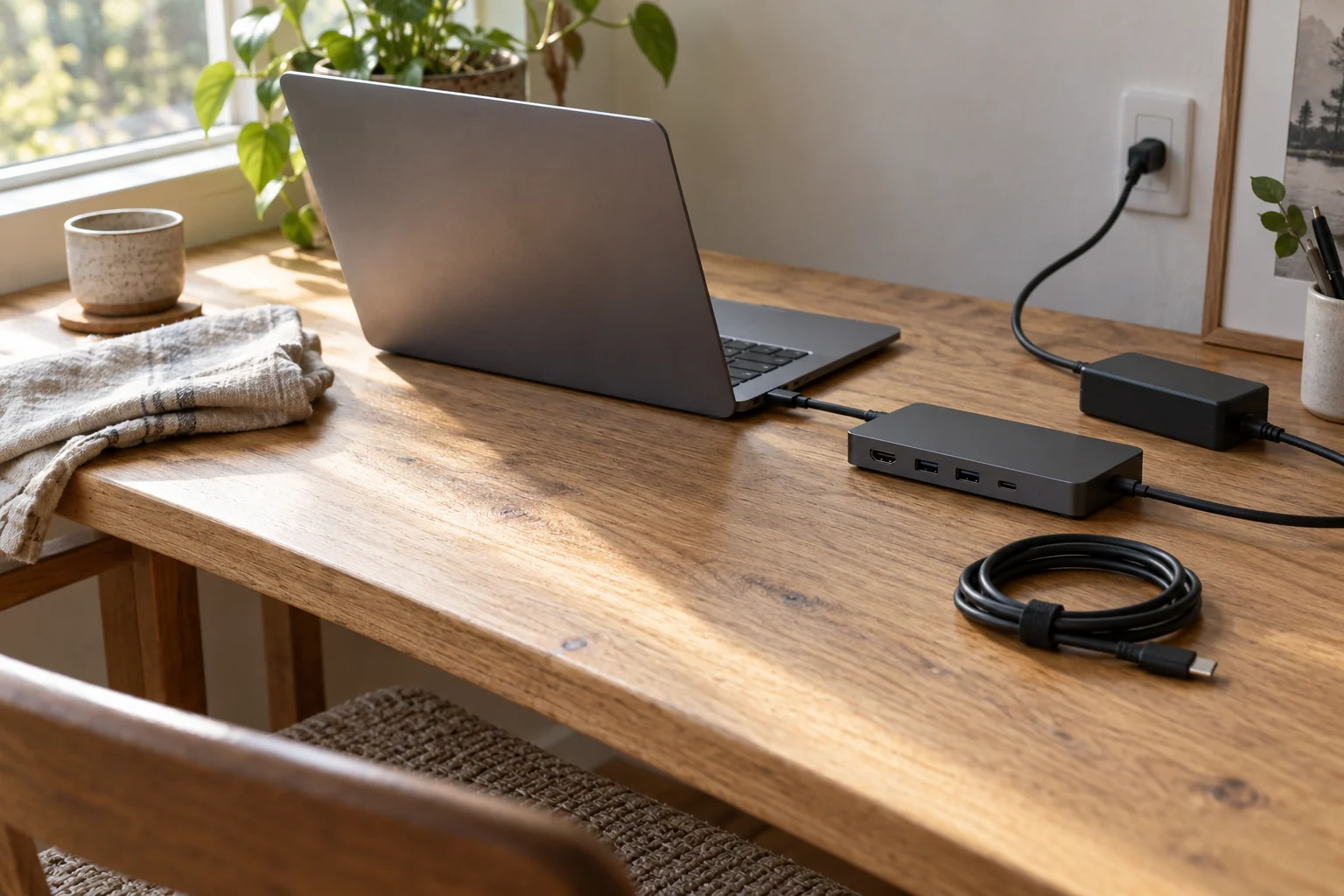
Start here
Check the exact laptop charging requirements, the monitor or dock’s power delivered to the host, the supported cable and the designated charging ports. Input wattage is not necessarily host-output wattage. Compare with the laptop’s approved direct charger under similar conditions, and read battery-management messages before treating a paused charge as a fault. A working display connection alone does not confirm adequate charging.
As an Amazon Associate, we earn from qualifying purchases. How our links work ↗
1. Separate slow charging, no charging and a deliberate hold
Begin with the laptop's battery status message. Write down the percentage, whether external power is recognized and any warning shown. “Connected to power” and “battery gaining charge quickly” are not identical states. A computer can use incoming power while the battery remains steady, especially when the workload changes.
Also check the manufacturer's battery-management guidance. Apple documents Optimized Battery Charging and charge limits that can intentionally delay or stop completion under supported conditions. If a matching status message is present, follow that explanation before purchasing another charger. Other computer brands have their own settings and descriptions; do not assume Apple's menu wording applies to them.
Record whether the behavior happens at a low battery level, near a chosen limit or only while demanding applications run. These observations help distinguish a power-path problem from normal management. Do not disable a protection feature merely to make the percentage reach a number faster.
2. Map four separate parts of the power path
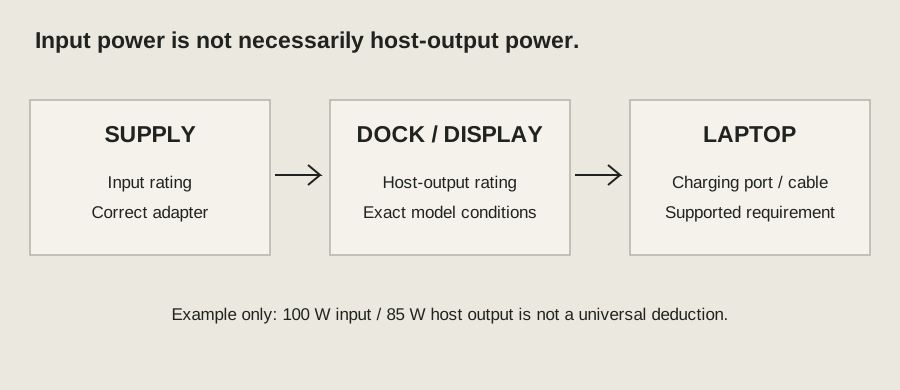
Write the route as power supply, monitor or dock input, laptop-facing output, and laptop charging port. For a monitor with an internal power supply, begin with the model's specified USB-C power delivery to the host. For a pass-through hub, find both the accepted input rating and the stated host-output rating.
Use an explicitly fictional arithmetic example: an accessory accepts a 100-watt input but lists an 85-watt maximum output to its host. In that example, writing “100-watt laptop charging” would be incorrect. These are teaching numbers, not specifications of a tested product or a universal 15-watt deduction. Different models and operating modes can have different limits.
The Dell support guidance on powered hubs and docks explains that the accessory and attached devices share the available supply. Use the actual model's power table rather than subtracting a fixed allowance from every charger. Save that table or its link with your connection notes.
Your charging-path checklist
Use these checks alongside the detailed steps. Checkmarks last only for this open page.
Download checklist · TXT3. Verify what the laptop and cable actually support
Find the laptop's supported charging inputs and recommended power supply. Some USB-C ports provide data or video without accepting laptop charging. Other machines have charging requirements that differ by model or workload. A generic dock description saying “works with laptops” does not establish that your computer will charge at its normal rate.
Then check the cable along the charging path. Use the supplied cable if the manufacturer specifies it, or a documented suitable replacement. Charging capability, data capability and video capability are separate details to verify. Our USB-C video-path guide explains why a working plug connection does not establish every function.
Inspect labels and model documentation instead of inferring performance from cable thickness or price. Avoid chaining adapters unless the equipment maker supports that arrangement. A higher-rated power supply cannot remove a lower limit imposed by the monitor's host output, the cable or the laptop itself.
4. Compare against a direct charger fairly
Save your work and use the laptop's approved charger directly, following its instructions. Record the starting battery level and the workload. Use a similar ordinary task for the dock comparison. Testing direct charging with the laptop idle and dock charging during a heavy export creates a misleading comparison.
You do not need to conduct a full battery cycle. Choose a practical observation window and note the status messages and approximate percentage change. Keep the laptop's temperature conditions and battery-management settings comparable. If the battery is near a limit, choose another suitable observation point rather than calling a deliberately paused charge a failed test.
| Comparison | What to record |
|---|---|
| Approved direct charger | Port, starting level, workload, time window, status |
| Monitor or dock path | Exact supply, host output, cable, same task and time window |
| Result | Approximate level change and warnings; no claim of measured watts |
A percentage change is a user observation, not a precise power measurement. If both paths behave unexpectedly, investigate the laptop's battery and support guidance before blaming the accessory. If only the dock path differs, you have a more focused question to take to its manufacturer.
5. Understand why usage changes the result
The laptop uses power while connected. The amount available for battery charging depends on the supported incoming power and what the computer is doing at that time. A setup may keep up with email and documents but gain charge more slowly during demanding work. That does not establish the power actually negotiated or prove that the adapter is defective.
Think about your real use rather than the maximum rating in isolation. If your computer must finish demanding tasks while also replenishing its battery quickly, confirm the manufacturer's recommended supply for that use. If a monitor's host output is insufficient, the supported arrangement may involve a separate laptop charger while the monitor handles video and USB.
Ask the manufacturer whether that dual-connection arrangement is supported for your exact models. Do not invent a method of combining supplies to increase wattage. When charging and data disconnect together, use our hub-disconnection checklist to record the shared behavior separately from a simply slow percentage increase.
6. Choose the next action from the evidence
If the monitor or dock's documented host output falls below what the laptop needs for your task, you have identified a requirement mismatch. Consider a supported direct charger or a model that meets the stated requirement. If the numbers appear compatible but the status still warns about charging, confirm the cable, designated ports and firmware guidance with the accessory maker.
If the direct approved charger also fails to behave normally under the same reasonable conditions, ask the laptop manufacturer about the battery, connector and charging system. Include the status wording and the comparison log. Stop using damaged connectors or equipment that shows an abnormal warning; do not keep reconnecting it to force a successful observation.
A useful support message lists the laptop reference, monitor or dock reference, adapter rating, host-output specification, cable model and direct-versus-dock result. That makes it possible to assess your actual configuration. Buying the biggest wattage printed on a box without those details can leave the same bottleneck in place.
Keep photographs of the port labels and power-supply model with the report, but do not expose serial numbers publicly. If a support team asks you to read a negotiated power figure, use the supported system or diagnostic method it specifies. A number copied from an adapter label describes that adapter's rating, not a measurement at the laptop. Clearly distinguish rated, reported and observed information in your notes.
Questions readers ask
Does a 100-watt input mean 100 watts reaches my laptop?
Not necessarily. Find the accessory’s specified power delivered to the host and the conditions attached to that rating.
Can a monitor show video while charging is inadequate?
Yes. Video support does not confirm the laptop’s charging requirement is met. Check the functions separately.
Is a steady battery percentage proof of a faulty dock?
No. Workload, charge limits and charging status matter. Compare the supported direct charger under similar conditions.
Sources and how this guide was prepared
This is a researched explanation and a practical owner checklist. We reviewed the official sources below on October 5, 2026; we have not performed a laboratory test or claimed firsthand ownership of every device discussed. Worked examples and conceptual diagrams are labeled. Workspace and wearing scenes provide context; use model documentation for specifications and fit. Check the manual and support guidance for your exact model.
- Dell: powered docks and hubs may charge slowly
- Microsoft: USB-C capability and charging troubleshooting
- Apple: Optimized Battery Charging and charge limits
Found a model-specific exception or an instruction that has changed? Use the site's contact information and include the model and official source so the guide can be corrected.
Continue with the relevant guide
The next good question
Keep exploring.
 Read the story ↗
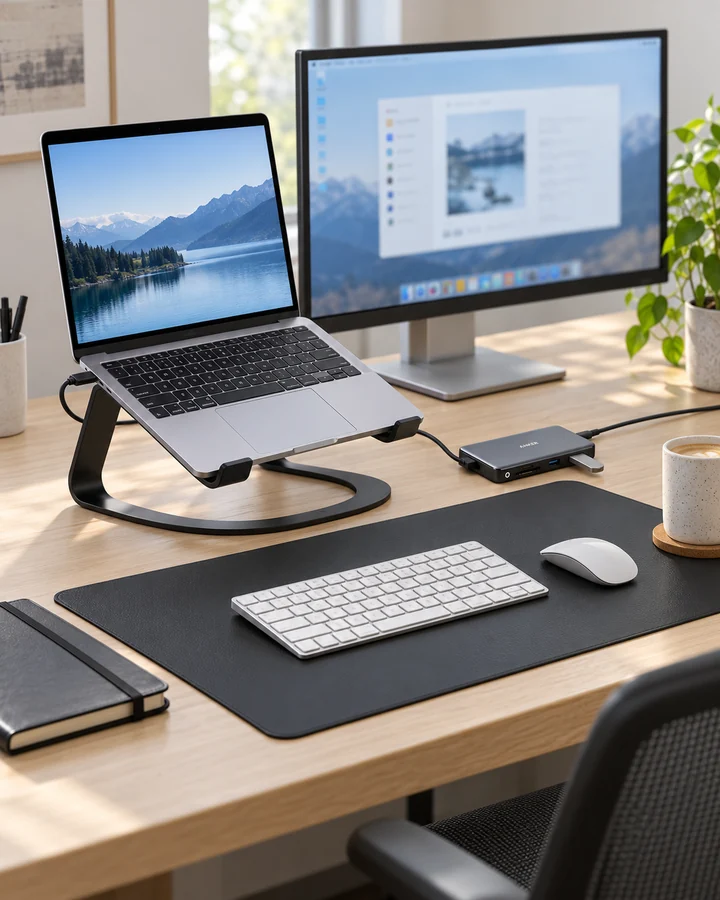
USB-C Monitor vs Dock: Build a One-Cable Laptop Setup Without Guesswork
A USB-C monitor can replace a separate dock when it supports the video mode, charging wattage and downstream ports your laptop needs. A dock is more flexible for several displays and peripherals. USB-C describes a connector, not a guaranteed feature set, so verify the exact laptop, monitor, cable and dock capabilities as a complete chain.
 Read the story ↗
USB-C Laptop Desk Setup: A Practical Six-Piece Kit
One screen, fewer loose connections and six clearly defined jobs. Start with the laptop's limits, then buy only the pieces your desk is missing.
 Read the story ↗
144Hz Monitor for Office Work: A Useful Upgrade or a Gaming Distraction?
The refresh-rate number has escaped the gaming aisle. That does not mean it should be the first thing you buy for a desk.