Desk & tech / A closer look
USB-C Hub Keeps Disconnecting: Isolate the Cause Before Replacing It
A disappearing drive and a blank monitor do not necessarily have the same cause. Describe the failure first, then change one part of the setup.
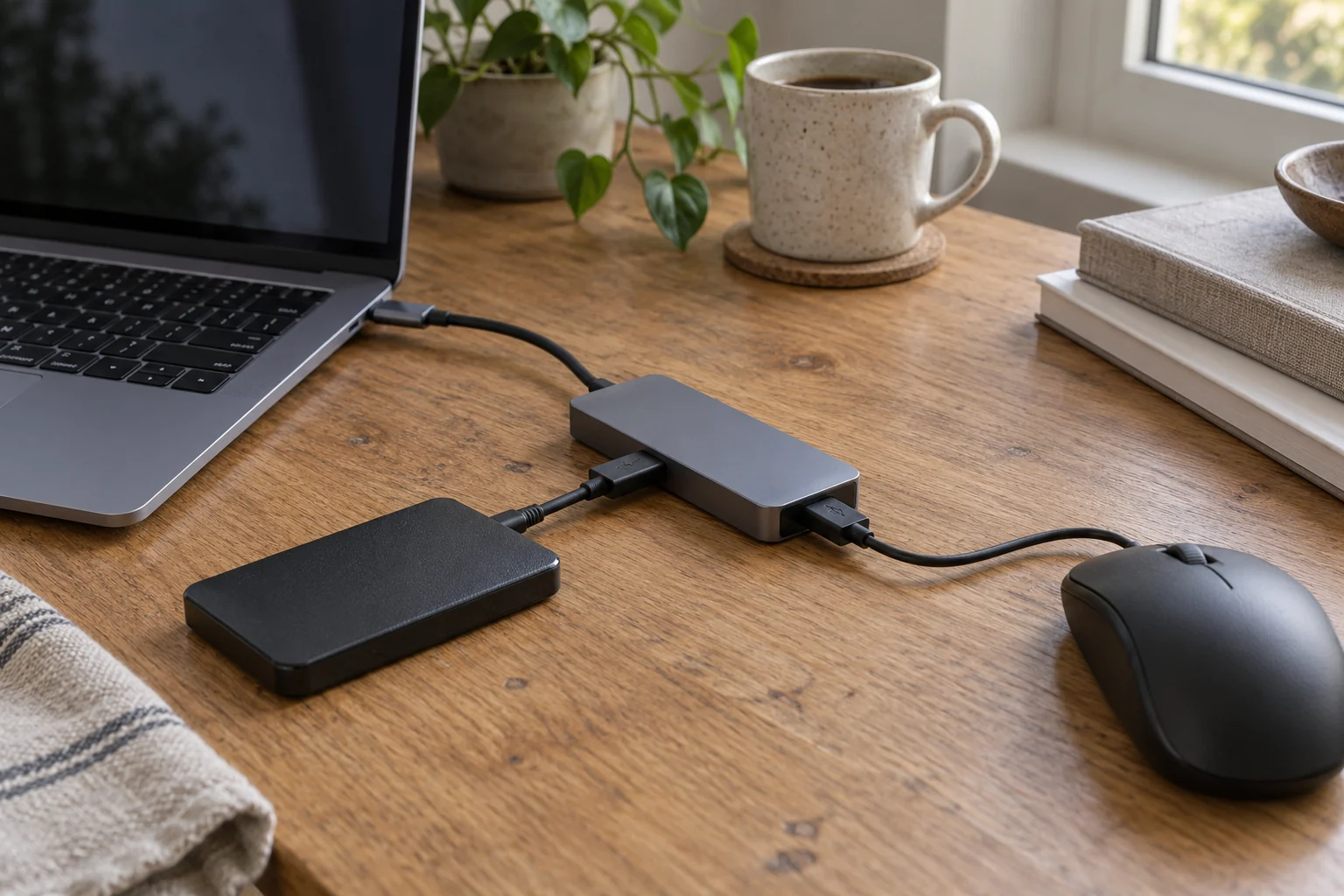
Start here
First identify what disappears: one peripheral, every USB device, only video, or laptop charging. Save your work, establish a direct connection with the affected device where supported, and then add the hub and other devices one at a time. Check the exact host port, cable and power requirements. If the failure repeats in a minimal supported setup, document it for the manufacturer rather than changing unrelated system settings.
As an Amazon Associate, we earn from qualifying purchases. How our links work ↗
1. Name the disconnect precisely
“The hub disconnected” can describe several different events. Perhaps a drive disappears while the mouse keeps working. Perhaps every USB device vanishes together. Perhaps the monitor goes black but the keyboard continues typing. Or perhaps the laptop switches to battery power while data connections remain available. Start with the visible behavior, not the assumed failed component.
Write down when it happens: on connecting another device, during a transfer, after sleep, when you move the cable, or apparently at random. Note the exact warning if one appears. An operating system notification can help direct your next check, but its absence does not establish that the connection is healthy.
Protect open work before experimenting. Do not deliberately disconnect a drive during a write operation to reproduce the issue. Close files and eject storage as the operating system instructs. If a storage device is already showing repeated disconnects, avoid making it the only copy of important files while you investigate.
| What disappears? | Useful first comparison |
|---|---|
| One peripheral | That device and its cable, directly connected where supported |
| All USB peripherals | Hub upstream connection and the minimal supported configuration |
| Only the display | Video path, input and display settings |
| Only charging | Power adapter, designated input and delivered host power |
2. Establish a small, supported baseline
Record the laptop model, operating system, hub model, upstream cable and affected peripheral. Find the manufacturer's instructions for the required connection. A USB-C socket's shape does not establish every supported function. The Microsoft USB-C troubleshooting guide distinguishes capability and connection problems; its suggestions still need to match your hardware and the symptom.
If the affected device can connect directly to a suitable computer port, try that path with its supported cable. Keep the same workload and observation period you used when noticing the problem. If the device requires an adapter even in the baseline, write that down. A path with another adapter is useful evidence, but it is not literally a direct connection.
Then connect the hub in its documented minimal configuration. Supply external power if its manual requires it. Add only the peripheral under investigation. A stable short check does not prove that the issue is solved; it gives you a baseline for the next comparison. Avoid attaching all your usual accessories immediately and losing that distinction.
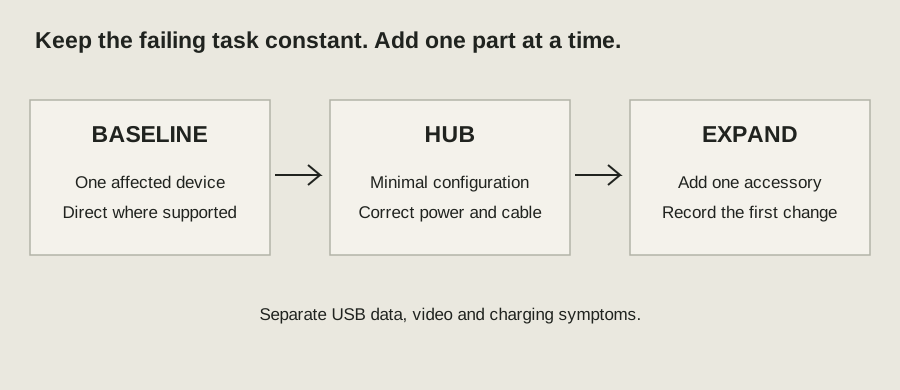
Your one-change-at-a-time checklist
Use these checks alongside the detailed steps. Checkmarks last only for this open page.
Download checklist · TXT3. Add devices one at a time
Choose an order you can write down: mouse, keyboard, drive, then any other accessory. Before adding storage, confirm no transfer is in progress. After each addition, perform the same ordinary task and observe whether the original symptom returns. Record both the device added and any change in charging or display behavior.
If adding one device consistently triggers a failure, remove it safely and confirm the preceding configuration again. The result identifies an interaction to investigate. It does not immediately prove that the new device is defective or that the hub's port count was misleading. The added device may expose a power, cable, software or compatibility issue.
For a setup with external displays, separate the USB-data investigation from the video investigation. Keep the monitor configuration unchanged during one series of checks. If only the image disappears, use our USB-C no-signal guide. If two displays mirror when you expected separate desktops, use the Mac dual-display explanation rather than calling that behavior a disconnect.
4. Check the connection and power arrangement
Inspect accessible connectors with the equipment disconnected according to its instructions. Look for damage, a loose fit or a cable strained by the desk layout. Do not push tools into ports. If a normal repositioning repeatedly changes the connection, report that observation; avoid continuously wiggling the plug as a supposed fix.
For a detachable upstream cable, compare with a known suitable cable if you already have one. Match the connection's required data and video capabilities rather than choosing by connector shape or advertised charging wattage alone. Change only the cable for that comparison. A stable result narrows the issue, but cannot distinguish every combination of cable and socket behavior.
Check where the power adapter is connected and what the manufacturer requires. A powered dock may need its designated supply; a pass-through hub may have separate input and output limits. Dell's powered-hub charging guidance illustrates why shared power needs model-specific interpretation. Do not assume every hub reserves the same wattage or that a charger rated higher automatically makes every setup compatible.
5. Investigate sleep and software without blanket changes
If the issue happens only after sleep, record whether a reconnect restores the devices and whether the same devices recover when attached directly. Save your work before repeating sleep and wake. Note the operating system version and the hub's firmware version if there is a supported way to read it.
Look for a manufacturer support note that matches the exact dock, host and symptom. Apply updates through the supported route, with the required power and connection conditions. A firmware instruction for a different dock family is not interchangeable. Record the old and new versions so support can understand what changed.
Avoid following a generic list that simultaneously changes BIOS options, disables security features and turns off every power-saving function. Such changes can introduce new variables and risks without explaining this failure. If official support requests a specific diagnostic setting, ask what it tests and how to restore it afterward. Keep your normal settings as the comparison baseline.
6. Prepare a report that makes replacement decisions easier
Summarize the smallest setup in which the failure repeats. Include the affected device, upstream cable, power supply, host port, task and timing. Also include a setup that remained stable, if you established one. “Drive disconnects during the same task through this hub but remains available directly” gives support more to work with than “USB-C is unreliable.”
State how long you observed each setup and avoid declaring a permanent fix after one minute. If the problem occurs roughly once a workday, an equally brief comparison may be inconclusive. You can continue ordinary use cautiously while recording events, but protect data and stop using visibly damaged equipment.
Choose a replacement only after determining which requirement is unmet or which component support recommends replacing. You may need a suitable cable, the correct power arrangement, a supported display path or warranty service. A larger hub with more ports is not automatically the answer. The aim is a stable configuration you can explain and reproduce.
Questions readers ask
Can charging work while USB data disconnects?
Yes. Working charging does not prove that the data path is supported and stable. Record the separate behaviors.
Should I disable USB power saving immediately?
Start with the connection baseline and exact manufacturer guidance. Blanket setting changes make the comparison less informative.
Does one stable test prove the hub is fixed?
No. Match the task and observation duration to the original failure, and record whether the behavior returns.
Sources and how this guide was prepared
This is a researched explanation and a practical owner checklist. We reviewed the official sources below on October 5, 2026; we have not performed a laboratory test or claimed firsthand ownership of every device discussed. Worked examples and conceptual diagrams are labeled. Workspace and wearing scenes provide context; use model documentation for specifications and fit. Check the manual and support guidance for your exact model.
- Microsoft: fix USB-C problems in Windows
- Dell: powered docks and hubs may charge slowly
- Dell: WD19-series model-specific troubleshooting
Found a model-specific exception or an instruction that has changed? Use the site's contact information and include the model and official source so the guide can be corrected.
Continue with the relevant guide
The next good question
Keep exploring.
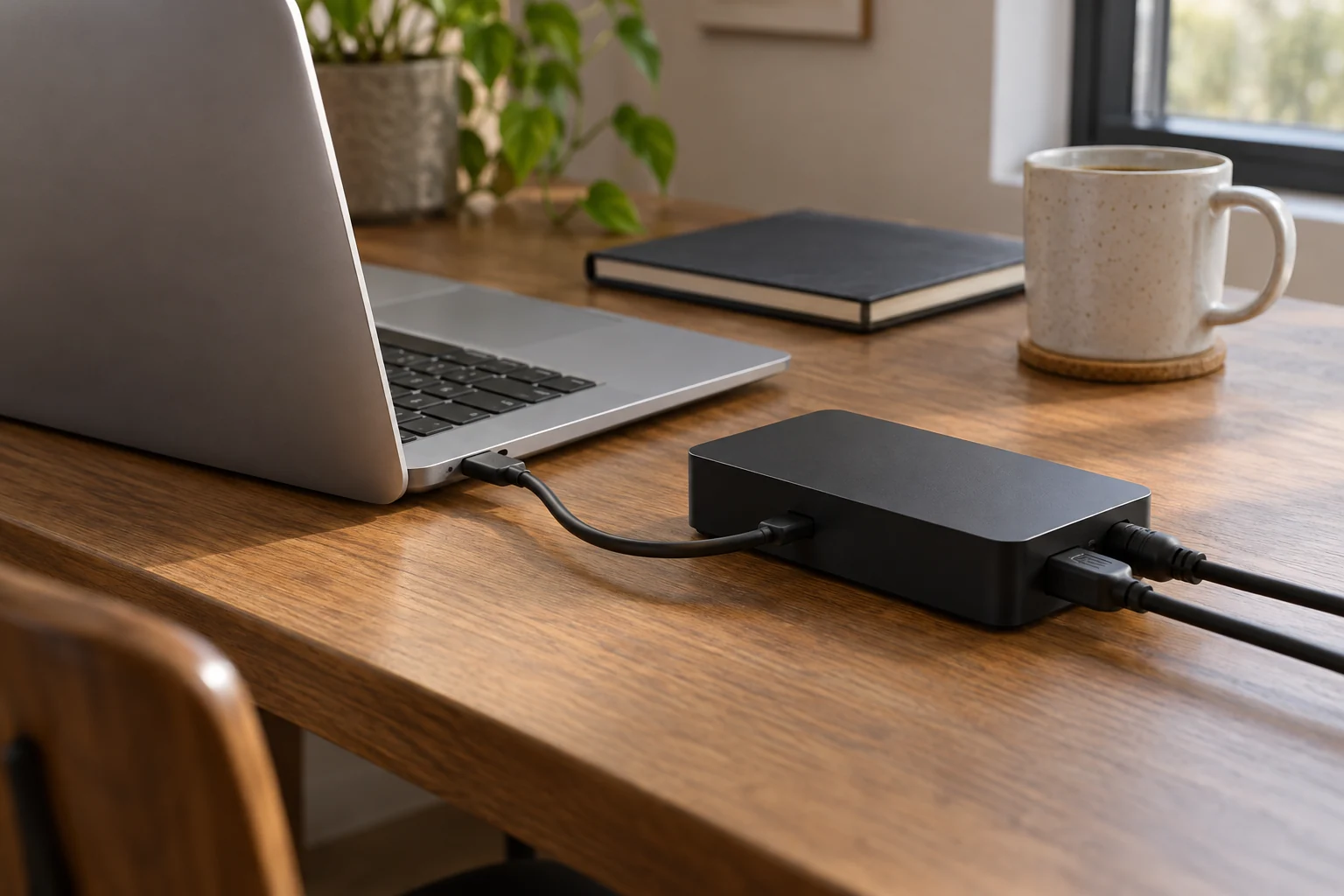 Read the story ↗
USB-C Hub vs Thunderbolt 4 Dock: Buy for Your Actual Setup
One cable is convenient only when every required function works.
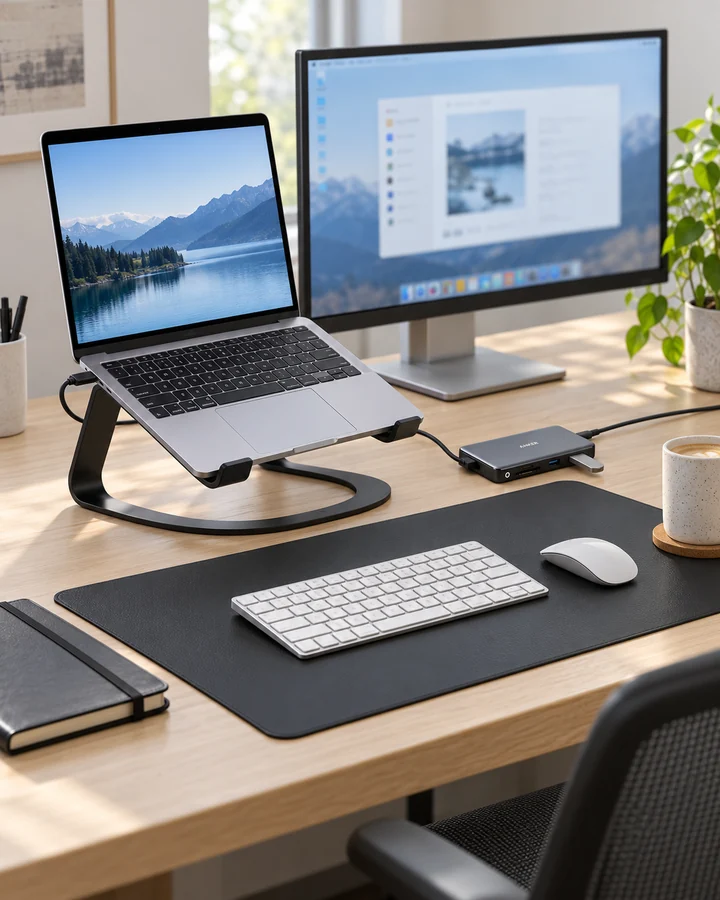 Read the story ↗
USB-C Laptop Desk Setup: A Practical Six-Piece Kit
One screen, fewer loose connections and six clearly defined jobs. Start with the laptop's limits, then buy only the pieces your desk is missing.
 Read the story ↗
Laptop Charging Slowly Through a USB-C Monitor or Dock? Check the Power Path
The wattage on the power brick is only one part of the connection. Find the number that actually applies to the laptop-facing output.