Desk & tech / A closer look
Two Monitors Show the Same Image on a MacBook: What to Check
Two physical screens do not always mean two independently addressable displays.
Start here
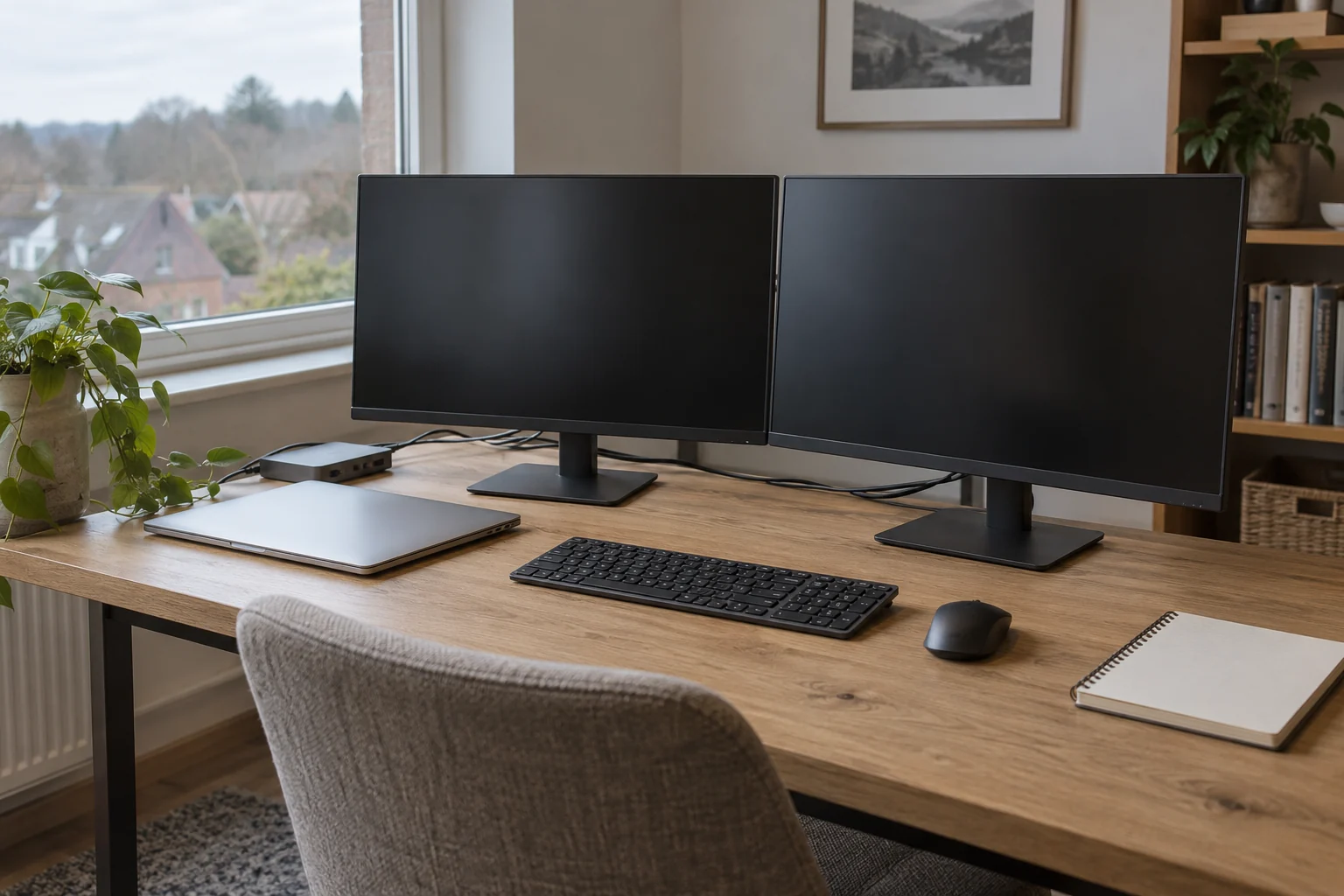
If two external monitors show the same picture on a MacBook, check whether macOS detects them separately and whether each is set to extend. If they act as one display through a dual-output USB-C hub, inspect the hub technology: an MST arrangement can mirror on macOS. Then verify the exact Mac model’s native display limit or an explicitly supported DisplayLink solution.
As an Amazon Associate, we earn from qualifying purchases. How our links work ↗
Count the displays macOS sees, not just the screens on the desk
Open the laptop for the baseline test. In System Settings → Displays, note the displays shown and compare them with the physical monitors. Two external screens displaying an identical desktop may reflect an ordinary mirror setting. They may also be sharing one logical signal through the hub.
The distinction changes the next step. If each monitor appears as a separately configurable display, you can examine its use setting. If the external screens behave as one logical display, repeatedly searching for an extend toggle may not solve the connection limitation.
Try moving a window or pointer between screens after each change. A wallpaper alone is a weak test: extended desktops can use matching wallpaper while holding different windows. Record the number of configurable displays and whether a window can occupy one external screen independently of the other.
First rule out a normal mirror setting
In Displays, select an external display, open Use as and choose the appropriate extended-display option. Repeat for the other separately detected display. Arrange their positions to match the desk so that pointer movement makes sense. Apple documents these controls in its current extend-or-mirror guide. Source: Apple display configuration instructions.
If that works, save a note of the successful connection path and mode. You did not need new hardware. If the relevant options are missing, record what is shown rather than assuming your settings window should exactly match someone else's screenshot. System version and detected hardware affect what is available.
When the second display works only after the laptop is closed, investigate the model's supported lid configuration. Do not treat closing the lid as a universal Mac dual-monitor fix. The distinction depends on the particular chip, computer and software requirements.
Check the exact model and native display support
Record the model and chip from About This Mac, then look up that model's external-display guidance. “MacBook Pro” is not specific enough. Base, Pro and Max chips, generations and display mode combinations can differ. A dock does not automatically increase the Mac's native maximum just because it has more connectors.
For a concrete example, Apple's current guidance lists up to two external displays alongside the built-in display for MacBook Air with M4 or M5, subject to the supported resolutions and refresh rates. Its base-M3 dual-display arrangement has different lid requirements. Use the applicable model entry, not a copied claim that all Air models support the same number. MacBook Air display support; MacBook Pro display support.
Write down each monitor's resolution and desired refresh rate alongside the permitted combination. “Supports two displays” is not an unlimited promise at every mode. Start with a documented configuration when establishing the baseline, then evaluate a more demanding combination separately.
Why a dual-HDMI USB-C hub may mirror on a Mac
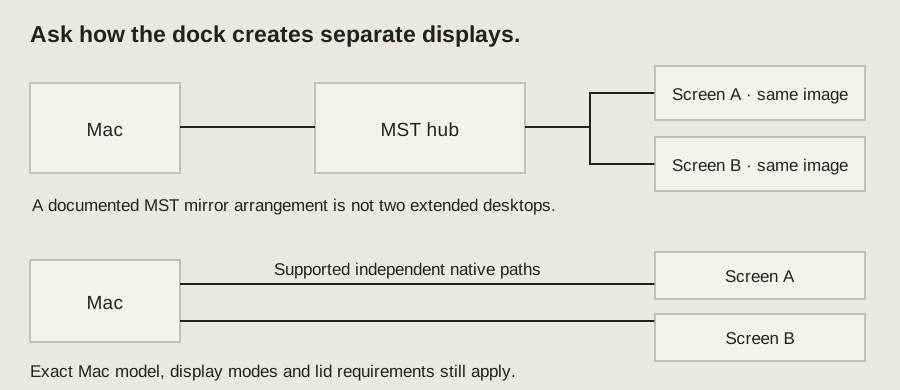
Many USB-C hubs use DisplayPort Multi-Stream Transport, or MST, to serve multiple display outputs. A product may support separate desktops on Windows while its Mac connection delivers mirrored external screens. Two HDMI sockets describe the physical outputs; they do not tell you how those outputs become separate displays on each operating system.
CalDigit's USB-C SOHO Dock documentation provides a concrete example: it specifies dual mirrored outputs on macOS and dual extended support on compatible Windows configurations, citing macOS's MST limitation for that arrangement. This is a documented example, not a claim that every dock behaves identically. Source: CalDigit SOHO display compatibility.
Look for the exact dock model's Mac extended-display configuration table. A marketing image with two monitors is not enough. Nor is “Thunderbolt compatible” necessarily proof that the dock uses independent Thunderbolt display paths. Ask the manufacturer which technology each output uses and which Mac/chip configurations it supports.
Your dual-display checklist
Use these checks alongside the detailed steps. Checkmarks last only for this open page.
Download checklist · TXTTest one screen, then a supported independent path
- Prove monitor A by itself. Connect it through a known compatible path and record its detected mode.
- Prove monitor B by itself. Use the same baseline method. This separates a failed monitor from a dual-display limitation.
- Consult native support. Confirm that your exact Mac can run both required external modes at once in the intended lid state.
- Test independent native paths if supported. For example, use available supported computer video outputs or the dock manufacturer's documented Thunderbolt arrangement.
- Compare with the original hub. If independent paths extend while the hub's outputs mirror, investigate that hub's architecture rather than changing both monitors.
Do not assume that two cables plugged into any two sockets are independent native paths. A monitor's accessory port is not another computer video output. Label the sockets and draw the chain from the Mac to each monitor. A simple sketch often exposes a shared branch that was hidden by the tidy desk.
DisplayLink is a different option with different requirements
DisplayLink sends display data through a compatible USB graphics device and its software. It can provide additional display options on supported configurations, but installing its app cannot convert a normal MST hub into DisplayLink hardware. Check that the specific dock or adapter actually implements DisplayLink.
Use Synaptics' supported macOS software and the device manufacturer's setup instructions. DisplayLink's first-time configuration requires permissions including screen recording so the app can obtain the pixels it sends to the connected display; the app must be restarted after granting that permission. Official macOS downloads; DisplayLink configuration guide.
Before purchase, ask about your actual workload: intended resolution and refresh rate, login and wake behavior, protected video, and any work-computer policy restricting software or permissions. Do not infer compatibility from another person's success with a different dock, system version or application. A software-dependent path should be chosen with those requirements in mind.
Write the working requirement before choosing a replacement
A useful requirement is: “This exact Mac and chip, this macOS version, two independent external desktops at these modes, with the lid in this state.” Add whether you need one host cable, laptop charging and permission to install software. Send that to the seller or manufacturer and ask for the matching documented configuration.
| Finding | Useful action |
|---|---|
| Both screens detected and set to mirror | Change their use settings; validate with different windows. |
| Original hub mirrors; supported independent paths extend | Select a dock arrangement explicitly supporting Mac extended outputs. |
| Requested native count or modes exceed model support | Revise the arrangement or investigate supported USB graphics hardware and software. |
| One screen also fails alone | Resolve that single-screen path before diagnosing dual operation. |
The hub versus Thunderbolt dock guide explains the buying vocabulary. For a screen that receives no signal by itself, use the single-display connection checklist. Different symptoms should lead to different articles, not to the same replacement recommendation.
Questions readers ask
Will installing DisplayLink fix my existing dual-HDMI hub?
Only if the hub actually contains compatible DisplayLink hardware. The software does not transform a native MST hub into a USB graphics device.
Can every MacBook extend to two external monitors with the lid closed?
No. Check the exact model, chip, software requirements and resolution/refresh-rate combination in Apple’s current guidance.
Sources and how this guide was prepared
This is a researched explanation and a practical owner checklist. We reviewed the official sources below on October 5, 2026; we have not performed a laboratory test or claimed firsthand ownership of every device discussed. Worked examples and conceptual diagrams are labeled. Workspace and wearing scenes provide context; use model documentation for specifications and fit. Check the manual and support guidance for your exact model.
- Apple: extend or mirror displays
- Apple: MacBook Air external-display support
- Apple: MacBook Pro external-display support
- CalDigit: USB-C SOHO Mac/Windows display compatibility
- Synaptics: DisplayLink macOS software
- DisplayLink: first-time configuration
Found a model-specific exception or an instruction that has changed? Use the site's contact information and include the model and official source so the guide can be corrected.
Continue with the relevant guide
The next good question
Keep exploring.
 Read the story ↗
BenQ MA270U Review: A Simpler MacBook Desk, With a Few Checks
The right cable helps. Comfortable text and a routine that works matter more.
 Read the story ↗
144Hz Monitor for Office Work: A Useful Upgrade or a Gaming Distraction?
The refresh-rate number has escaped the gaming aisle. That does not mean it should be the first thing you buy for a desk.
 Read the story ↗
Best Monitors for Small Desks: A Space-First Buying Guide
For a compact desk, start with usable viewing distance and stand depth, then choose 24–27 inches based on resolution and eyesight. A slim 24-inch display is the safer fit for shallow worktops; a 27-inch QHD screen earns its footprint when you need more readable workspace. Measure before shopping, including the base, cables and keyboard zone.