Desk & tech / A closer look
Stream Deck Neo for Work: Eight Buttons That Need a Real Job
A shortcut pad can be useful outside streaming. First give each button a job you already do, rather than inventing eight reasons to own the gadget.
Start here
The useful answer
As an Amazon Associate, we earn from qualifying purchases. How our links work ↗
The useful answer
The Stream Deck Neo is worth investigating when you repeatedly perform clearly defined computer actions and can install the required software. Start with a simple layout for opening workspaces, text snippets and supported controls. Do not store passwords or automate consequential actions without deliberate review.
| Example key | A useful starting task | Check before enabling |
|---|---|---|
| 1 / Start work | Open a defined set of work apps | Avoid automatically exposing private files |
| 2 / Project | Open the current project folder | Confirm the intended path |
| 3 / Text | Insert a non-sensitive repeated phrase | Keep content current |
| 4 / Notes | Open your note-taking workspace | Check the correct account |
| 5 / Capture | Use a supported capture shortcut | Review what is visible |
| 6 / Call | A supported meeting-app control | Verify app, plugin and actual state |
| 7 / Focus | Open the tools for a work interval | Do not promise automatic productivity |
| 8 / Personal | One repeated action you actually use | Leave blank until the need is clear |
A shortcut controller is easy to sell in a short video. A hand presses a glowing button, several windows appear and the desk suddenly looks more efficient. What the video rarely shows is the evening spent deciding what the button should do, the application that changed a shortcut or the profile you forgot you created. The gadget can still be useful, but the useful part starts before the purchase.
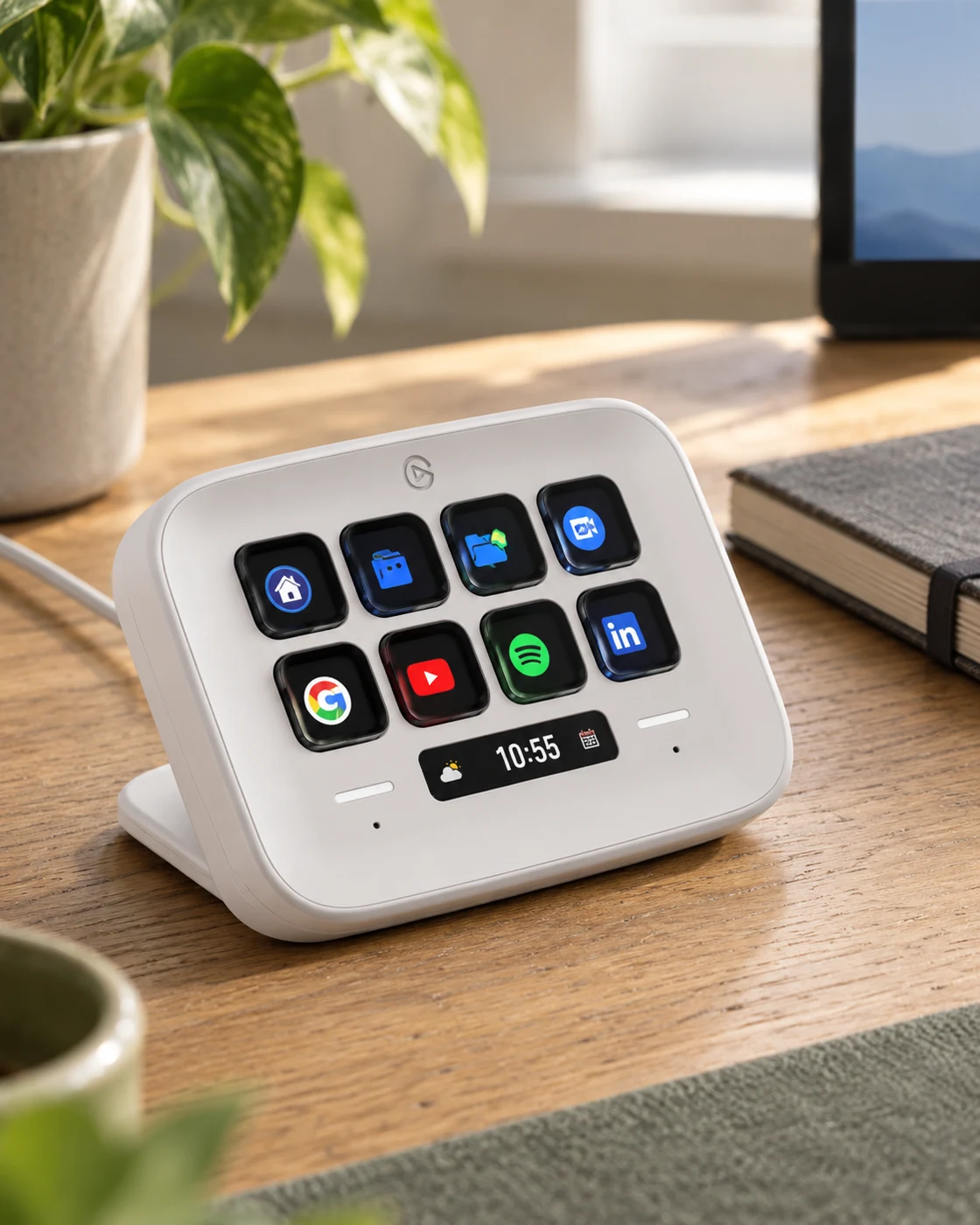
The Stream Deck Neo gives that decision a manageable shape: eight visible keys. Instead of asking how many things it can theoretically automate, ask which eight small tasks already repeat in your day. This guide builds a practical office brief, explains where the idea can fail and connects it to the exact product in our Shop. It is workflow analysis, not a measured claim that a controller made our work a fixed percentage faster.
What the Neo is, without the streaming assumption
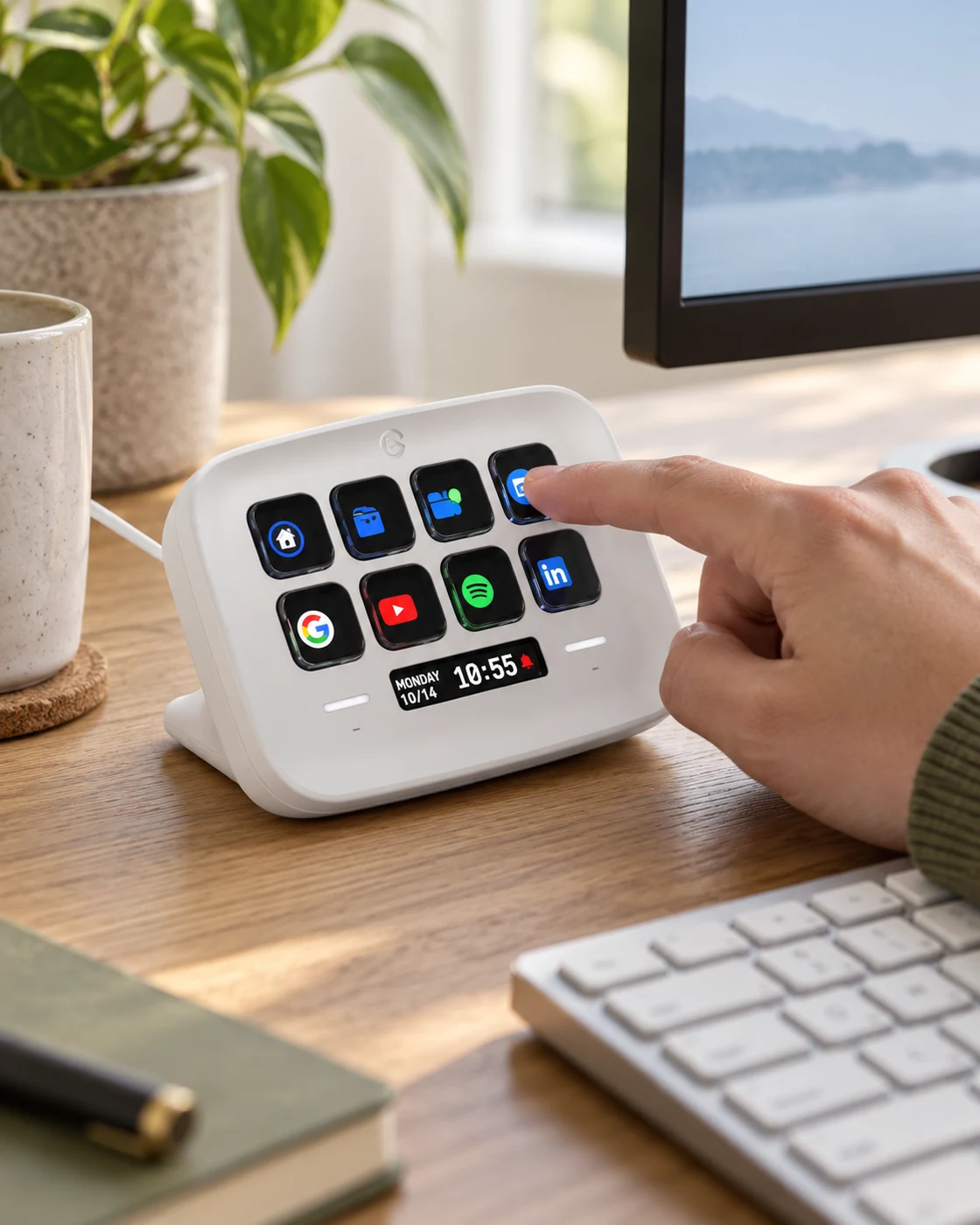
Elgato specifies eight customizable LCD keys, an Infobar, two Touch Points and Stream Deck software for the Neo. Its current page lists Windows 11 or later, macOS 13 or later and a USB-C connection. Software features include profiles, pages, folders and Multi Actions. Check the current requirements and specific integrations before buying; support can change with software updates.
The important distinction is between a physical control and the action behind it. The key makes an action visible and easy to find. It does not decide whether that action is useful, safe or supported by the application you use. A controller can be helpful outside streaming because office work contains repeated computer tasks too. It becomes unnecessary when those tasks are already easy enough with your existing setup.
Audit a normal day before choosing eight functions
Keep a small note during a real workday. Record actions that repeat and make you pause: opening the same project folder, navigating to the same work page, inserting the same non-sensitive sentence or starting the same group of applications. Do not record every action merely because it can be automated. Focus on the ones you repeatedly notice as friction.
At the end of the day, choose a few candidates and describe each in plain language. If you cannot say exactly what the action should do, it is not ready for a button. “Make me productive” is not an action. “Open the current project folder” is. A clear description also makes it easier to discover that a bookmark or ordinary keyboard shortcut already solves the problem without another device.
A useful first layout leaves room for real habits
Start with fewer than eight assignments if necessary. A project folder, work notes and one repeated text snippet are a better beginning than an elaborate layout built around hypothetical future needs. Visible empty space is not a failure. It keeps the controller easy to understand while you learn which actions deserve a permanent place.
Use labels that explain outcomes rather than software jargon. “Project files” is easier to remember than an obscure internal command name. Keep related controls together and avoid changing the layout constantly during the first week. The physical value comes partly from knowing where something is. If the keys move every morning, you may spend more attention finding the action than you save by pressing it.
Opening a workspace is a good first experiment
Many people begin work by opening several familiar applications and locations. A defined workspace can make a sensible first use because the result is visible and easy to check. Decide exactly what should open and in which account. Test with non-sensitive material before including anything that could appear unexpectedly while you share a screen.
Avoid treating “open everything I might need” as a good default. A long launch sequence can create clutter, slow down a computer or expose a private window. Build the smallest useful group and add only what you consistently use. The best workspace button may remove three repetitive steps rather than launching an impressive parade of applications. Small, reliable convenience is a stronger foundation than dramatic automation.
Text snippets are useful when the text deserves repetition
A non-sensitive repeated phrase can be a practical button assignment: a standard greeting, a meeting-note heading or a frequently used explanation that you still review before sending. The phrase should remain accurate and appropriate in the context where it appears. A shortcut can make stale wording travel faster just as easily as useful wording.
Do not store passwords, payment details or confidential material in a convenient text action. Also avoid assigning a phrase that automatically submits a message without a chance to inspect it. The value is reducing repetitive entry, not removing judgment from communication. Review the snippets periodically, especially when project names, policies or contact details change. A small library maintained well is more useful than a large one you no longer trust.
Meeting controls require state awareness
A button labeled mute feels reassuring, but the important question is what the meeting application is actually doing. A supported integration may offer a clearer connection than a generic keyboard shortcut, yet you still need to test the exact application, plugin and permissions. Do not infer microphone state solely from a decorative key icon you designed yourself.
Practice outside an important call. Confirm which microphone is selected, whether the action behaves as expected when another window is active and what visual feedback the application provides. If the shortcut behaves differently across apps, keep the distinction obvious or avoid sharing one label. A meeting controller should reduce uncertainty. If it encourages false confidence about whether you can be heard, simplify the arrangement before relying on it.
Multi-step actions are where small mistakes can multiply
A sequence of actions can be convenient when the steps are predictable. It can also fail partway if an application opens slowly, a dialog appears or focus lands in a different window. Before building a sequence, ask what happens if the first step works and the second does not. The answer matters more than the number of steps you can combine.
Start with reversible actions whose results you can see. Keep consequential steps separate for review rather than building a button that sends, deletes or publishes without a deliberate check. This is ordinary good workflow design, not a reason to avoid automation entirely. Reliability improves when the action is narrow enough to understand and when the user can tell whether it completed as intended.
Profiles are helpful only if you can tell where you are
Different layouts for different applications can keep a controller focused. They can also become confusing if the same physical position means unrelated things and the change is not obvious. Before creating several profiles, decide how you will recognize the active one at a glance. Clear labels are more useful than an attractive set of icons whose meaning you have to remember.
Consider whether manual switching would be clearer than an automatic behavior in your setup. There is no universal answer. A person who stays in one application for long periods has a different routine from someone moving constantly between windows. Keep the first version simple, then add complexity only to solve a repeated problem you can describe. An elaborate profile system is not evidence of an effective one.
Employer software policies can decide the purchase
An office computer may restrict software installation, USB devices, plugins or application permissions. Check those conditions before ordering a controller for work. Being allowed to connect a keyboard does not automatically mean every configurable input device or third-party integration is permitted. A product can meet your technical preferences while still being unsuitable for the computer you actually use.
If approval is needed, describe the specific software and intended actions rather than asking vaguely about a productivity gadget. That makes the request easier to assess. Do not try to bypass restrictions because a feature looks harmless in a demonstration. If the necessary setup is unavailable, ordinary shortcuts or approved tools may be the better route. Compatibility includes organizational conditions as well as operating-system version numbers.
Physical placement should be deliberate
Eight useful keys still need a sensible place on the desk. If reaching them requires stretching past a large keyboard or moving a drink each time, the setup may undermine the convenience. Put the controller where the intended hand can reach naturally without disrupting the main typing and pointing area. Check cable routing and the available USB connection too.
Use the controller’s presence as a reason to simplify rather than to fill every remaining space. A small desk can become crowded surprisingly quickly when each accessory solves a separate minor problem. If the main issue is poor monitor placement or an uncomfortable input layout, address that first. Our desk-upgrade guide helps place optional convenience tools behind the essentials they cannot replace.
A keyboard shortcut can be the better answer
If you use one action constantly and already know its shortcut, a separate button may add little. The physical controller becomes more interesting when actions are hard to remember, spread across applications or useful as visible labeled choices. It should complement the way you work rather than duplicate familiar controls simply because another product can perform them.
Try a no-purchase experiment first. Place a short list of the intended actions beside your screen and use bookmarks or keyboard shortcuts for a week. If the friction disappears, you may not need hardware. If the list remains useful but hard to act on quickly, a labeled controller has a clearer brief. This gives the purchase a reason grounded in observation rather than in the excitement of a desk-setup video.
The setup has a maintenance cost
Applications update, folders move and a workflow that was useful last month may no longer matter. Any custom control system needs occasional attention. Keep a simple record of what each key does and where its configuration belongs. Use the manufacturer’s current backup or profile-management guidance if you depend on the setup across computers or reinstalls.
Do not calculate savings using a fantasy assumption that setup takes no time. A controller can still be worthwhile when its main value is reducing annoyance rather than saving whole hours. Be honest about that benefit. The fact that you enjoy a well-arranged set of controls is a legitimate preference. It does not need an invented return-on-investment figure attached to become acceptable.
Three reasons to buy, and three reasons to wait
Investigate the Neo if you can name several repeated actions, have access to the required software and prefer visible controls to memorized shortcuts. Those conditions create a coherent use case. The exact actions will differ between a writer, an analyst and someone handling frequent calls. The product does not need a streaming audience to have a practical job.
Wait if the main appeal is the appearance, your current work problems are more basic or software restrictions remain unresolved. Also wait if every proposed button involves a task you rarely do. A controller bought for imaginary routines can become another object to move when cleaning the desk. You can enjoy the idea and still decide that your current keyboard already handles the day well enough.
Make the first week an experiment, not a commitment to complexity
Choose three or four low-risk actions, test them carefully and use them during normal work. Keep a note of which keys you press without thinking and which ones you ignore. Remove the ignored actions instead of feeling obliged to justify them. Add a new assignment only when a recurring need becomes obvious. The aim is a stable small tool, not the largest possible configuration.
At the end of the week, ask whether the device is easier to use than the alternatives it replaced. Does it reduce a repeated interruption? Is its state clear? Can you maintain the setup without resentment? You do not need a stopwatch and a dramatic productivity claim. A specific, repeatable improvement is enough to decide whether the controller has earned its place.
Give the buttons a job before buying the box
The Stream Deck Neo can be a useful office accessory when the workflow is clear and the software conditions are right. Its appeal is not that eight buttons somehow create productive habits on their own. It is that familiar tasks can become visible, easy-to-reach controls. That is a modest claim, but it is also one you can actually evaluate.
Use the card below to inspect the selected white Neo and current retailer offer. Compare the keyboard and webcam routes only if they address your own desk needs; they are not mandatory additions to the purchase. A good work setup is allowed to contain an interesting gadget. The gadget simply needs to do something useful after the demonstration video ends.
The questions worth asking
Before you decide.
Do I need to stream to use it?
No. A shortcut controller can support ordinary desktop tasks. The value depends on the actions you repeat, not on whether you publish video.
Does every app have native support?
No. Some actions use built-in functions, some need plugins and others may rely on shortcuts. Check the specific integration and current compatibility.
Will it save a fixed number of hours?
There is no honest universal figure. Setup and maintenance take time, and the benefit depends on how often the chosen actions occur.
Featured in this guide
The next good question
Keep exploring.
 Read the story ↗
144Hz Monitor for Office Work: A Useful Upgrade or a Gaming Distraction?
The refresh-rate number has escaped the gaming aisle. That does not mean it should be the first thing you buy for a desk.
 Read the story ↗
BenQ MA270U Review: A Simpler MacBook Desk, With a Few Checks
The right cable helps. Comfortable text and a routine that works matter more.
 Read the story ↗
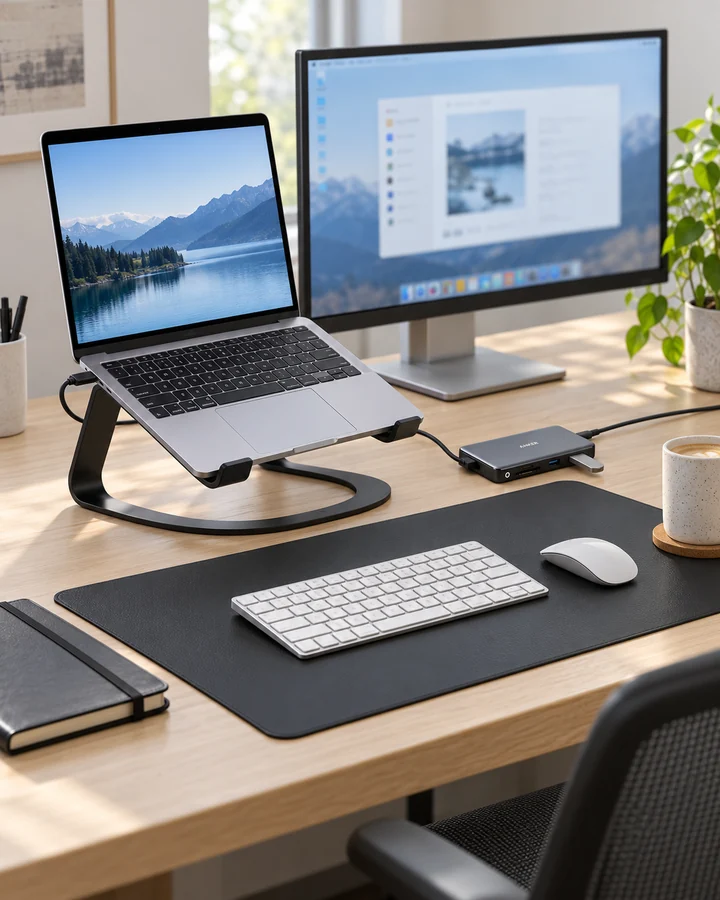
USB-C Laptop Desk Setup: A Practical Six-Piece Kit
One screen, fewer loose connections and six clearly defined jobs. Start with the laptop's limits, then buy only the pieces your desk is missing.