Desk & tech / A closer look
Work from Home Video Call Setup: Six Useful Pieces
Clearer conversations start with the microphone, camera position and room. Build the desk around those jobs before paying for a longer feature list.
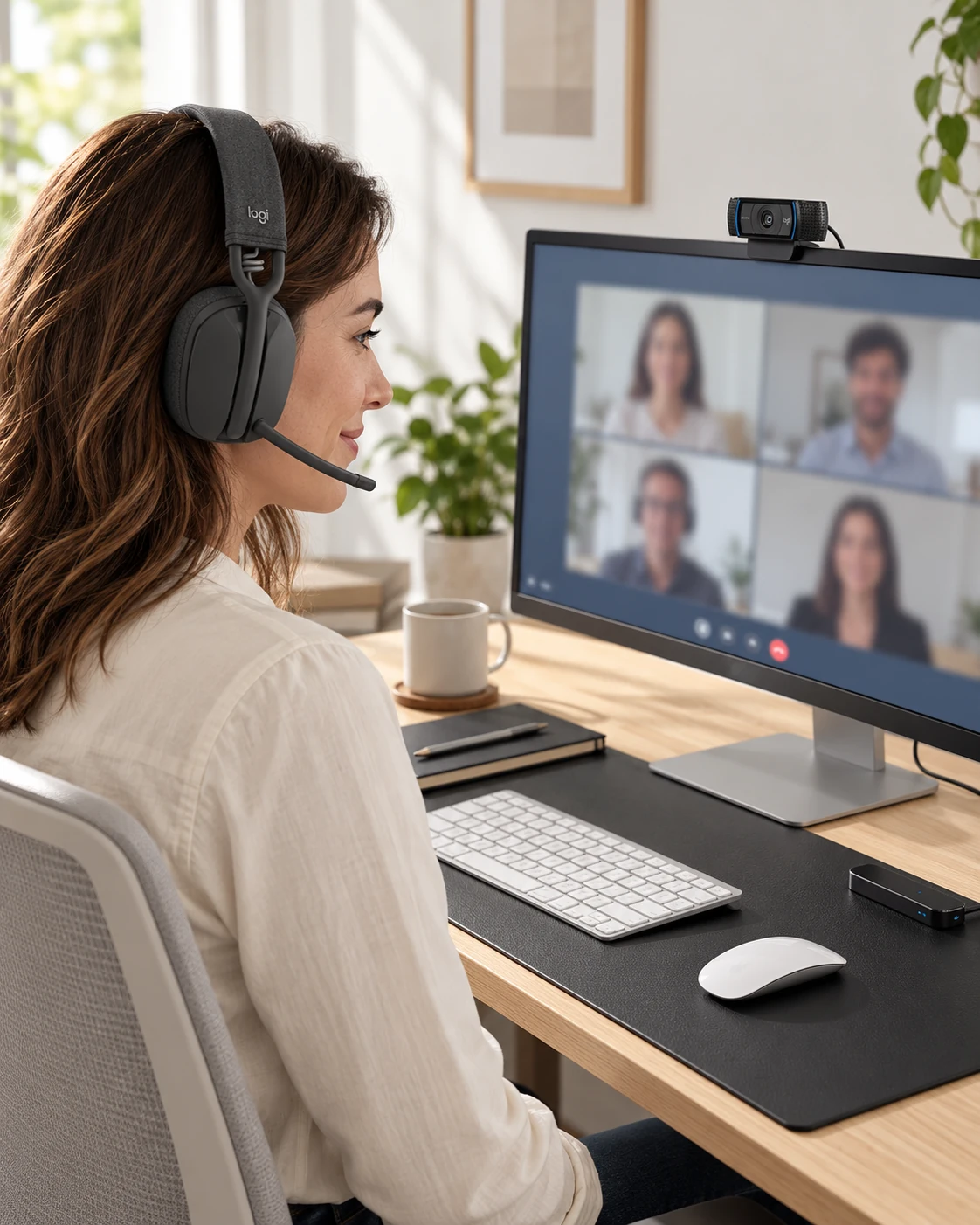
Start here
For everyday office meetings, evaluate the Zone Vibe 100 as a Bluetooth boom-microphone headset and the C920x as a 1080p-at-30-fps USB camera. Select the intended microphone and camera in the meeting app, improve front lighting, and test the complete connection path. Zone Vibe 100 does not provide active noise cancellation in the earcups.
As an Amazon Associate, we earn from qualifying purchases. How our links work ↗
A good video-call desk is easier to recognize by what stops happening. You do not keep asking whether the microphone is selected. The camera does not point up from below the keyboard. Notes are close enough to read without disappearing from the conversation, and the headset's mute action makes sense when somebody unexpectedly knocks at the door.
This six-piece work-from-home call setup puts those small jobs ahead of buying the sharpest camera. Logitech's Zone Vibe 100 and C920x handle the main audio and video roles. A fixed laptop stand, broad desk pad, accessible USB hub and reusable cable ties make the arrangement easier to use. Existing screens, input devices and a suitable internet connection remain part of the system.
The useful starting point for everyday meetings
Start with the microphone and camera position, then improve lighting before chasing resolution. Zone Vibe 100 is a Bluetooth meeting headset with a flip-to-mute boom; C920x is a 1080p-at-30-fps USB webcam. That combination is worth evaluating for ordinary office calls when the computer supports the connections and the room is reasonably controlled.
The headset does not provide active noise cancellation for your ears, and the webcam cannot repair poor front lighting or a weak connection. If those are the actual problems, a more expensive shopping list can still leave the meeting unpleasant. Use the checks in this guide to decide whether the proposed kit addresses the complaint you hear most often.
Name the problem before replacing the equipment
Separate four things: what you hear, what other people hear, how you look on camera, and whether the call remains connected. A distant microphone, a noisy room, an awkward camera angle and a slow upload connection are different failures. Buying one device because it is popular does not establish which problem it can solve.
Run the meeting app's own preview or a local test recording. Listen for speech clarity with the room in its usual state, including the laptop fan and ordinary keyboard use. Look at the picture at the time of day when you normally meet. If a bright window is directly behind you, change the arrangement before drawing conclusions about the webcam.
Keep a brief note of the result and change one thing at a time. The aim is to compare your own setup under repeatable conditions. Keep the microphone and speaker selection unchanged while comparing room arrangements, then repeat the sample after each change. Its recommendations come from the models' documented features and the jobs those features can reasonably address.
Check how the microphone and camera reach the computer
The Zone Vibe 100 connects through Bluetooth. It is not the receiver-equipped Zone Vibe Wireless business package, and the presence of a charging cable should not be taken as proof of a wired USB-audio fallback. Confirm the exact model, the computer's Bluetooth support and the controls available in your meeting application.
The C920x uses USB. A suitable USB-A connection on the computer, or a compatible arrangement through a hub, gives it a separate path from the Bluetooth headset. In the meeting app, choose the intended camera, microphone and speaker explicitly. A selected webcam does not guarantee the app is also using the headset microphone.
Bluetooth playback can change when the microphone becomes active, depending on the headset, operating system and audio path. Test a real meeting mode rather than judging the headset only while playing music. Multipoint is convenient, but a phone notification or incoming call may interrupt a routine you expected to remain on the laptop.
The six jobs in this call-focused kit
| Product | Why it is here | What it cannot promise |
|---|---|---|
| Zone Vibe 100 | Boom microphone and clear mute action | Earcup ANC or universal app behavior |
| C920x | Independent webcam placement | 4K video or a fix for bad lighting |
| Twelve South Curve | A stable laptop reference position | Adjustable height or automatic eye contact |
| Aothia pad | Room for controls and notes | A solution to every mouse-surface preference |
| SABRENT HB-UM43 | Accessible USB-A peripherals | Extra upstream bandwidth or charging power |
| ONE-WRAP ties | Manage leads that need occasional adjustment | Permanent mounting or electrical support |
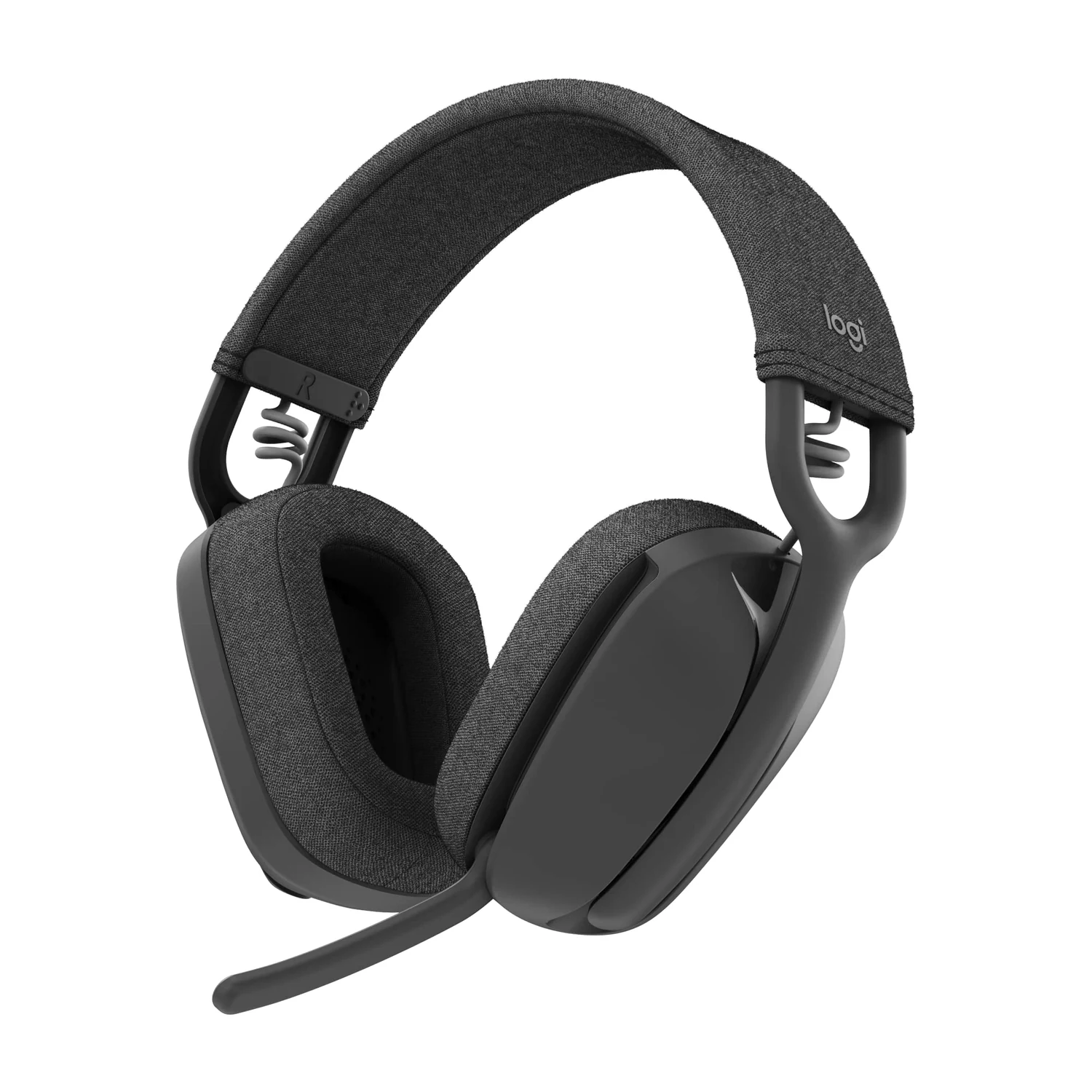 Product view
Zone Vibe 100 · Graphite · Bluetooth
1. Logitech Zone Vibe 100: prioritize the call controls
The graphite Zone Vibe 100 has a fabric-covered headband, fabric cushions and a boom microphone that flips up to mute. Its listed weight is 185 g. Those are practical characteristics to evaluate if long calls make a heavier headphone or an awkward software mute routine tiresome.
The important distinction is noise control. A noise-reducing microphone concerns the signal sent to the call; it does not mean the earcups actively cancel the room around the listener. Choose this model for its meeting-oriented arrangement rather than assuming it will create a silent space beside a loud conversation.
Logitech rates it for up to twenty hours of listening or eighteen hours of talk time. Treat those as specified maximums, with actual use affected by settings and conditions. Check fit over a normal meeting block, including glasses if you wear them. Confirm how the physical mute action and Bluetooth switching behave in the actual app, then decide whether convenience outweighs the lack of listening ANC.
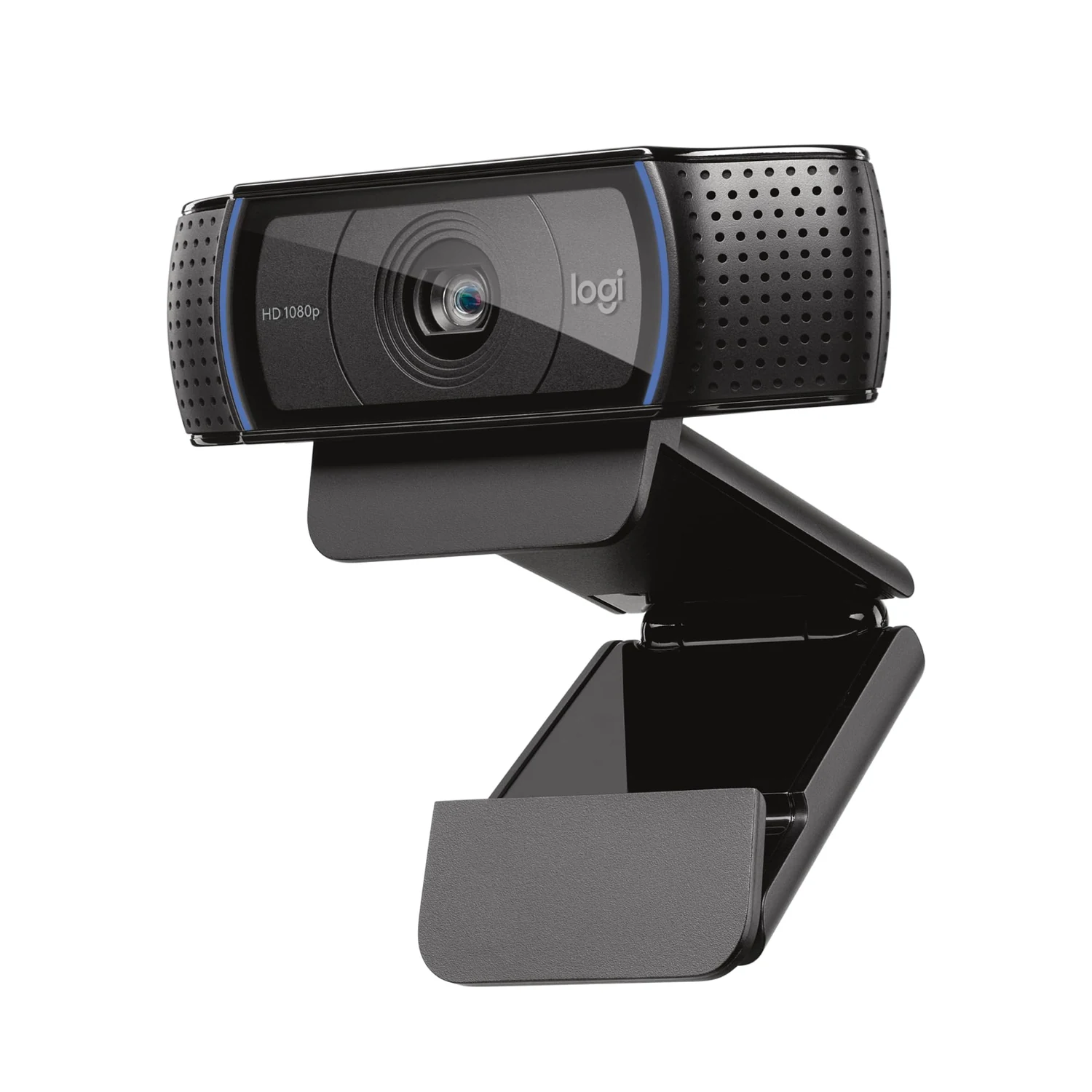 Product view
C920x · Black · 1080p at 30 fps
2. Logitech C920x: put the camera where the conversation happens
The C920x offers autofocus and video up to 1080p at 30 frames per second, with two built-in microphones. In this kit, its most useful contribution is flexible placement above the main conversation screen. The headset remains the preferred microphone to evaluate rather than assuming the camera's microphones should always handle speech.
Mount the clip securely on a suitable screen and frame the picture in the call app. Keep the camera near the part of the display you look at most often. A webcam placed above a secondary screen across the desk can give a technically sharp picture while making every conversation look distracted.
Do not confuse this listing with C920S or assume a physical privacy shutter is included. Check the package, computer connection and support requirements. Before considering a higher-resolution replacement, improve the light on your face and inspect what the meeting service actually transmits. Application limits, bandwidth and lighting can matter more than the number on the camera box.
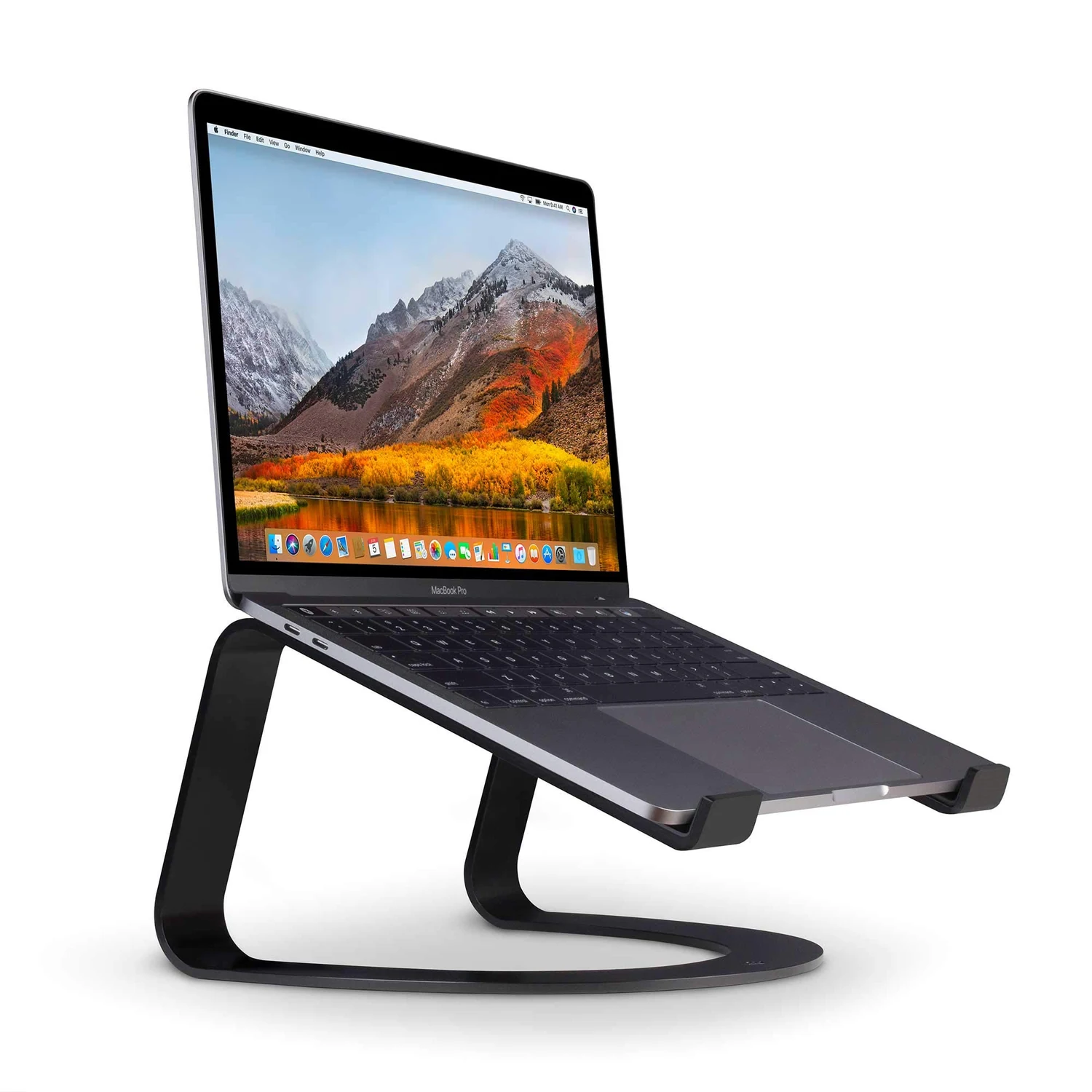 Product view
Curve · Fixed height · Matte Black
3. Twelve South Curve: give the laptop a defined secondary role
The original matte-black Curve is a fixed-height stand for a supported laptop. It works best here when the laptop holds notes, a reference document or a calendar while the external screen carries the conversation. An external keyboard and mouse let the computer sit higher without turning the raised keyboard into the main typing surface.
Placement matters more than visual symmetry. Keep notes close enough to the camera direction that checking them does not require a large turn. If the laptop screen is not helping the meeting, move unnecessary windows away rather than filling every display simply because it exists.
The stand is not adjustable Curve Flex, and it will not automatically create the correct camera height. Check the laptop's supported size and weight, the stand's footprint and cable reach. Put the computer securely on the padded arms, leave ventilation clear, and use the webcam's own secure mount. The useful purchase is a stable position that suits this desk, not a generic promise of better posture.
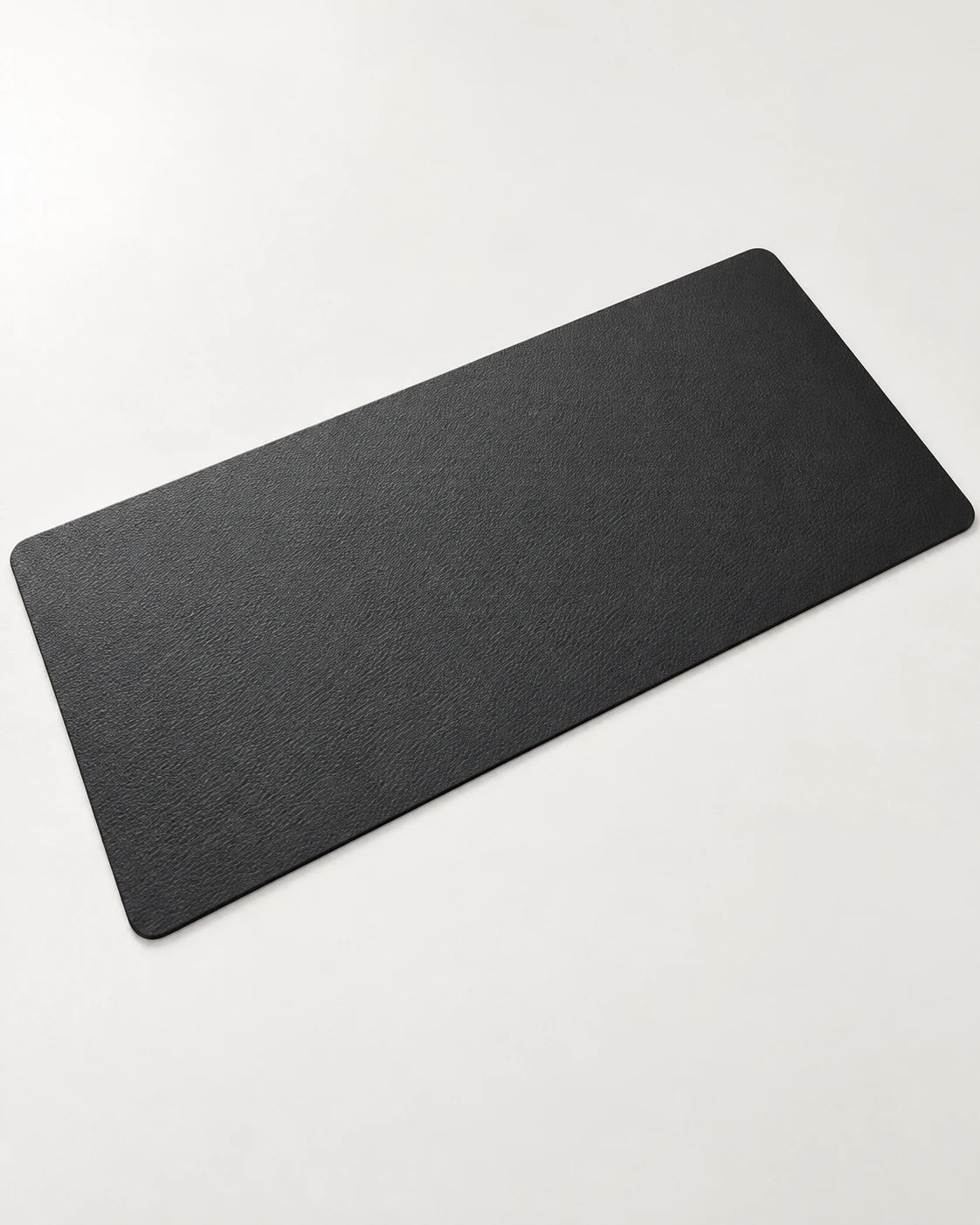 Product view
Black · 31.5 × 15.7 in / 800 × 400 mm
4. Aothia desk pad: keep the controls and notebook within reach
The Black 31.5 × 15.7 inch Aothia pad supplies roughly an 800 × 400 mm working area. Its PU faux-leather surface is intended as a broad desk and writing surface. It can give a compact keyboard, mouse and occasional notes a shared place without making the whole desk feel like equipment storage.
Leave the webcam cable and USB hub outside the main mouse path. Put the notebook where you can reach it without knocking the phone or touching a microphone control accidentally. These are modest layout choices, but they matter more during an active conversation than a perfectly matched accessory color.
Confirm the pad's feel with your mouse and desktop. Grip can vary, and people who prefer cloth may find a PU surface different under the hand. Follow the maker's care guidance and keep liquids away from the electronics. The pad is not a bundled keyboard, mouse or notebook purchase; keep those existing items if they already work well.
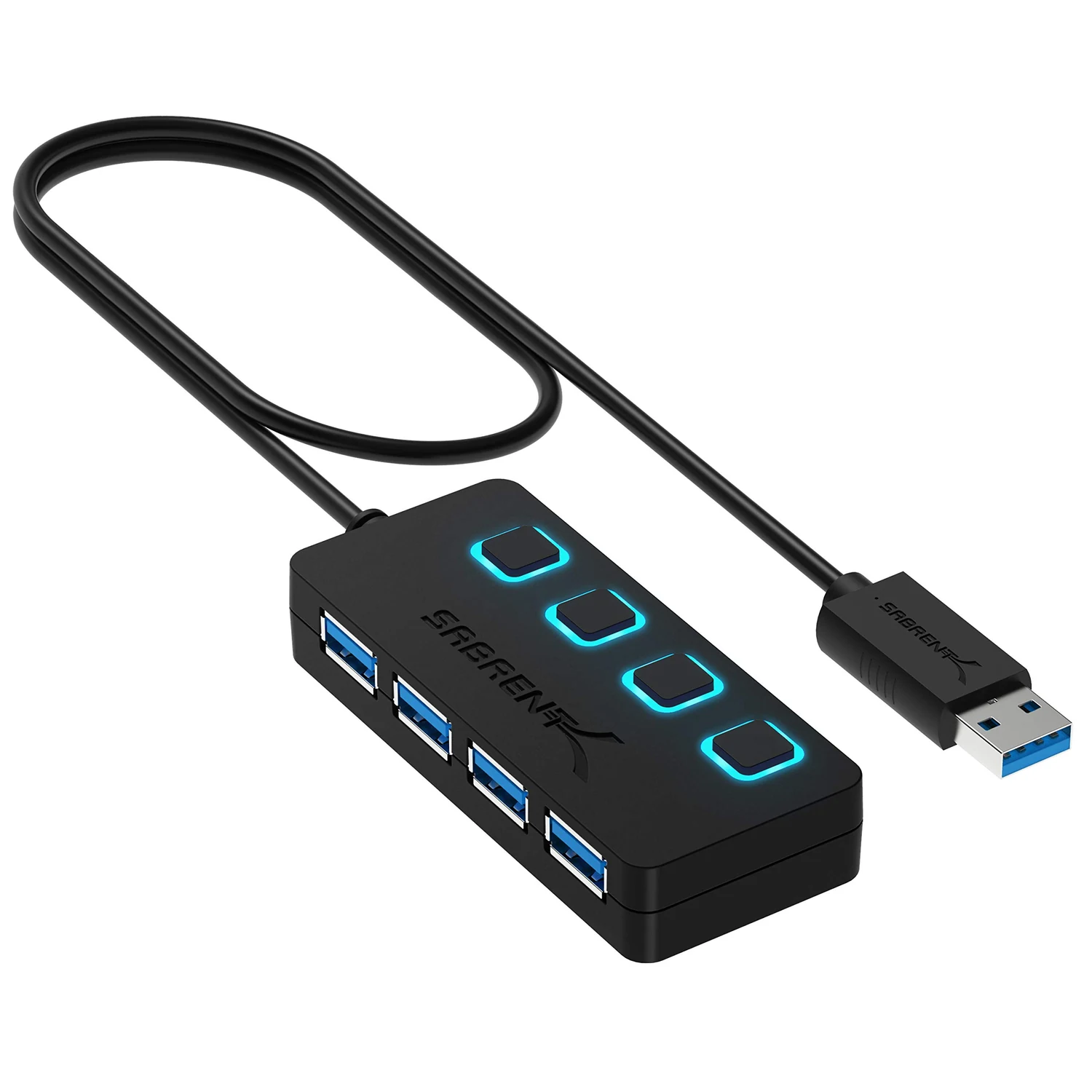 Product view
HB-UM43 · USB-A · Black · 2 ft cable
5. SABRENT HB-UM43: convenient USB access, within a shared connection
The black two-foot HB-UM43 adds four USB-A data ports with individual switches and indicator lights. It is useful when the computer's ports are difficult to reach or a simple desk peripheral needs a convenient connection point. It does not improve the Bluetooth radio used by the headset.
Its ports share the upstream connection and available bus power. Four sockets do not create four independent full-speed host connections. A webcam and ordinary input devices may be a reasonable arrangement to evaluate, but avoid adding several power-hungry drives and assuming the hub can supply them all.
For a critical call, test the camera through the intended connection path beforehand. If it behaves poorly through a crowded hub, simplify the path and check the device requirements. Do not use an individual power switch on storage before ejecting the drive in the operating system. Treat the switches as controls to use deliberately, not buttons to experiment with in the middle of a meeting.
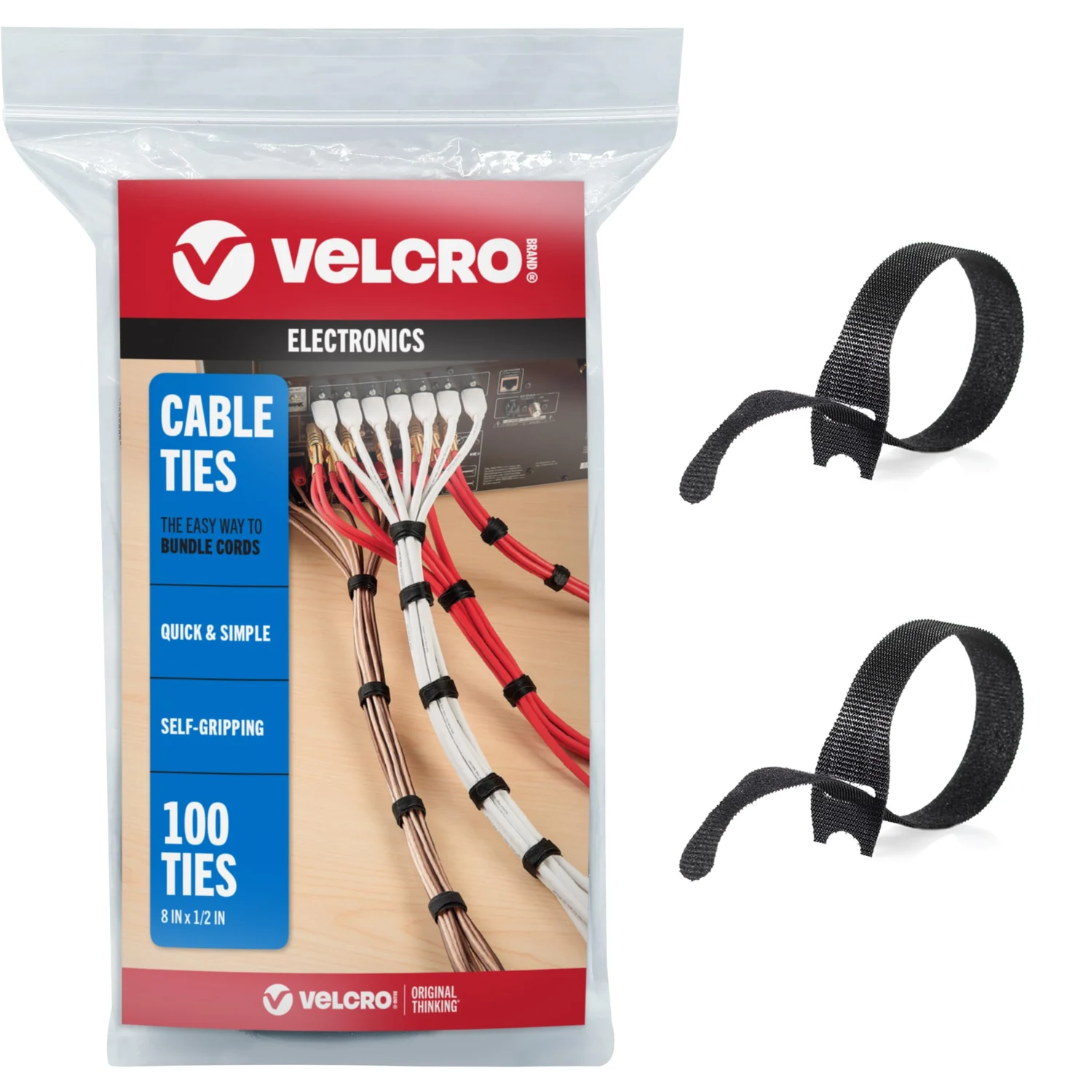 Product view
Black · 8 × 1/2 in · 100-pack
6. ONE-WRAP: keep camera adjustments from pulling on a cable
A webcam cable needs enough slack to let you adjust the frame and move the display within its intended range. Reusable ONE-WRAP ties can gather the remaining length without making every adjustment a struggle. The selected black eight-inch by half-inch pack contains thin, reusable hook-and-loop ties.
Leave the camera lead easy to identify. If the headset charging lead, keyboard cable and camera cable form one tight bundle, it becomes harder to remove the correct item or reposition the screen. Keep the parts you regularly unplug separate from the connections that stay put.
Use a light, serviceable arrangement and follow the cables' handling guidance. The ties do not hold the webcam in place or support equipment hanging under the desk. Their useful contribution is quieter maintenance: you can change the camera position, disconnect one device and put the desk back together without cutting fasteners or pulling against a connector.
Fix the picture with position and light
Try facing a soft source of light rather than sitting with a bright window directly behind you. Check reflections in glasses and avoid positioning a strong light where it is uncomfortable to look. Make changes while watching the meeting app's preview, because the camera and service may adjust exposure differently from the way the room looks to your eyes.
Place the camera at a useful conversation height and frame the head and upper body with some breathing room. A wide room view may be unnecessary if it makes the person too small. Check the background for ordinary distractions before buying equipment intended to blur or replace it.
A desk light and a face light have different jobs. A light bar that helps illuminate a notebook does not automatically light a face effectively. Our monitor light-bar and desk-lamp guide can help if the problem is task lighting rather than call framing.
A practical call check before the return window ends
Use the actual meeting application and select the C920x picture, Zone Vibe microphone and intended speaker output. Record a short sample if the app or operating system provides a suitable private test. Speak normally, type briefly, and listen back for the sounds that are present in your room. Do not judge only by the microphone's product name.
Raise and lower the boom, confirm the expected mute behavior, and check how the app indicates it. Then allow the computer to sleep and reconnect. Pair the phone only if you intend to use multipoint, and check what happens when that phone receives an ordinary call or notification.
Finally, check camera stability, lighting at the usual meeting time and headset comfort over a realistic session. If the recurring problem remains, identify which part failed before adding another accessory. A useful acceptance routine gives the purchase a fair trial while the seller's return options are still available.
When this is not the right six-piece kit
If you need strong listening isolation from steady background noise, compare an ANC option such as Space One with the call-first headset. If you move constantly between a commute and short phone calls, P40i earbuds may be a more portable starting point. Neither choice automatically guarantees a better microphone in every room.
If the computer is managed and Bluetooth behavior is unreliable, ask IT about a supported wired or receiver-based headset before buying. A person with an already good webcam may only need better placement and light. Read our headphones and earbuds guide to separate listening preference from the specific microphone requirement.
Questions about a home-office video-call setup
Does the Zone Vibe 100 block the room with ANC?
No. Its microphone noise reduction and the listening experience are different features. This model does not provide active noise cancellation in the earcups.
Should I use the webcam microphone and headset together?
Choose the intended microphone explicitly in the app. The camera can supply the picture while the headset supplies speech and listening; test that combination instead of assuming automatic selection is correct.
Will a 4K camera immediately improve my meetings?
Not necessarily. Lighting, framing, application limits and network conditions can restrict what other people see. Check those factors before paying for higher capture resolution.
Does the USB hub make the Bluetooth headset more reliable?
The HB-UM43 is a USB data hub, not a Bluetooth receiver. Evaluate the computer's Bluetooth connection and the exact headset's supported setup separately.
Research and the final recommendation
This assessment uses Logitech's Zone Vibe 100 specifications and the selected C920x listing, plus the exact Curve, Aothia, SABRENT and ONE-WRAP model references. It is a documented buying assessment, with practical checks for the owner to perform. Choose the headset and camera only if they address the observed call problem, keep existing accessories that work, and verify the seller's current bundle and return terms before ordering.
- Logitech Zone Vibe 100 information
- C920x exact model listing
- Microsoft Bluetooth Classic Audio
- SABRENT HB-UM43 information
- Twelve South original Curve
- Aothia desk-pad material and sizes
The next good question
Keep exploring.
 Read the story ↗
USB-C Laptop Desk Setup: A Practical Six-Piece Kit
One screen, fewer loose connections and six clearly defined jobs. Start with the laptop's limits, then buy only the pieces your desk is missing.
 Read the story ↗
Home Office Desk Accessories for Focus: Six Picks Explained
Choose one audio format, give charging a routine and keep room for the mouse. A quiet-looking desk is useful when the arrangement also fits the way you work.
 Read the story ↗
Minimalist Desk Setup Essentials: 7 Useful Upgrades
Seven practical upgrades, matched to a real desk problem—with the compromises left in.