Desk & tech / A closer look
Trackball vs Mouse: Does the Logitech MX Ergo S Make Sense for Work?
A mouse that barely moves sounds like a contradiction. On the right desk, that is exactly the point.
Start here
The useful answer
As an Amazon Associate, we earn from qualifying purchases. How our links work ↗
The useful answer
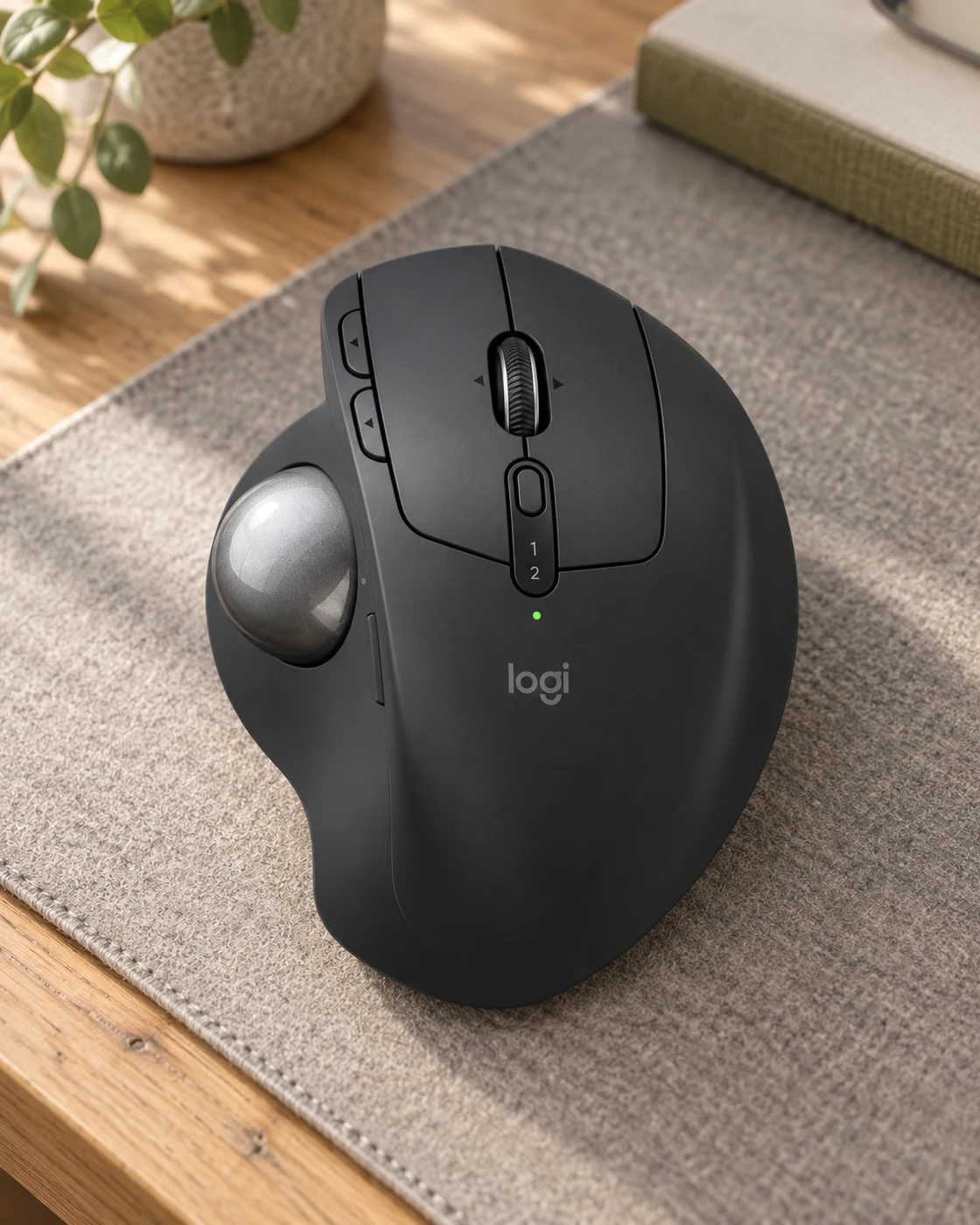
A trackball moves the pointer by rotating a ball while its base stays still. The right-handed MX Ergo S can suit a restricted workspace or an experienced thumb-trackball user, but it takes practice and is not a guaranteed solution for discomfort. Check hand fit and software access first.
| Question | Trackball route | Conventional mouse route |
|---|---|---|
| How does the pointer move? | Rotate the ball | Move the device across a surface |
| Desk-space demand | A stable footprint with little travel | Enough clear surface for repeated movement |
| Learning curve | A new thumb-control habit for many users | Usually familiar |
| Important fit check | Handedness, reach and button access | Grip, reach and available movement space |
A conventional mouse asks for a little journey every time you move the pointer. Across the desk, back toward the keyboard, perhaps lifted and repositioned when the edge arrives. A trackball makes a different proposal: leave the device where it is and move a ball instead. For someone who has never used one, that can sound either wonderfully sensible or slightly suspicious.
The Logitech MX Ergo S is a useful way into that conversation because it represents a specific kind of trackball: a right-handed, thumb-operated device. It should not stand in for every trackball or every ergonomic mouse. This guide explains the change in routine, who might benefit from trying it and what to check before buying. It is researched practical analysis, not a claim that we measured productivity or treated an injury.
The difference is where the movement happens
With a conventional mouse, moving the whole device changes the pointer position. With a trackball, the base remains largely in place while the ball rotates. That is the central idea. It can change the amount of clear desk surface you need and the control habit your hand learns, without changing the basic computer tasks you are trying to perform.
The distinction is useful because marketing language can make the choice sound more mysterious than it is. You are not buying an entirely different way to use a computer. You are choosing how to produce pointer movement. Whether that feels better depends on your hand, tasks and willingness to learn. A product category can offer a practical alternative without needing to be the correct answer for everybody.
What the MX Ergo S actually represents
Logitech describes the MX Ergo S as a thumb-controlled wireless trackball with a 20-degree tilt option, quiet clicks, USB-C charging and customizable controls through compatible software. It recommends the sculpted design particularly for medium-to-large hands. These are manufacturer descriptions, not our measurements of fit or proof that the device will suit every person in that range.
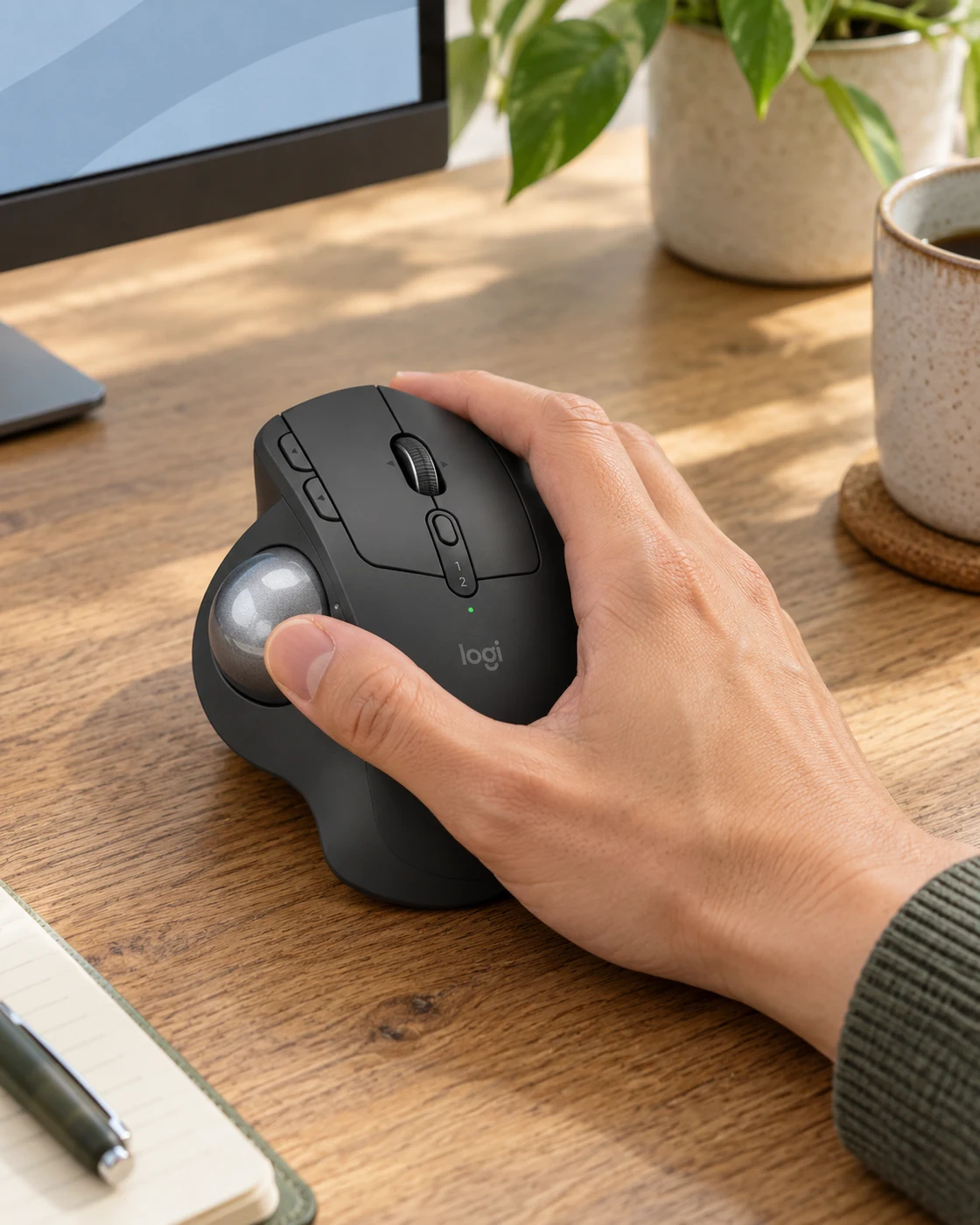
The important word is thumb. A finger-operated trackball distributes control differently and can feel like another category entirely. If you read an enthusiastic review of one style, do not assume it transfers directly to the other. Begin with the physical layout of the specific device you are considering, then think about how your hand would reach the ball, scroll wheel and buttons during a normal task.
A small desk is a clear reason to investigate
Perhaps your mouse area is squeezed between a keyboard and the edge of the desk. Perhaps a large keyboard has pushed the pointer device far to one side. A stationary input device may help with the first problem, but the second deserves a wider look at the layout. The fact that a trackball does not travel does not mean it belongs anywhere you can physically squeeze it.
Measure the available space and leave room for your hand, not just the plastic shell. Think about forearm support, access to the keyboard and whether a drink or notebook repeatedly occupies the same area. A restricted desk can make the category interesting, but a comfortable placement is still necessary. Do not buy a new input method merely to preserve a layout that should be rearranged first.
Your thumb needs time to become a pointer controller
The first few minutes with a trackball can feel clumsy because the movement is unfamiliar. Overshooting a small target does not automatically mean the product is defective or the category is unsuitable. It means you are learning a different control relationship. That does not obligate you to keep practicing indefinitely if it feels wrong, but it argues against judging everything from one hurried attempt.
Start with ordinary navigation rather than your most demanding task. Open folders, move between windows and select text. Keep the pointer settings stable long enough to learn what they do. If you change speed constantly, you may end up learning several different relationships at once. Give the experiment a defined period within the applicable return terms, and keep your familiar mouse available for work that cannot wait.
Precision is a task question, not a slogan
Selecting a small spreadsheet cell, placing an editing point on a timeline and moving across several large displays are different pointer tasks. A device can feel convenient for one and awkward for another. Ask what you actually do most often. A general claim that a trackball is precise does not tell you whether your particular combination of movement and selection will feel natural.
Try a few representative tasks and note specific difficulties. Are you overshooting, struggling to stop the ball or reaching awkwardly for a modifier key? Those observations suggest different adjustments or a different product. They are more useful than deciding that you are simply bad at trackballs. A good evaluation tells you what the device changes in your work, not whether you passed a new-input-device test.
A vertical mouse is a different alternative
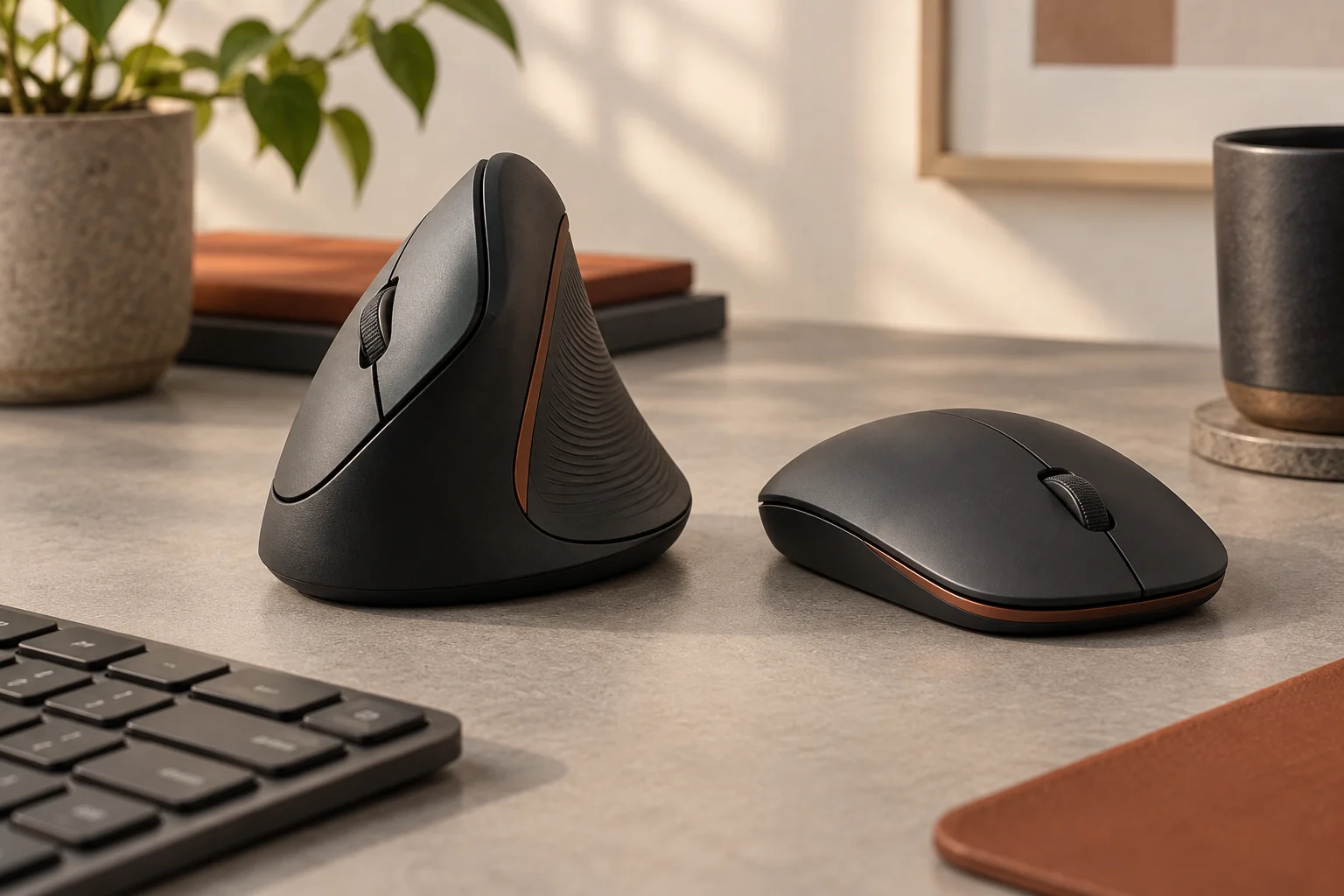
The Logitech Lift already in our collection belongs to another route: a mouse with a different grip orientation that still moves across a surface. It should not be presented as the same thing as a trackball. Someone may prefer one, the other or a conventional mouse depending on fit and task. Similar ergonomic language does not erase the physical differences.
If your main problem is available travel space, the stationary nature of a trackball is directly relevant. If you mainly want to investigate a different grip, a vertical mouse may be worth comparing. Our vertical-mouse guide covers that separate decision. The useful shortlist starts with the change you want, rather than buying whichever product uses the most reassuring category name.
Do not buy a medical outcome from a product photograph
Input devices are often sold through comfort claims. Some may suit a user very well, but personal discomfort cannot be solved reliably by assuming one shape is universally correct. We are not recommending a trackball as treatment or promising that changing a pointer device will resolve pain. The hand, workstation, work habits and individual circumstances all deserve appropriate attention.
For buying purposes, notice whether the layout encourages a position you can use comfortably without strain or awkward reach. If using any device causes discomfort, stop and reconsider rather than forcing a long adaptation period to justify the purchase. Persistent symptoms need an appropriate professional assessment. A sensible product comparison should reduce uncertainty, not turn a manufacturer’s marketing statement into a personal health guarantee.
Handedness and hand size are not small details
The MX Ergo S is shaped around right-handed thumb control. A left-handed reader should not be persuaded to buy it simply because a review praises the category. Likewise, a hand that struggles to reach a control has a real fit problem even if the product is otherwise well made. A specification sheet can narrow the question but cannot perform the fit check for you.
If possible, place your hand on the device before buying. Can you reach the main buttons and scroll without shifting into an awkward position? Does the ball fall where your thumb can use it naturally? If shopping online, use the dimensions and return conditions to plan a careful assessment. Do not remove fit from the decision because the product has an impressive list of features.
Connectivity and charging are separate questions
A charging port is not the same thing as a wired pointing connection. Product pages can place several technical details close together, so read what each one actually describes. Confirm the wireless methods, receiver contents, compatible operating systems and any software requirements for the exact version. Do not assume that a cable you already own turns every rechargeable device into a wired mouse.
Work computers add another condition: installation rights. If your employer controls software and wireless-device policies, check before buying for office use. A basic pointing function and a customized shortcut may have different requirements. It is better to learn that a feature needs approval before the return window closes. The product can be perfectly functional while still being unsuitable for a restricted computer environment.
Custom buttons are useful when the task is repeatable
A spare button becomes valuable when it replaces something you do often and can define clearly. Navigation, a familiar shortcut or an application-specific action can be worth investigating. Filling every control because it exists is less useful. A small number of stable, memorable assignments often helps more than a crowded setup that changes each week.
Start with one action and live with it. Name the task, choose the control and confirm what happens in the applications you use. Be careful about shortcuts that have different meanings in different windows. If an assignment repeatedly surprises you, simplify it. The aim is to reduce friction in a known routine, not to build a configuration elaborate enough to become a second hobby unless that is what you enjoy.
Cleaning belongs in the ownership plan
A ball-operated device has a physical interface that should be maintained according to its instructions. Check how the manufacturer says to clean the ball and supporting surfaces. Do not improvise with harsh chemicals, lubricants or tools because an online comment claims an instant improvement. A small maintenance task is much easier when you know the intended method.
If movement changes over time, inspect the documented maintenance route before changing every software setting. Note whether the problem occurs consistently or only in one application. A clear record helps distinguish a physical issue from a configuration change. This is the same principle as monitor troubleshooting: change one variable at a time, and keep enough information to understand what actually improved the result.
The keyboard can quietly decide how the mouse feels
A full-size keyboard with a number pad can be useful for data entry, but it also occupies width. If it pushes your pointing device far away, the complete arrangement deserves attention. The MX Keys S is in our Shop for people who want that full layout, not as an automatic companion every trackball buyer should add.
Try moving the keyboard and pointer before ordering new hardware. Keep the tasks you use most close enough to reach naturally. If you rarely use a number pad, a different keyboard layout may create more useful room than replacing the mouse alone. If you use the pad constantly, a stationary device may be a more relevant compromise. The point is to assess the whole working area rather than each product in isolation.
Three reasons to pass
Pass if the handedness is wrong, the controls are difficult to reach or your main task feels worse after a fair trial. Also reconsider if your computer cannot support the features you actually need. These are meaningful reasons to choose something else, not failures of patience or enthusiasm. A good tool should fit the work rather than require you to defend it.
You may also simply prefer a familiar mouse. That is enough. Novelty can be fun, but a desk does not improve automatically when every object becomes more unusual. If your current device works well and the available space is comfortable, the strongest purchase decision may be to keep it. Save the budget for a problem you can describe without looking at a product advertisement.
A fair first-week experiment
Before changing anything, write down the specific reason you wanted a trackball. During the trial, use a small set of representative tasks and note what becomes easier or harder. Keep major pointer settings consistent, follow the setup instructions and check comfort without forcing long sessions. Your notes should describe outcomes, not merely whether the device feels new.
At the end of the planned period, return to the original brief. Has the space problem improved? Can you complete normal work without thinking constantly about the input device? Is the fit comfortable enough to keep using? You do not need a made-up productivity percentage. A clear answer to the actual reason for buying is better evidence than an impressive number with no meaningful measurement behind it.
A stationary mouse can be a sensible change
The MX Ergo S deserves a place on a shortlist when right-handed thumb control, limited travel space and the willingness to learn align. It is less compelling when the main appeal is a vague promise that a different shape will solve every desk problem. The useful distinction is concrete: where the movement happens and whether that change suits you.
Use the product cards below to compare the exact input routes and check the current offer. Read the manufacturer’s setup guidance before committing to features that need software or a particular connection. A trackball can be an interesting return to a different computing habit. Its best result is not a desk that looks more technical, but a pointer you can control comfortably while thinking about the work instead.
The questions worth asking
Before you decide.
Is a trackball better than a mouse?
It can be better for a particular desk and user. It is a different input method, not a universal upgrade.
Will it cure wrist pain?
No product should be bought on that assumption. We are comparing input layouts, not promising a medical outcome.
Is MX Ergo S a wired USB-C mouse?
USB-C charging and the pointing connection are different questions. Confirm the manufacturer’s current connectivity details and included receiver before buying.
Featured in this guide
The next good question
Keep exploring.
 Read the story ↗
Vertical Mouse vs Traditional Mouse: A Fit-First Ergonomic Guide
A fit-first comparison of vertical and conventional mice, with a practical method for deciding whether a different grip will improve your desk.
 Read the story ↗
27-Inch 4K vs QHD Monitor for Productivity: Which Makes Sense?
At 27 inches, QHD is usually the balanced productivity choice when you want more workspace without heavy scaling or a demanding graphics connection. 4K gives finer detail and more pixels, but may require operating-system scaling and a capable computer. Choose by text comfort, apps, viewing distance and workflow—not by pixel count alone.
 Read the story ↗
IPS vs VA vs OLED for Office Monitors: Match the Panel to Your Room
For general office work, a good IPS monitor is a dependable all-rounder; VA can suit users who value contrast, while OLED delivers deep blacks and fast pixel response at a higher price and with different long-term-use considerations. Exact models matter more than panel labels. Compare measured performance, text appearance, room lighting, warranty and your workload.